
Link Your YouTube Channel: AI Training for On-Brand Thumbnails
Linking your YouTube channel trains the AI on your face, your thumbnail style and your niche, so every generation looks like your channel instead of generic AI. It takes about 30 seconds, needs no uploads if your face already appears in your thumbnails, and is the single highest-impact setting
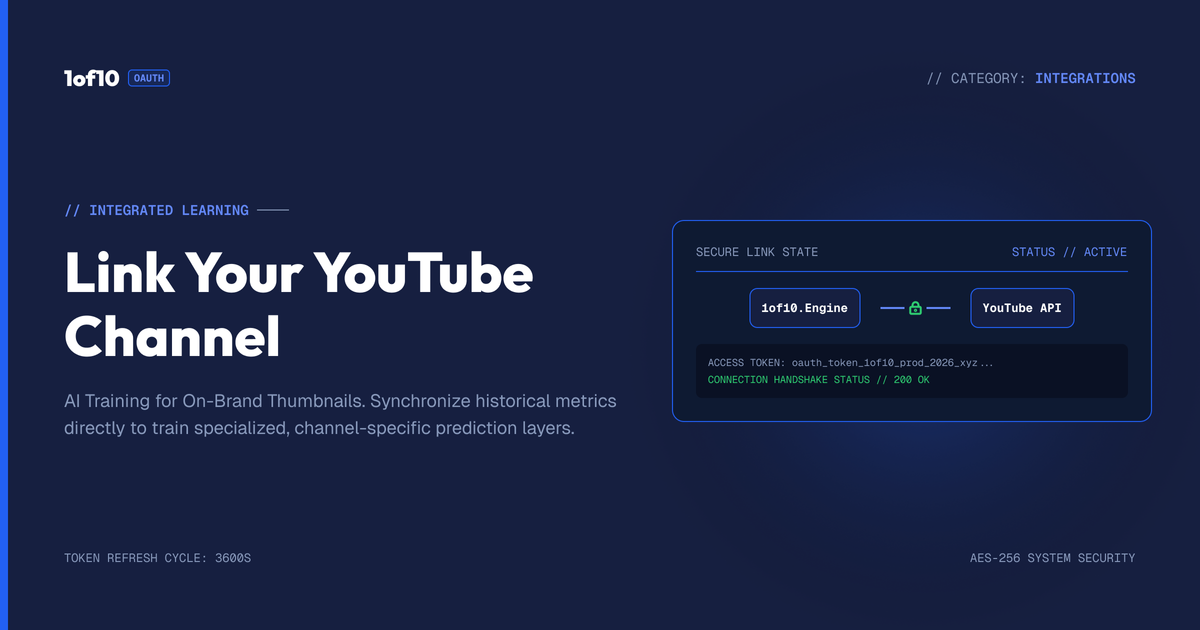
Quick answer: Linking your YouTube channel trains the AI on your face, your thumbnail style and your niche, so every generation looks like your channel instead of generic AI. It takes about 30 seconds, needs no uploads if your face already appears in your thumbnails, and is the single highest-impact setting in the tool.
Here is the fastest way to tell whether someone is new to AI thumbnails. Their results look like AI. The face is almost them but not quite. The style is generic. The thumbnail could belong to any channel in the niche, which means it belongs to none of them. Nine times out of ten the fix is one setting they skipped: linking their channel.
Inside the 1of10 Thumbnail Generator, linking your YouTube channel is the single highest-impact thing you can do before you generate anything. It is the difference between a tool that guesses and a tool that knows. This guide explains exactly what the link does, why it changes every thumbnail you make, how to set it up, and when you still need to give the AI an extra nudge.
If you have not seen the full tool yet, start with The Complete Guide to the 1of10 Thumbnail Generator. This post zooms in on the one step that everything else depends on.
What "linking your channel" actually does
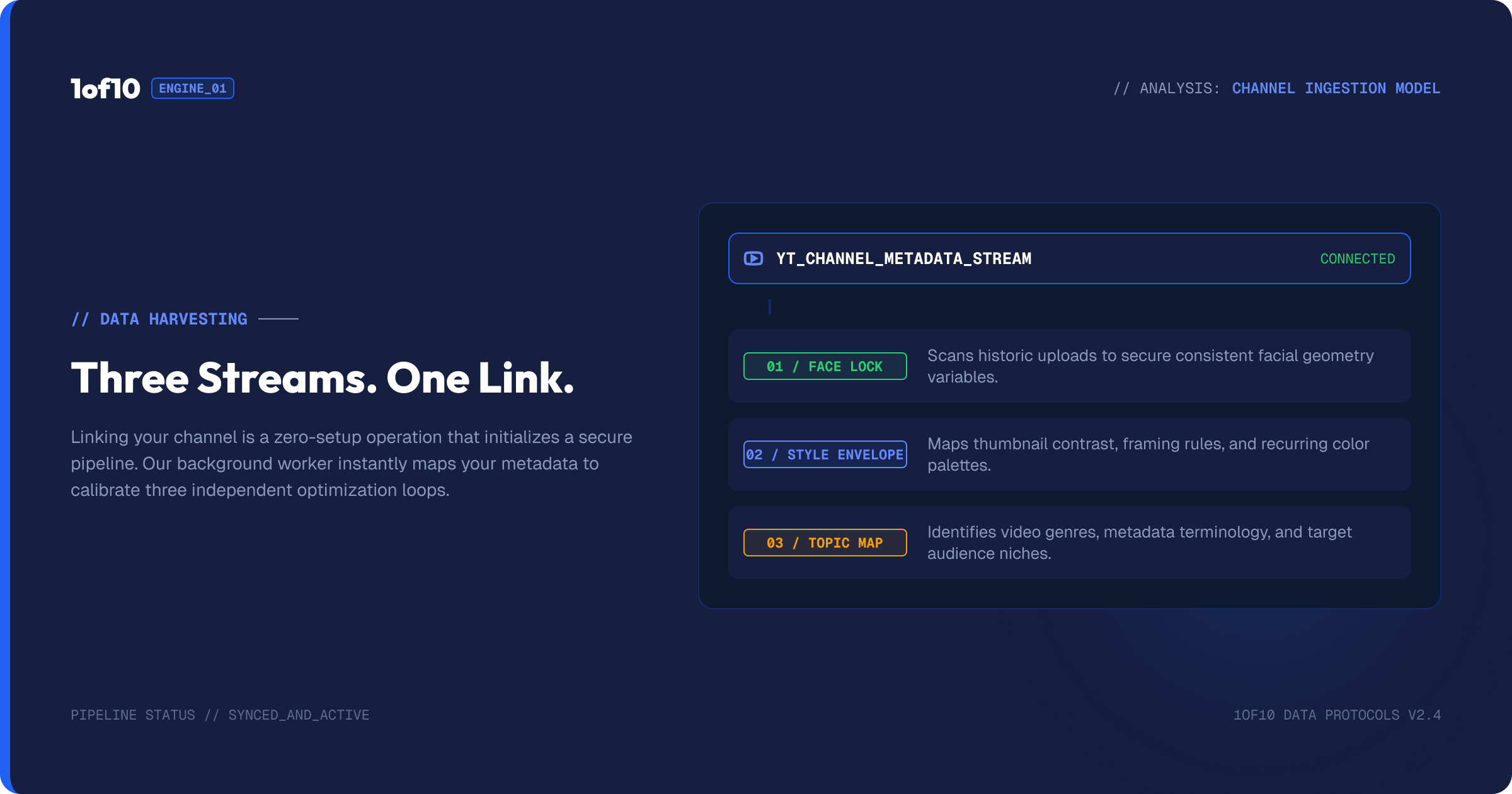
When you connect your channel, the tool does not just grab your name. It studies the channel as a body of work and pulls three things out of it.
It learns your face. Most creators appear in their own thumbnails, often in dozens of them, from different angles, in different lighting, with different expressions. That is a training set. By reading your existing thumbnails, the tool builds an understanding of what you look like, so when it generates a new thumbnail with you in it, the face is yours rather than a stranger who shares your haircut.
It learns your style. Every channel has a visual fingerprint. Bright and busy, or dark and cinematic. Heavy text or almost none. Tight face crops or wide action shots. The tool picks up on the patterns across your thumbnails and biases new generations toward them, so the output looks like it belongs on your channel instead of someone else's.
It learns your niche and audience. A thumbnail that works for a cooking channel would sink a true-crime channel. By understanding what your channel is about and who watches it, the tool makes choices that fit the people you are actually trying to reach.
Put together, those three inputs move the starting point. Without the link, the tool begins from a blank, generic idea of a YouTuber. With it, the tool begins from you.
A worked example: the same title, linked and unlinked
Picture a challenge creator whose channel is built on their face reacting to dangerous stunts. The video is "I Survived 24 Hours in a Frozen Lake."
Run that title through the tool with no channel linked. The four thumbnails come back with a person who is the right kind of person, a fit guy in his late twenties looking cold, but he is not the creator. The lighting is generic, the style is whatever the model defaulted to, and the framing does not match the channel's usual tight, high-contrast look. To get anywhere near usable, the creator now writes a longer prompt describing themselves, regenerates, uploads a face, regenerates again, and slowly drags the output toward their channel. Three or four generations in, they have something workable. That is 60 to 80 credits spent fighting the tool.
Now link the channel and run the exact same title. The four thumbnails come back with the creator's actual face, in the channel's high-contrast style, framed the way their audience already recognises. The first batch is usable. The creator spends their remaining credits refining the composition, the part that actually lifts click-through rate, instead of re-establishing who they are. Same title, same tool, completely different starting line. That gap is the channel link.
What linking does not do
It is worth being clear about the boundaries, because "connect your channel" makes some creators nervous. Linking your channel does not post anything to it, does not change your existing videos or thumbnails, and does not hand control of your channel to the tool. It is a one-way read: the tool looks at your public thumbnails and channel topic to understand your face and style, and that understanding shapes the thumbnails you generate. Nothing goes the other direction without you downloading a thumbnail and uploading it to a video yourself. The link makes the tool smarter about you. It does not touch your channel.
Why this matters more than any prompt trick
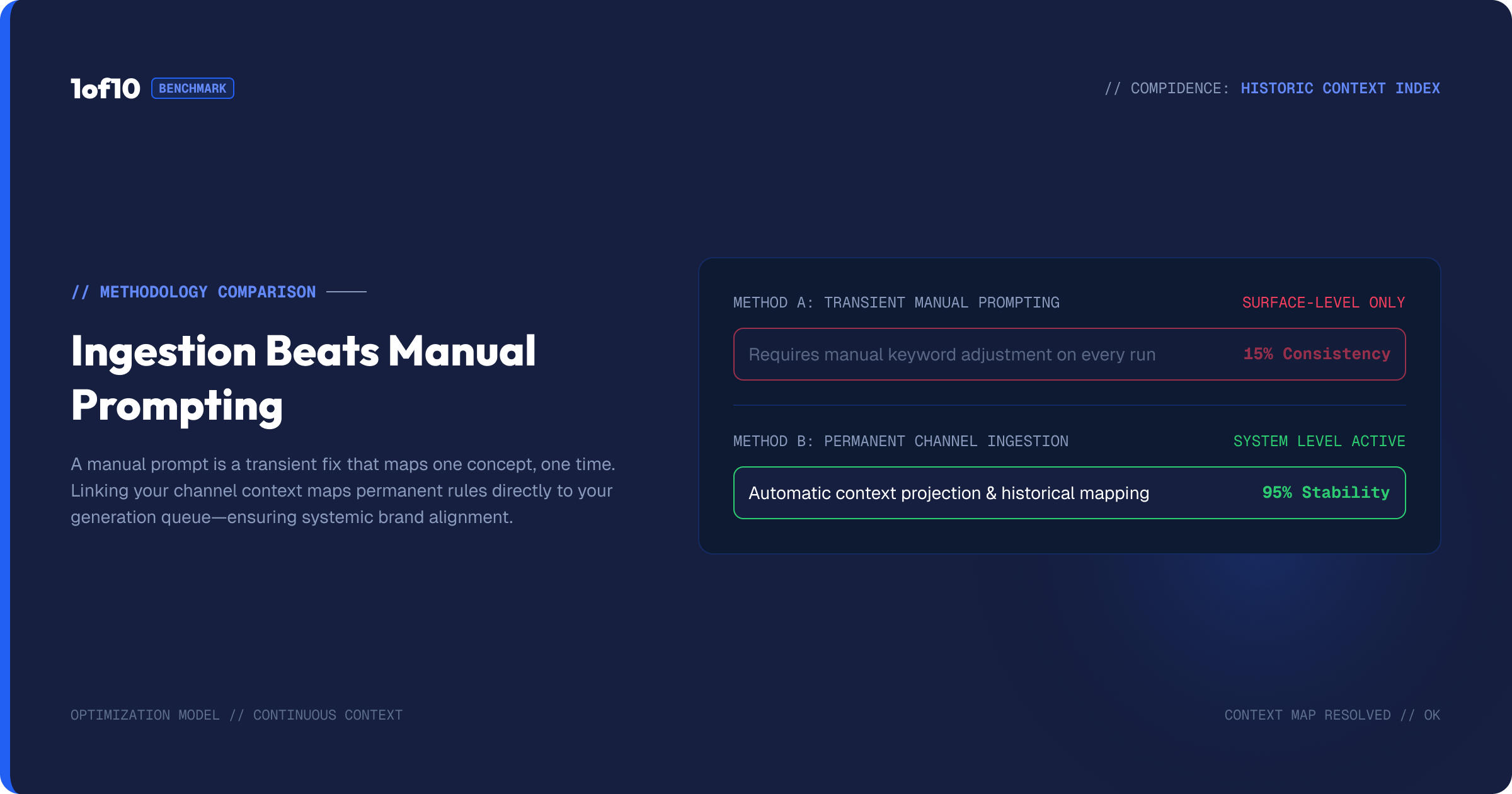
Creators love prompt hacks. They will spend an hour learning the perfect phrasing and skip the setting that does more than any phrase ever could. Here is why the link beats the prompt.
A prompt describes one thumbnail. The channel link informs every thumbnail. You can write a brilliant prompt and still get a face that is slightly off, because the tool is guessing at your likeness from words alone. Link the channel and that guesswork disappears. The face is right by default, the style is right by default, and your prompt is free to do the job it is good at: describing the specific shot you want rather than re-explaining who you are every single time.
This compounds. The more thumbnails you make on a linked channel, the more the tool's understanding of you pays off. You stop fighting for likeness and start iterating on composition, which is where the real gains in click-through rate live. For the metric itself, see YouTube CTR: What's a Good Click-Through Rate.
How to link your channel, step by step
The setup takes about thirty seconds.
- Open the channel dropdown in the top left corner of the tool.
- Start typing your channel handle.
- Select your channel and click add.
That is it. The channel is now attached, and every generation from this point is shaped around it. If you manage more than one channel, you can switch between them from the same dropdown, which matters if you run a main channel and a second channel with a different style. Each one trains the tool separately, so a thumbnail for your gaming channel will not inherit the look of your vlog channel.
Once linked, your generations also feed your history, stored in the top right of the tool. Every thumbnail you make is saved there, and you can organise them into folders when you are batching thumbnails for several videos at once.
What changes the moment you link
The clearest way to understand the link is to see the before and after.
Before linking, you type a title and the tool produces four thumbnails featuring a person who is roughly the right age and vibe but is not you. The style is whatever the model defaults to. You then spend extra generations, and extra credits, dragging the output toward your channel.
After linking, you type the same title and the four thumbnails feature you, in a style that matches your channel, aimed at your audience. You are no longer correcting for identity. You are choosing between strong options and deciding which composition to push further. That is a different and much faster job.
Because each generation with the main model costs credits, this is not only a quality difference. It is a cost difference. Fewer corrective generations means fewer credits spent per finished thumbnail.
When you still need to upload your face
Linking handles likeness most of the time. There are a few cases where you give the tool an extra hand.
Your face does not appear often on your channel. If you mostly run faceless thumbnails or gameplay shots, the tool has fewer examples to learn from. In that case, uploading face shots fills the gap.
The results are close but not quite you. Sometimes the likeness is 90% there and you want the last 10%. Uploading two clear face shots, taken from slightly different angles, sharpens it. Two angles beats one because the tool then understands the sides of your face, not just a single front-on view.
The shot is an unusual angle. If you are prompting for a dramatic side-on profile and your channel is all front-facing thumbnails, give the tool a side-on reference so it has something to work from.
The face upload lives under the plus icon in the generator, and you can read the full input workflow in Reference Images, Backgrounds and Face Uploads. If putting your own face in thumbnails is your whole approach, How to Create a YouTube Thumbnail With Your Face goes deeper, and the editor's Face Swap tool fixes a face after the fact.
Managing more than one channel
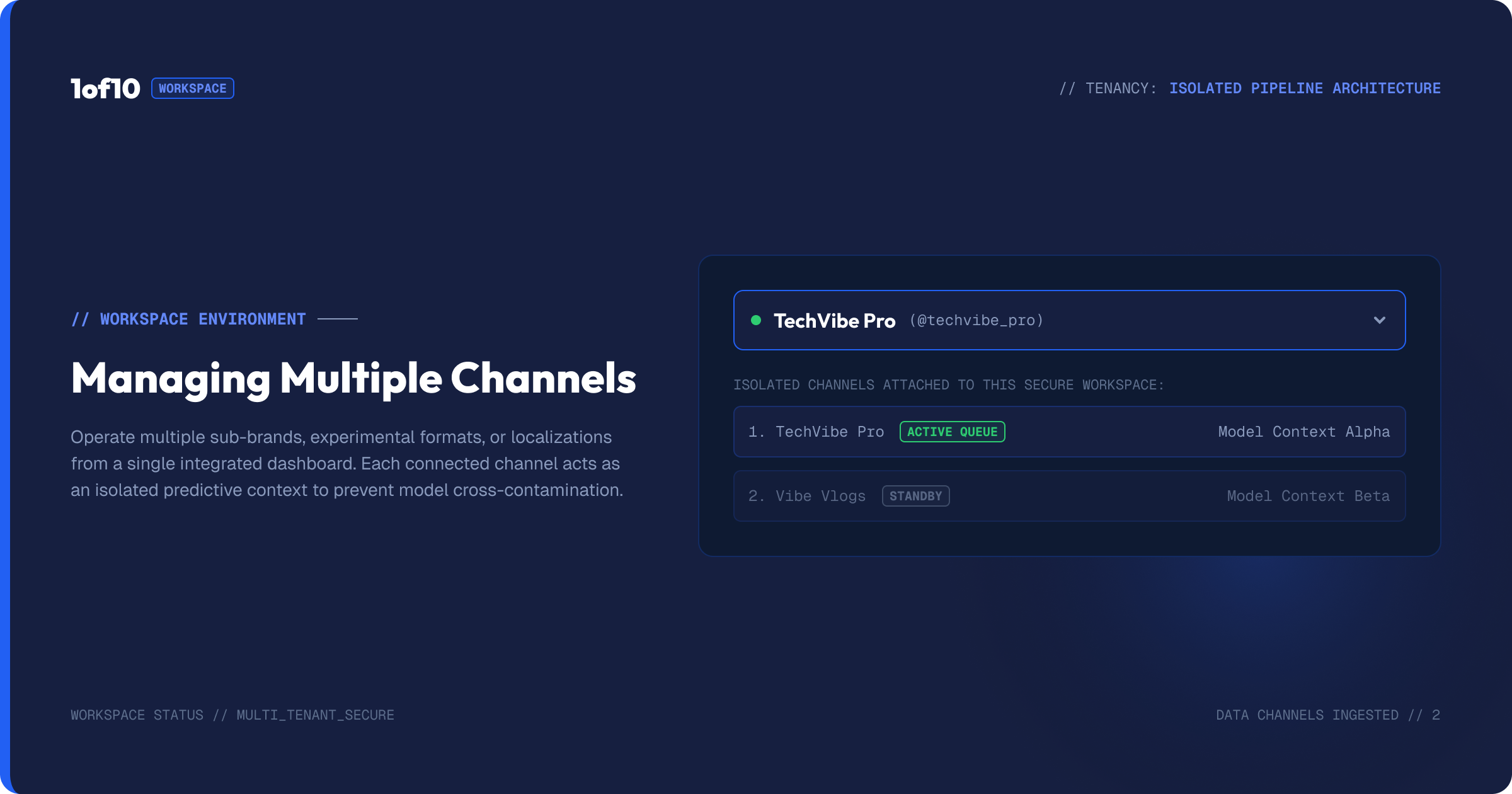
Plenty of creators run several channels: a main channel, a clips or Shorts channel, maybe a second brand in a different niche. The channel link handles this cleanly. Each channel you add trains the tool on its own face data, style, and topic, and you switch between them from the same dropdown. A thumbnail for your gaming channel pulls from your gaming thumbnails; switch to your finance channel and the tool draws on that channel's very different look instead.
The discipline here is simple: always confirm the active channel matches the video before you generate. It is an easy thing to miss, and a mismatch is one of the few ways linking can hurt you, because the tool will faithfully apply the wrong channel's style. A two-second glance at the dropdown saves a wasted batch. When you are producing thumbnails for several channels in one session, the history and folders in the top right keep each channel's work separate so nothing gets crossed.
Linking is also a model decision
Once your channel is linked, the next setting along the top is the model. Linking and model choice work together. The channel tells the tool who you are; the model decides how that gets rendered. Gen-2 leans photoreal and holds faces well, which pairs naturally with a channel built on your face. Gen-2.5 is faster and stronger on graphics. The two settings are a pair, and the full comparison is in Gen-2 vs Gen-2.5: Choosing the Right Thumbnail Model.
Where linking sits in your thumbnail workflow
Think of building a thumbnail as a sequence, and linking your channel as step zero, the thing you do once and then benefit from forever. The order that works:
First, link your channel, so the tool knows your face, style, and niche. This is a one-time setup per channel. Second, pick your model, Gen-2 or Gen-2.5, based on whether your thumbnail is face-led or graphics-led. Third, set your format for landscape or Shorts. Only then do you start prompting and generating. The first three steps take under a minute combined, and they set the foundation every generation stands on.
Creators who struggle with AI thumbnails almost always skip step zero and jump straight to prompting. They are trying to build the house before pouring the foundation, then blaming the bricks when it leans. Get the foundation right once and every thumbnail after it starts from a better place. The link is not a setting you tweak per video. It is the base layer that makes everything above it work, which is exactly why it belongs first and why it is worth the thirty seconds it takes. The rest of the build is covered step by step in The Complete Guide to the 1of10 Thumbnail Generator.
Common mistakes
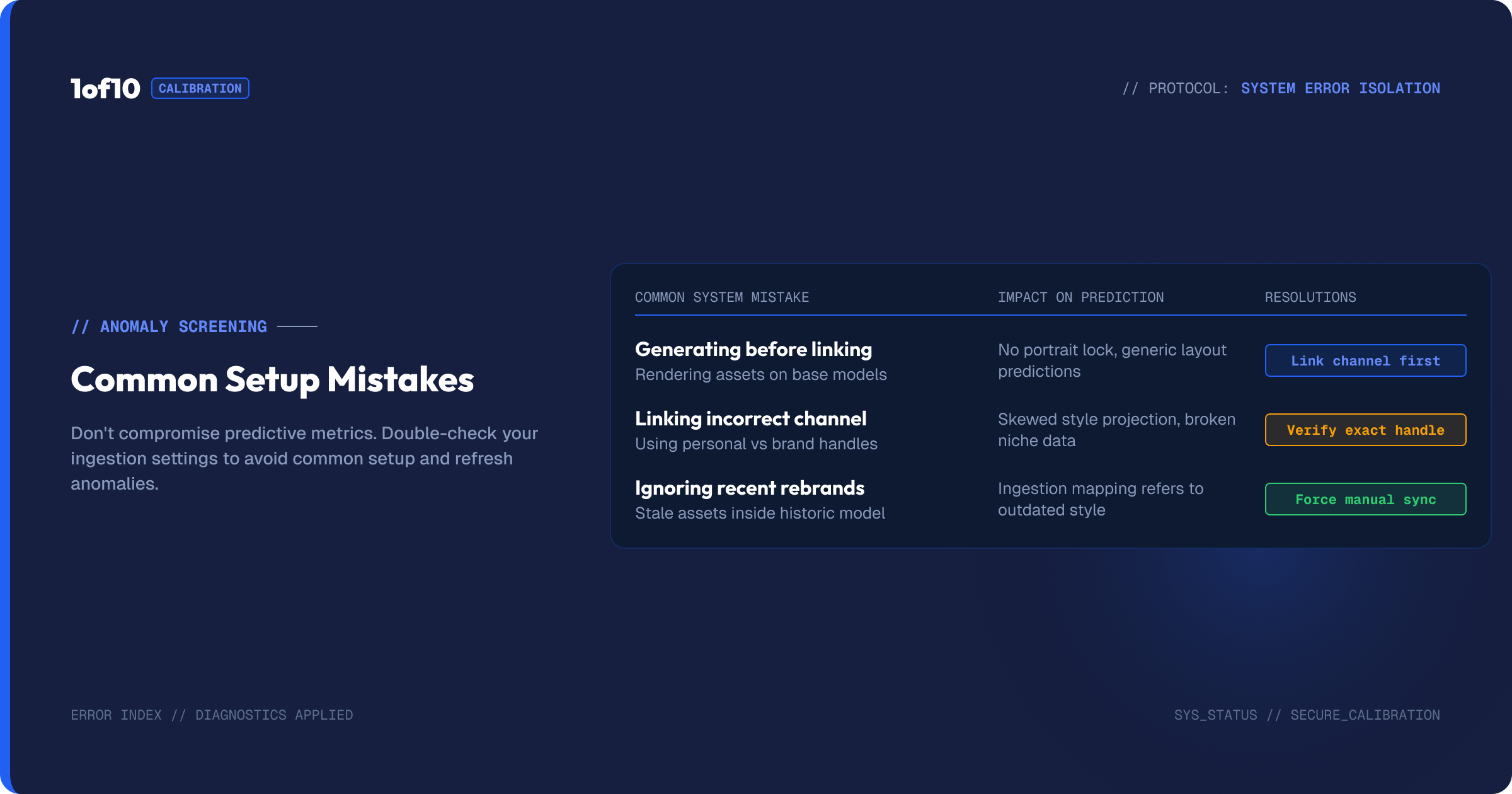
Generating before linking. The most common one. People open the tool, type a title, generate, and judge the output, all without linking. They are testing the tool at its weakest. Link first, then judge.
Linking the wrong channel. If you run several channels, make sure the active one matches the video you are making a thumbnail for. A mismatch pulls in the wrong style.
Assuming the link replaces good prompting. Linking fixes identity and style. It does not read your mind about the specific shot. You still need to describe the composition you want. See The Detailed-Prompt Method for that half of the job.
Never uploading a face when you clearly need to. If your channel has few face examples and the likeness keeps missing, stop re-rolling and upload two face shots. It is faster and cheaper than guessing.
Frequently asked questions
Does linking my YouTube channel improve AI thumbnails? Yes, significantly. Linking lets the tool learn your face, your visual style, and your niche from your existing thumbnails, so new generations look like they belong on your channel instead of generic AI output. It is the highest-impact setting in the tool.
How does the tool use my channel? It studies your existing thumbnails to understand your likeness and style, and it reads your channel topic and audience so its choices fit who you make content for. It does not post anything or change your channel.
Do I still need to upload my face after linking? Usually not, if your face already appears in your thumbnails. Upload two face shots from different angles only when your channel has few face examples, when the likeness is slightly off, or when you want an unusual angle.
Can I link more than one channel? Yes. Switch between channels from the same dropdown. Each trains the tool separately, so styles do not bleed across your channels.
Will linking change my thumbnail style automatically? It biases new thumbnails toward your existing style, but you stay in control through your prompt and the editor. The link sets a strong starting point, not a fixed template.
Does linking get better the more I use the tool? Your channel is the training source, so as your channel grows and your thumbnail style sharpens, the tool has more and better examples to learn from. The thumbnails you make also build your in-tool history, which keeps your work organised across projects.
Is linking safe? Does it post to my channel? It is a read-only connection. The tool studies your public thumbnails and channel topic to understand your face and style. It does not post, edit your videos, or change anything on your channel. The only way a thumbnail reaches YouTube is you downloading it and uploading it yourself.
My channel is new with few thumbnails. Will linking still help? It helps, but with fewer examples the tool has less to learn from. New channels should lean on face uploads (two shots, different angles) to fill the gap while the channel builds up a thumbnail library.
The takeaway
Linking your channel is thirty seconds of setup that improves every thumbnail you will ever generate. It fixes identity and style at the source, cuts the credits you waste on corrective generations, and frees your prompts to focus on composition. Do it before you generate anything, then move on to picking your model and writing the kind of detailed prompt that turns a good tool into a great thumbnail. It is thirty seconds that pays off on every thumbnail you make for as long as you run the channel, which is about the best return on thirty seconds you will find in this whole workflow. Start with the full walkthrough in The Complete Guide to the 1of10 Thumbnail Generator.