Face Swap: Lock Your Likeness (or Add a Face)
Face Swap detects the face in a finished thumbnail and maps your real likeness onto it from up to two reference shots, for 4 credits and no prompt. Match the reference angle and expression to the shot for a clean result, and use it to fix an off face or add a face to a scene that lacks one.
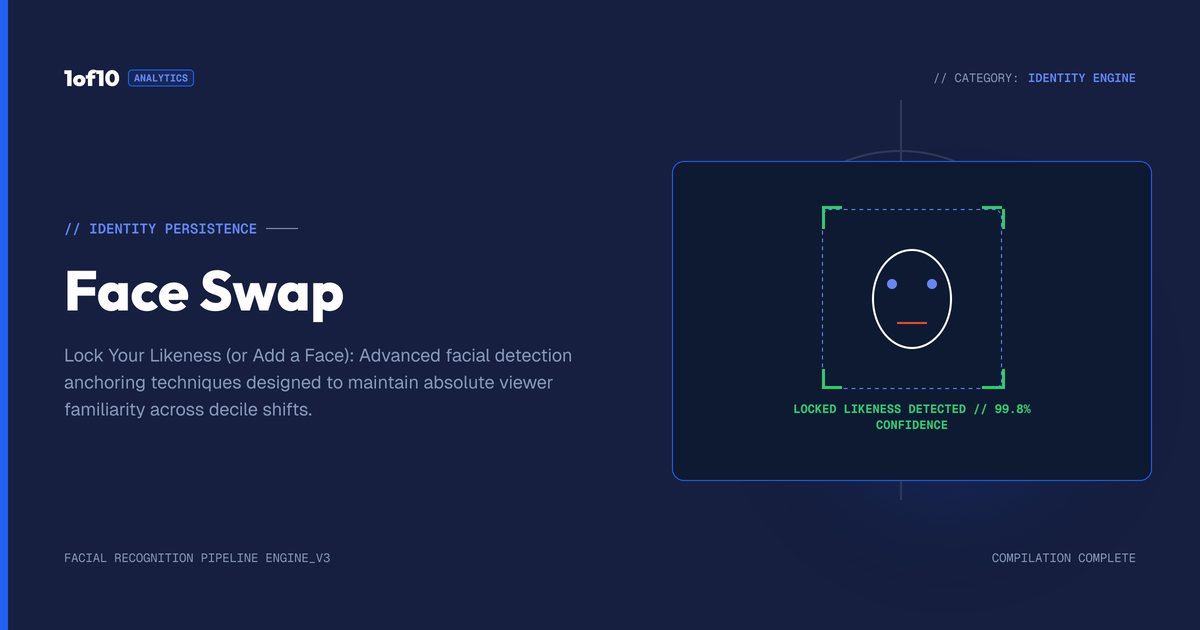
Quick answer: Face Swap detects the face in a finished thumbnail and maps your real likeness onto it from up to two reference shots, for 4 credits and no prompt. Match the reference angle and expression to the shot for a clean result, and use it to fix an off face or add a face to a scene that lacks one.
The hardest problem in AI thumbnails is the face. A thumbnail can have a perfect composition, the right action, and a great background, and still fail because the face is almost you but not quite. Viewers are wired to spot a face that is slightly off, and on a channel built around you, a wrong face breaks the trust that brings people back. Face Swap fixes this. It detects the face in your thumbnail and replaces it with your real likeness from a couple of uploaded shots, no prompt required, for 4 credits. This guide covers how to use it, the trick that makes it accurate, and how it fits with the other ways the tool handles your face.
For the full tool, see The Complete Guide to the 1of10 Thumbnail Generator. This post is about getting your face exactly right.
What Face Swap does
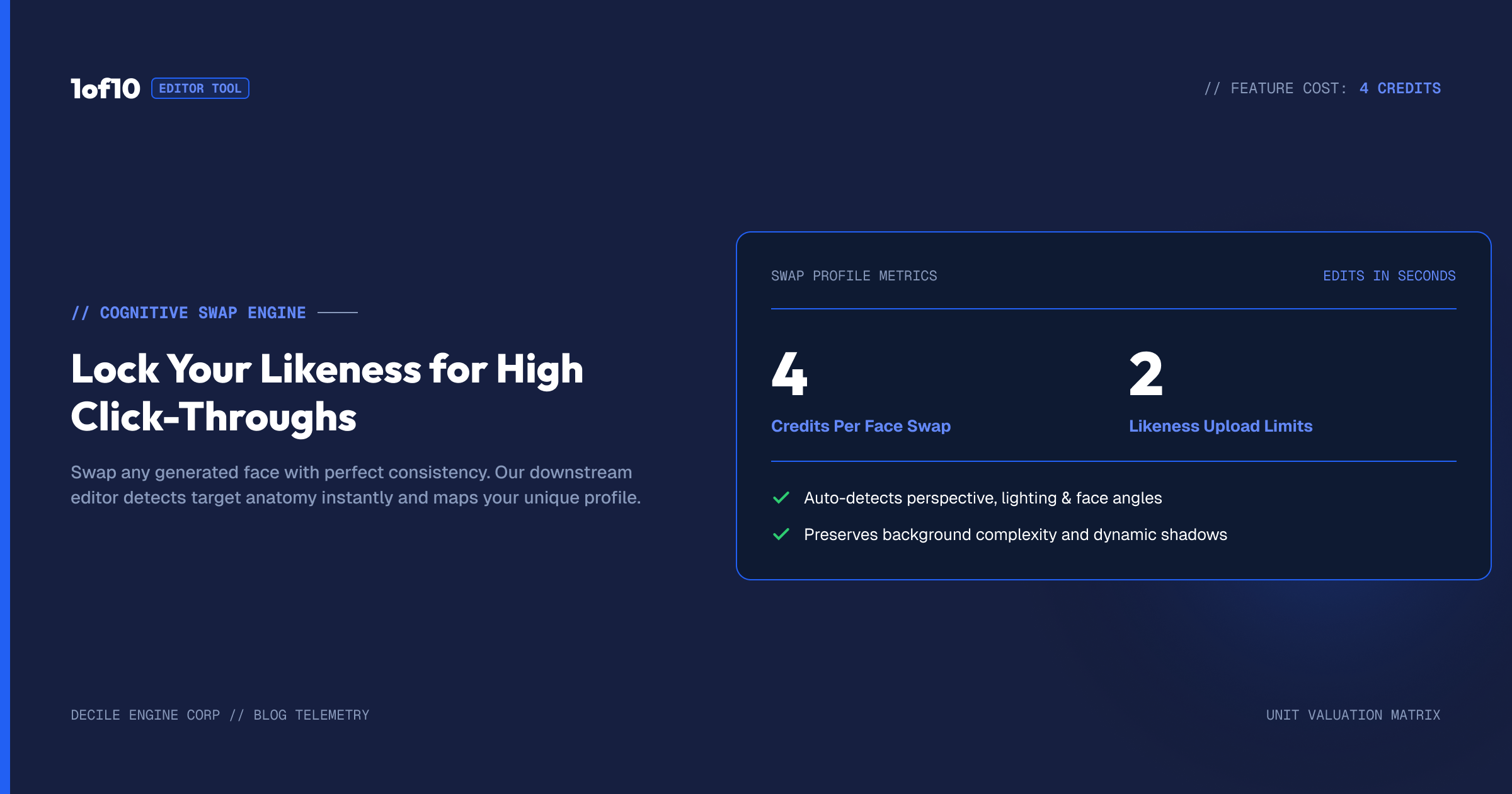
Face Swap is an editor tool. You open a finished thumbnail, select Face Swap, and the tool detects the face already in the image. You then upload up to two shots of the face you want, and the tool maps that likeness onto the thumbnail. It costs 4 credits, and unlike the generation tools, it does not use a prompt. You are not describing anything, you are giving it reference photos and letting it do the swap.
The result is your real face, with your features, on the body and in the scene the generator created. This is the difference between a thumbnail that looks like you and one that looks like a stranger doing an impression of you. On a face-led channel, that difference is everything.
Why the face matters so much
It is worth being clear about why this tool exists. Humans process faces in a dedicated, fast, unconscious way. Your audience recognizes you in a fraction of a second, and they notice when something is wrong just as fast, even if they cannot say what. A thumbnail with a near-miss face creates a small sense of wrongness that pushes viewers away without them knowing why.
For a channel where you are the brand, consistency of face across thumbnails is part of your identity, the same way a logo is for a company. Every thumbnail that shows the real you reinforces recognition. Every thumbnail with an off face chips at it. Face Swap is how you protect that recognition when a generation does not nail your likeness on its own.
The two-shot trick: match the angle
Here is the single most important thing about using Face Swap well. Upload two face shots, and match them to the thumbnail.
Two shots beat one. Two photos from slightly different angles let the tool understand the structure of your face, not just a flat front view. That depth is what makes the swap convincing rather than pasted-on.
Match the angle to the shot. This is the part people miss. If your thumbnail shows your face turned side on, upload a side-on photo. The tool can only map an angle it has been shown. Give it two front-on selfies and ask it to render your profile, and it has no information about the side of your face, so the swap struggles. Match the reference to the angle in the thumbnail and the result is clean.
Match the emotion where you can. Beyond angle, getting close to the expression in the thumbnail helps. If the thumbnail face is shouting, a reference with an open, energetic expression maps better than a neutral one. You do not need a perfect match, but closer is better.
For a front-on thumbnail, two straightforward front-facing shots are fine. For an angled or dramatic thumbnail, pick references that share the angle and energy. That one habit is the difference between a swap that looks right and one that looks slightly off.
Face Swap also adds a face
Face Swap is not only for fixing an existing face. It can add a face into a thumbnail that does not have one. This is more useful than it sounds. Sometimes a generation produces a fantastic scene, a great composition, strong lighting, the right energy, but with no person in it, or with a person facing away. Rather than regenerate and lose the scene you liked, you can use Face Swap to place your face into it.
This opens up a workflow: generate for the scene and composition without worrying about the face, then add your face afterward with Face Swap. It separates the two hard problems, the scene and the likeness, so you can solve each one where it is easiest. The generator is great at scenes; Face Swap is great at faces. Letting each do what it is best at often beats demanding both from a single generation.
Face Swap, the channel link, and face uploads: which is which
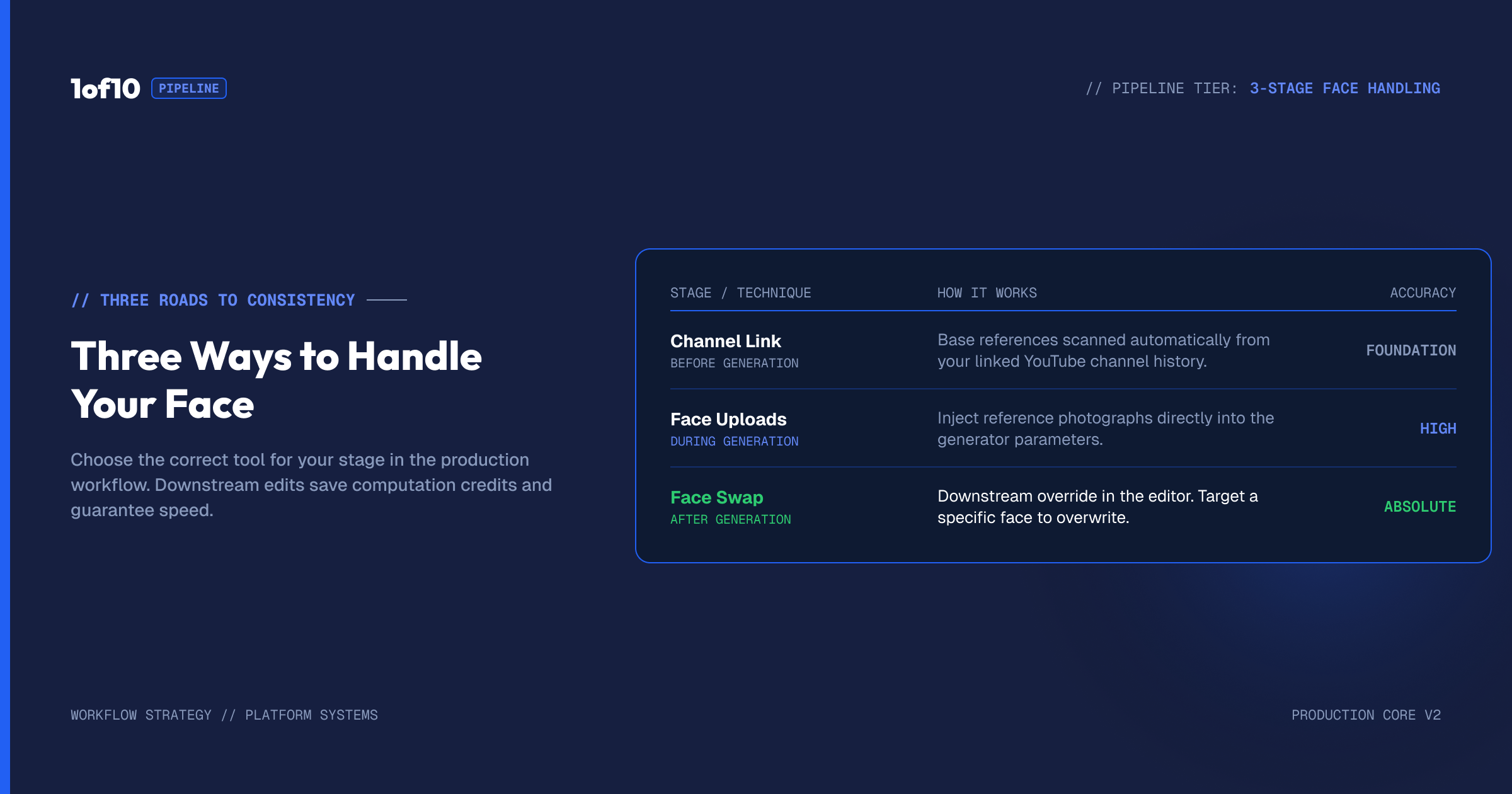
The tool has three ways to handle your face, and they work at different stages. Knowing the difference keeps you from using the wrong one.
The channel link teaches the tool your face from your existing thumbnails, before you generate anything. It is the foundation, and most of the time it is enough. Set it up once, covered in Link Your YouTube Channel.
Face uploads in the generator let you add face shots before generating, when the link alone is not nailing your likeness. This shapes the face during generation, covered in Reference Images, Backgrounds and Face Uploads.
Face Swap in the editor fixes or adds a face after generating, when the finished thumbnail's face is off or missing.
The order they sit in your workflow: link first, upload face shots during generation if needed, and use Face Swap at the end as the final correction. If the channel link gets your face right, you may never touch the other two. If it does not, you have two more layers of control, one during generation and one after.
Getting good reference shots
The swap is only as good as the photos you feed it, so a little care with references pays off. You do not need a professional shoot, but a few things help. Use clear, well-lit photos where your face is sharp and unobstructed, no heavy shadows across it, no sunglasses, no hair covering features. Pick shots that show your face at a useful size in the frame rather than a tiny face in a wide photo. And keep a small set of references on hand that cover the angles you commonly use in thumbnails: a front-on shot, a slight three-quarter turn, and a side profile. With those ready, you can always match the reference to the thumbnail angle without hunting for a photo.
If your thumbnails tend to feature a particular expression, an intense look, a big open-mouthed reaction, having a reference in that expression makes the swap land better. A small, deliberate library of your own face shots, a handful of angles and expressions, turns Face Swap from hit-or-miss into reliable.
Keeping your face consistent across a series
For a series or a run of videos that need to look like a set, Face Swap is how you lock a consistent face across all of them. Generate each thumbnail's scene and composition, then swap in the same face from the same references on each one. Because you are using the same source photos, the likeness stays steady from thumbnail to thumbnail, which is exactly what a series needs to look intentional in your Shorts tab or on your channel page.
This consistency is part of branding. A viewer scrolling your channel should see the same recognizable you across your thumbnails, not a face that drifts from video to video. Face Swap with a fixed reference set gives you that, and it pairs with a consistent font and layout to make a channel look like a real, established brand. For the format side of that consistency, see Landscape vs Shorts Thumbnails.
Face Swap with more than one person
Channels with collaborators, co-hosts, or guests can use Face Swap to get each person's likeness right. If a thumbnail features two people and one face is off, you can target and correct it. For collab content where the draw is who is in the video, getting both faces right matters as much as getting your own right on a solo thumbnail, because viewers click on recognition. Treat each face as its own swap, match references to each person's angle, and the finished thumbnail represents everyone accurately.
When to reach for Face Swap
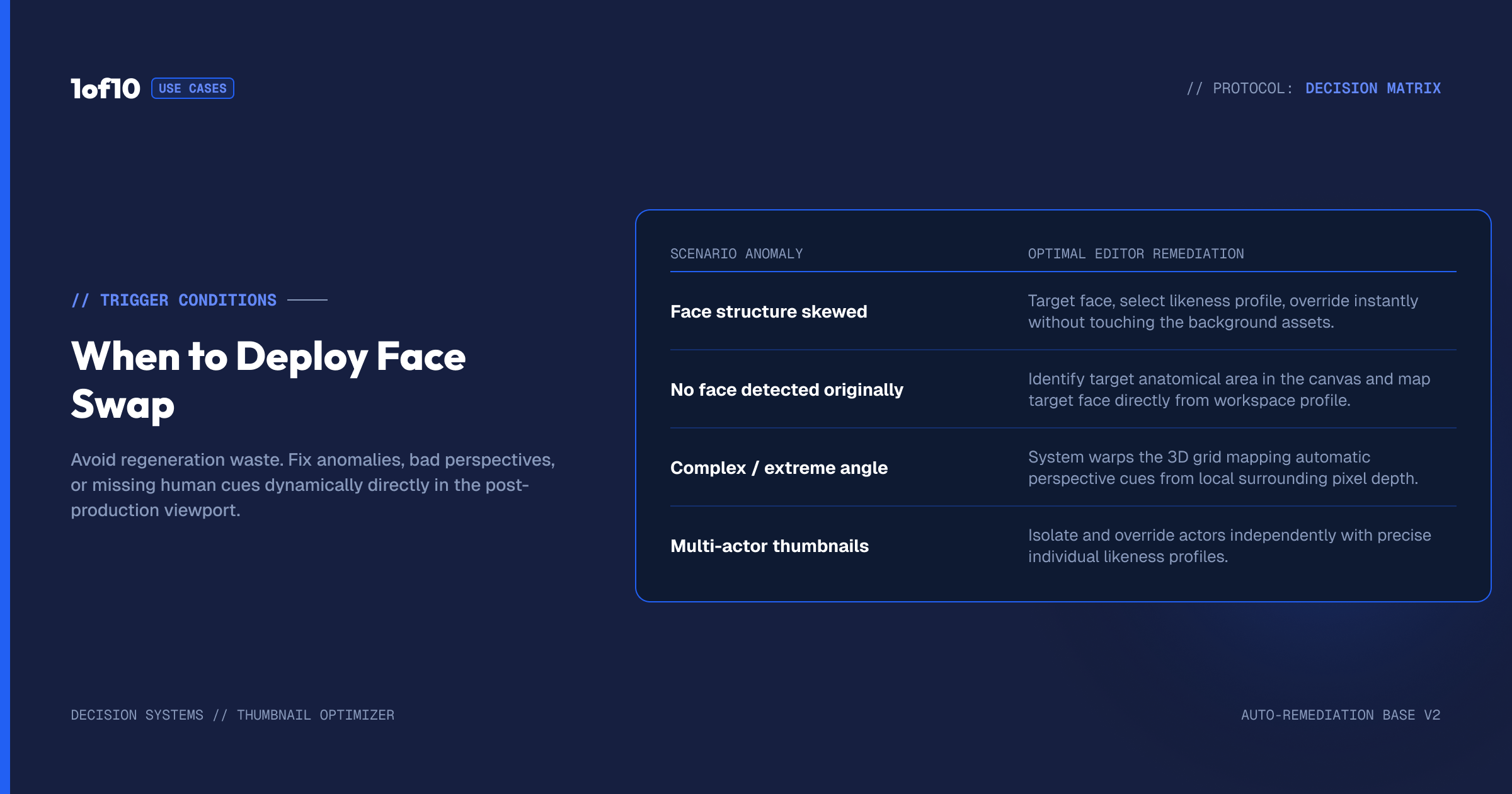
Use it when:
The finished thumbnail's face is off. The composition is right but the likeness missed. Swap it rather than regenerate and risk losing the composition.
The thumbnail has no face, but should. A great scene with no person, or a person facing away. Add your face into it.
The angle is unusual. A dramatic profile or turned shot where the generator struggled with your likeness. Swap with an angle-matched reference.
You need consistency across a series. When several thumbnails need the same exact face, Face Swap locks it in after generation.
If the channel link already nails your face, you do not need Face Swap. It is the tool for when the automatic likeness falls short.
Face Swap and the no-prompt advantage
One detail sets Face Swap apart from the generation tools: it does not use a prompt. You are not describing your face, which would be nearly impossible to do well, you are showing it. This matters because faces are exactly the kind of thing words fail at. You cannot write a prompt that captures the precise set of your features, but you can hand the tool two photos that contain them exactly. By skipping the prompt and working straight from reference shots, Face Swap removes the guesswork that makes faces the hardest thing to prompt.
This is why the workflow of generating for the scene and swapping for the face works so well. The scene is something words describe well, so you prompt it. The face is something words describe badly, so you photograph it. Each half of the thumbnail gets solved with the right kind of input, which is almost always faster and more accurate than trying to force a single generation to nail both a complex scene and a precise likeness at the same time.
Common mistakes
Uploading one front-on shot for an angled thumbnail. The tool cannot map an angle it has not seen. Match the reference angle to the thumbnail, and use two shots.
Ignoring expression. A neutral reference on a high-energy thumbnail can look flat. Match the emotion as well as the angle where you can.
Regenerating when you should swap. If the only problem is the face and the rest is right, swap it. Regenerating risks losing a composition you liked.
Forgetting it can add a face. A scene with no person is not a dead end. Use Face Swap to place your face into it rather than starting over.
Skipping the channel link and over-relying on swaps. Face Swap is a correction, not a foundation. Link your channel first so the face is usually right before you ever reach the editor.
Frequently asked questions
How do I face swap on a YouTube thumbnail? Open the thumbnail in the 1of10 editor, select Face Swap, and the tool detects the face. Upload up to two shots of your face, ideally matching the angle in the thumbnail, and the tool maps your likeness onto the image for 4 credits. No prompt needed.
How do I fix my face in an AI thumbnail? Use Face Swap. If a finished thumbnail's face is almost you but not quite, upload two face shots that match the angle and expression in the thumbnail, and the tool replaces the face with your real likeness while keeping the rest of the image.
How many face photos should I upload? Two, from slightly different angles. Two shots give the tool the depth to render your face convincingly. Match the angle of the references to the angle in the thumbnail, since the tool can only map an angle it has been shown.
Can Face Swap add a face to a thumbnail that does not have one? Yes. If a generation produced a great scene with no person, or a person facing away, Face Swap can place your face into it, so you keep the scene you liked instead of regenerating.
Do I need Face Swap if my channel is linked? Often not. Linking your channel teaches the tool your face, and most thumbnails come out right. Face Swap is the correction for when the finished face is off or missing, used at the end of your workflow.
Does Face Swap use a prompt? No. You give it up to two reference photos and it maps your likeness onto the detected face. Faces are hard to describe in words and easy to show in photos, so working from references instead of a prompt is what makes the swap accurate.
Can I use Face Swap for thumbnails with more than one person? Yes. For collab or guest content, you can target each face and correct it with that person's reference shots. Match each set of references to the angle of that person's face in the thumbnail.
Pairing Face Swap with the rest of your face tools
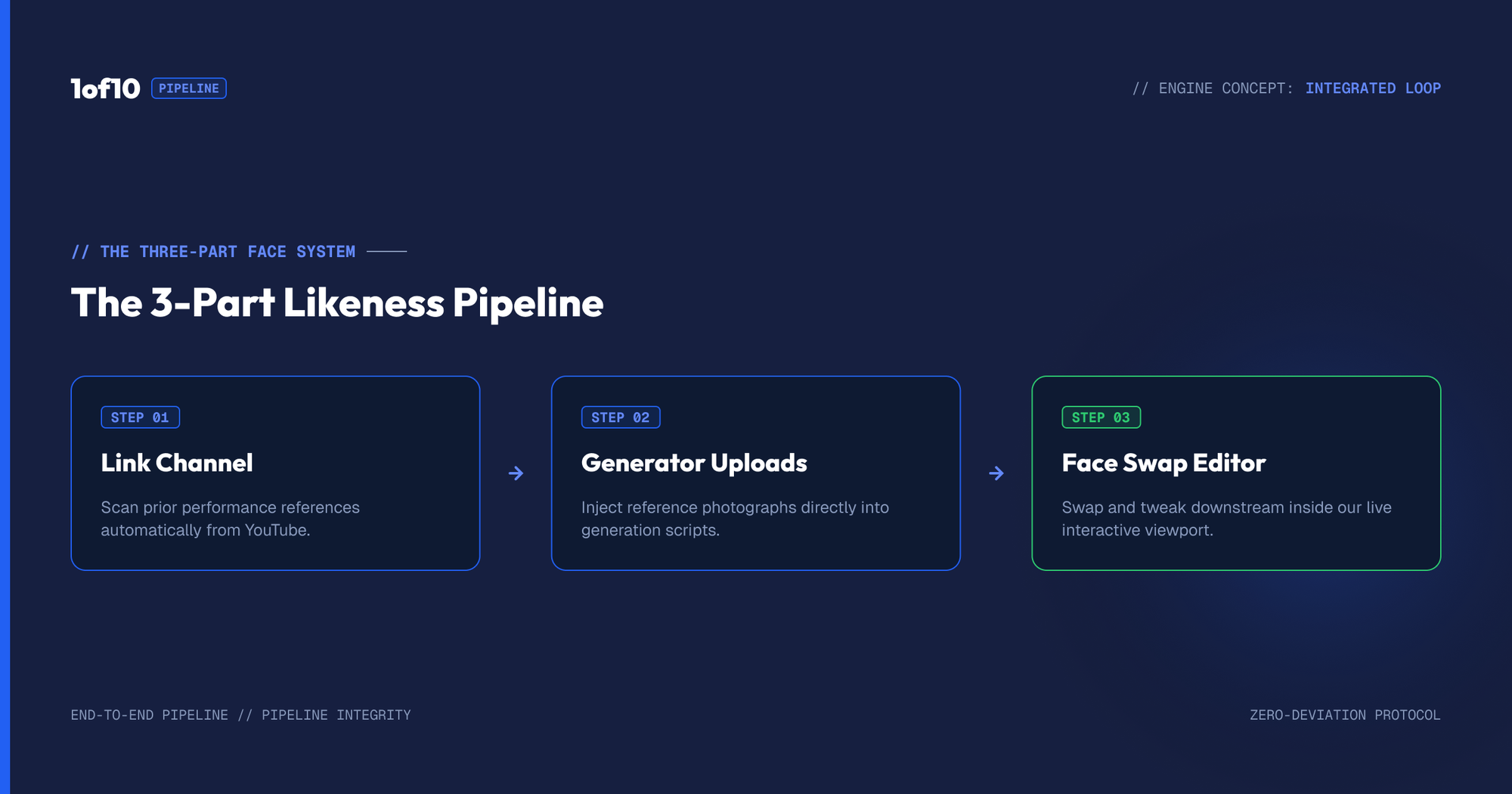
Face Swap is the last line in a three-part system for getting your likeness right, and it works best when the other two are doing their jobs. Link your channel so the tool knows your face from the start. Add face uploads in the generator when the link alone is not enough during generation. Then use Face Swap in the editor as the final correction on the finished image. When all three line up, your face is right at every stage, and you rarely need the heavier corrections at all.
If you find yourself relying on Face Swap for every single thumbnail, that is a signal to revisit the foundation, your channel link and your face uploads, because the goal is for the face to come out right during generation most of the time, with Face Swap reserved for the cases that slip through. Treat it as the safety net, not the main plan, and your whole face workflow gets faster.
The takeaway
The face is the hardest part of an AI thumbnail and the part viewers judge fastest. Face Swap fixes it: it detects the face in a finished thumbnail and maps your real likeness onto it from two reference shots, for 4 credits and no prompt. The trick is matching the references to the angle and emotion in the thumbnail, since the tool can only render what it has seen. Use it to fix an off face, to add a face to a scene that lacks one, and as the final likeness correction after the channel link and any face uploads. The full workflow is in The Complete Guide to the 1of10 Thumbnail Generator.