
How to Upload a Video to YouTube: Full 2026 Guide
How to upload a video to YouTube in 2026: all 4 Studio screens explained, every setting that matters, plus Shorts and processing times.
Here is how to upload a video to YouTube: sign in to YouTube Studio, click Create, then Upload videos, and select your file. YouTube walks you through 4 screens: Details, Video elements, Checks, and Visibility. Fill in your title, description, and thumbnail, pick Public, and you are live. The whole process takes under 5 minutes for a standard video.
That is the short version. The longer version matters more than it looks. YouTube lets you upload up to 15 videos at once, files up to 256 GB or 12 hours long on verified accounts, and every upload passes through a dozen fields that most new creators click past. A few of those fields affect your reach. Two of them, your title and your thumbnail, decide most of it.
This guide covers the full desktop flow field by field, the mobile app flow, how to upload YouTube Shorts, what happens during processing, and the one decision you should make before you ever open the upload screen.
How to Upload a Video to YouTube on Desktop
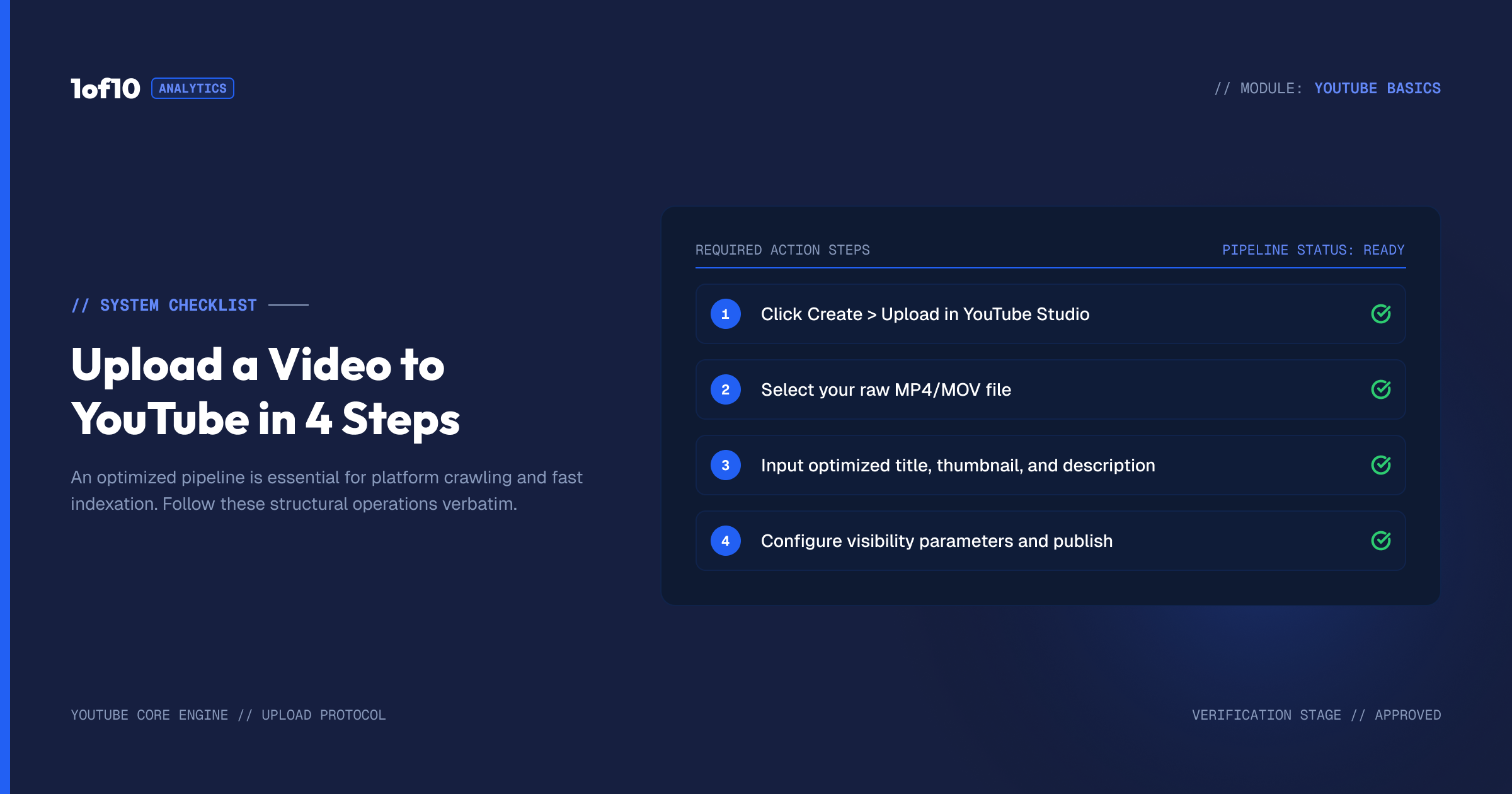
The desktop flow runs through YouTube Studio and takes 7 steps. YouTube's own upload documentation confirms you can push up to 15 videos in one batch, and every one of them steps through the same 4-screen wizard.
- Go to studio.youtube.com and sign in.
- Click Create in the top right corner.
- Select Upload videos.
- Drag your file into the window or click Select files.
- Fill in the Details screen while the file uploads in the background.
- Work through Video elements, Checks, and Visibility.
- Click Publish, Schedule, or Save.
The upload starts the moment you select the file. You fill in everything else while it transfers, so a slow connection costs you nothing but patience.
One prerequisite: if your video runs longer than 15 minutes, you need a verified account. Verification takes 2 minutes with a phone number and raises your ceiling to 12 hours or 256 GB, whichever comes first. Do it once, before your first long upload, not during it.
If you have not created your channel yet, start with our YouTube channel setup guide and come back. The upload screen assumes a channel already exists.
The Details Screen: Every Field Explained
The Details screen is where 90% of your upload decisions live. Here is what each field does and how much it actually matters in 2026.
Title. 100 characters maximum. This is one of the two fields that decide whether anyone clicks. Do not write it here for the first time; decide it before you upload (more on that below). Front-load the hook in the first 60 characters, because search and suggested feeds truncate long titles.
Description. Up to 5,000 characters. The first 2 to 3 lines show above the fold in search results, so put your hook and any key link there. The rest is for context, chapters, and links. A free shortcut: our description generator drafts one from your title in seconds.
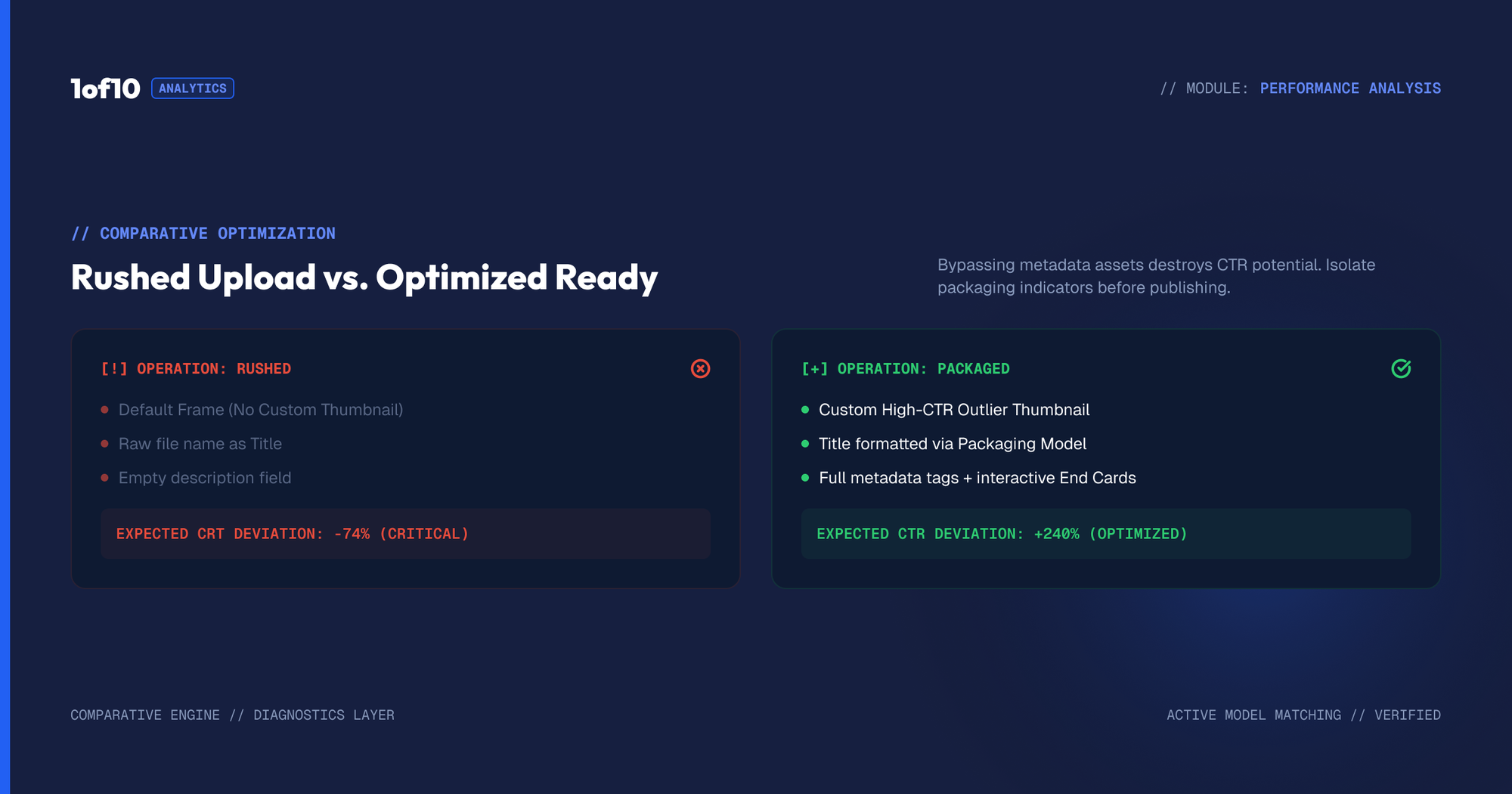
Thumbnail. Upload a custom image. Never publish on an auto-generated frame; custom thumbnails are the single highest-leverage asset on the platform. Specs live in our YouTube thumbnail size guide: 1280x720 pixels, under 2 MB.
Playlists. Add the video to one or more playlists. Playlists feed session watch time, which the algorithm rewards. Group by topic, not by upload date.
Audience (COPPA). You must declare whether the video is made for kids. This is a legal requirement under COPPA, not a preference. Marking a video "made for kids" disables personalized ads, comments, end screens, and notifications on it, so answer honestly but understand the cost. If your content genuinely targets children, the choice is made for you.
Age restriction. A self-applied flag for content unsuitable for under-18s. Age-restricted videos lose most ad revenue and cannot appear in some feeds. Use it when required, not defensively.
Under Show more, you get the second tier of fields:
- Paid promotion. Legally required disclosure if the video contains sponsorships or product placement.
- Altered content. A 2024-era addition, now standard: you must declare realistic AI-generated or synthetically altered content. Thumbnails made with AI tools do not require this flag; realistic synthetic footage in the video does.
- Tags. Descriptive keywords. YouTube's own docs say tags play a minimal role in discovery and mainly help with commonly misspelled names. Spend 60 seconds here, not 20 minutes. Our free tag generator handles it.
- Language and captions. Set the original language. Accurate captions help both accessibility and reach.
- Category. Pick the closest match. Education uploads get extra fields for level and academic standards.
- Comments and ratings. Moderation defaults. "Hold potentially inappropriate comments for review" is the sane middle setting for most channels.
- Shorts remixing. Controls whether others can sample your video into their Shorts. Allowing it is free distribution; most channels should leave it on.
Video Elements, Checks, and Visibility
The last 3 screens go fast, but two of them contain real decisions.
Video elements. Add cards (clickable suggestions during the video) and an end screen (the final-frame panel pushing viewers to another video or subscribe button). End screens require the video to be at least 25 seconds long. Always add an end screen pointing at your best related video; it is the cheapest session-time win on the platform. Our guide to how the YouTube algorithm works explains why session time matters so much.
Checks. YouTube scans the video for copyright issues while you finish the other screens. It flags potential Content ID claims before you publish, so you can fix problems privately instead of after your audience arrives. One warning from YouTube's documentation: check results are not final. A clean check does not immunize the video against future claims or manual strikes.
Visibility. Four options:
- Private. Only you and people you invite.
- Unlisted. Anyone with the link, invisible in search and feeds.
- Public. Live for everyone.
- Schedule. Set a future date and time; the video stays private until then.
Two details worth knowing. First, defaults differ by age: creators aged 13 to 17 default to Private, adults default to Public. Second, scheduling beats manual publishing for consistency, and timing does move the needle for the first few hours of a video's life. We broke down the data in the best times to upload to YouTube.
How Do You Upload a Video From the YouTube Mobile App?
The mobile flow takes 5 steps and covers the same ground with fewer fields.
- Open the YouTube app and sign in.
- Tap the + (Create) button at the bottom center.
- Tap Upload a video and select the file from your gallery.
- Trim if needed, then tap Next to add title, description, and visibility.
- Set the audience (made for kids or not) and tap Upload.
The app handles the basics well but hides most of the advanced fields. Cards, end screens, detailed category settings, and caption management live in YouTube Studio. A workable pattern for mobile-first creators: upload from the phone, then open Studio (app or desktop) to finish the packaging. Or upload as Private from the phone and complete everything on desktop before flipping it Public.
How to Upload YouTube Shorts
A Short is any vertical video up to 3 minutes long. That is the current rule per YouTube's Shorts documentation: vertical aspect ratio, up to 3 minutes, maximum 1080p resolution. If your upload meets those conditions, YouTube treats it as a Short automatically. You do not need a #shorts hashtag; that requirement died years ago.
To post a YouTube Short from the app:
- Open the YouTube app and tap Create.
- Select Short.
- Hold or tap the capture button to record, or tap the gallery icon to use an existing vertical video.
- Add sounds, text, filters, or voiceover, then tap Done.
- Tap Next, write a title (100 characters max), set visibility and audience.
- Tap Upload Short.
To upload a Short from desktop, there is no separate flow. Upload a vertical video under 3 minutes through the normal Studio process described above, and YouTube classifies it as a Short on its own.
Two Shorts-specific notes. First, the feed is swipe-driven, so your first 2 seconds do the job a thumbnail does for long-form. Second, Shorts monetization has its own bar: 1,000 subscribers plus 10 million valid public Shorts views in 90 days for the Shorts revenue path. If Shorts are your growth plan, our Shorts outliers feature surfaces which short-form formats are breaking out in your niche before they saturate.
How Long Does YouTube Take to Process a Video?
Processing usually takes a few minutes to an hour, depending on length, resolution, and format. YouTube processes low resolutions first, so your video often appears in 360p or SD within minutes while HD and 4K versions keep rendering in the background. This is normal, not a failed upload.
Rough expectations:
- 1080p, under 15 minutes: usually minutes.
- 4K: substantially longer; YouTube's docs confirm 4K and HD take more processing time than SD. A long 4K file can take hours.
- 60fps and HDR: add further time.
The practical rule: never publish or schedule a video to go live the second processing finishes. Upload early, let HD finish, check the video page, then flip it Public or let the schedule fire. Early viewers who get served a 360p blur click away, and those first-hour signals are the ones the algorithm reads hardest.
Speed levers you control: upload in MP4 with H.264 video and AAC audio (YouTube's recommended combination), use a wired connection for big files, and verify your account.
Decide Your Title and Thumbnail Before You Upload
Here is the part no official help page tells you. The upload flow makes packaging feel like admin, two fields to fill in on the way to the Publish button. That ordering is backwards, and it quietly caps most channels.
Your title and thumbnail are not metadata. They are the product decision. They determine your click-through rate, and CTR determines whether YouTube keeps showing the video to new people. Across 1of10's outlier database, videos that outperform their channel by 10x or more almost always win on packaging, not on tags, categories, or upload settings.
So invert the process:
- Research before you script. Use the Outlier Finder to see which videos in your niche are doing 10x to 100x their channel's average. Those are proven packages, evidence of what your audience already clicks. The manual version of this process is covered in how to find YouTube outliers.
- Write the title first. If the title is not clickable, the video is not watchable, because nobody will arrive.
- Make the thumbnail before you edit the video. The AI thumbnail generator is trained on high-performing thumbnails and turns a title, sketch, or reference image into options in minutes.
- Then upload. The Details screen becomes a paste job instead of a panic.
Creators who treat the upload screen as the finish line of packaging, rather than the starting line, upload the same video with twice the ceiling. If you want to keep improving after publish, A/B testing your thumbnails is the follow-up move.
Common Upload Problems and How to Fix Them
Upload stuck at 0% or crawling. Almost always connection or file weight. Switch to a wired connection, close other bandwidth-heavy apps, and if the file is enormous, re-export at a saner bitrate. YouTube re-compresses everything anyway; a 40 GB export of a 10-minute video buys you nothing.
Stuck in processing. If processing hangs for hours on a normal-length file, delete the upload and try again, ideally as MP4/H.264. Check YouTube's status if multiple uploads fail; occasionally it is them, not you.
Video looks blurry after publishing. You published before HD finished processing. Wait, and the higher resolutions appear. Next time, upload as Private first and publish once the quality settles.
Copyright flag on the Checks screen. The screen tells you exactly which segment triggered it. Options: trim the segment, replace or mute the audio, or accept the claim (which usually routes any ad revenue to the claimant). A claim is not a strike; it will not harm your channel standing on its own.
"Daily upload limit reached." YouTube caps uploads per 24 hours, and the cap varies by channel history and verification status. It resets on its own. Batch uploaders: schedule uploads across days instead of pushing everything at once.
Wrong file format rejected. Stick to the common containers: MP4, MOV, AVI, WMV, WebM, MPEG-4, 3GPP. MP4 with H.264 is the safe default from every major editor.
Your First Upload Does Not Need to Be Perfect
If this is video number one, here is your permission slip: publish it. First videos are practice in public. Every field above becomes muscle memory by upload five, and the algorithm does not punish a small channel for early videos that miss; it simply moves on, and so should you.
What actually matters early is the loop: upload, read your CTR and retention, improve the packaging, repeat. Channels die from not uploading, not from uploading imperfectly. Get the setup right once with the channel setup guide, then spend your energy on ideas and thumbnails, the two inputs with real leverage.
FAQ
How long does YouTube take to process a video?
Usually minutes to an hour. YouTube processes SD quality first, so your video can appear in 360p while HD and 4K versions finish rendering in the background. 4K, 60fps, and very long files take the longest, sometimes hours. Upload early and let HD finish before you make the video Public.
How do I upload a Short?
In the YouTube app, tap Create, select Short, record or pick a vertical video, tap Done, then Next, add a title, and tap Upload Short. On desktop, just upload any vertical video under 3 minutes through the normal flow; YouTube classifies it as a Short automatically. No hashtag is required.
What is the best time to upload to YouTube?
There is no universal hour, but timing does affect a video's first-hours momentum, and your own audience has clear peaks in YouTube Analytics under Audience. As a starting point before you have data, early evenings in your audience's main time zone perform well. We covered the full data in best times to upload to YouTube.
How long can a YouTube video be?
15 minutes on an unverified account. Verify your account with a phone number and the limit rises to 12 hours or 256 GB per file, whichever comes first. Verification is free and takes about 2 minutes in your YouTube settings, so do it before your first long upload.
Do tags still matter on YouTube?
Barely. YouTube states tags play a minimal role in discovery and mainly help with commonly misspelled titles or names. Fill them in quickly with a free tag generator and move on. Your title and thumbnail carry the discovery weight that creators used to credit to tags.
CTA block: The upload takes 5 minutes. The title and thumbnail decide the next 5 years. See which packages are winning in your niche right now, free, at 1of10.com.