
How to Remove Background Noise From a Video (and When You Can't)
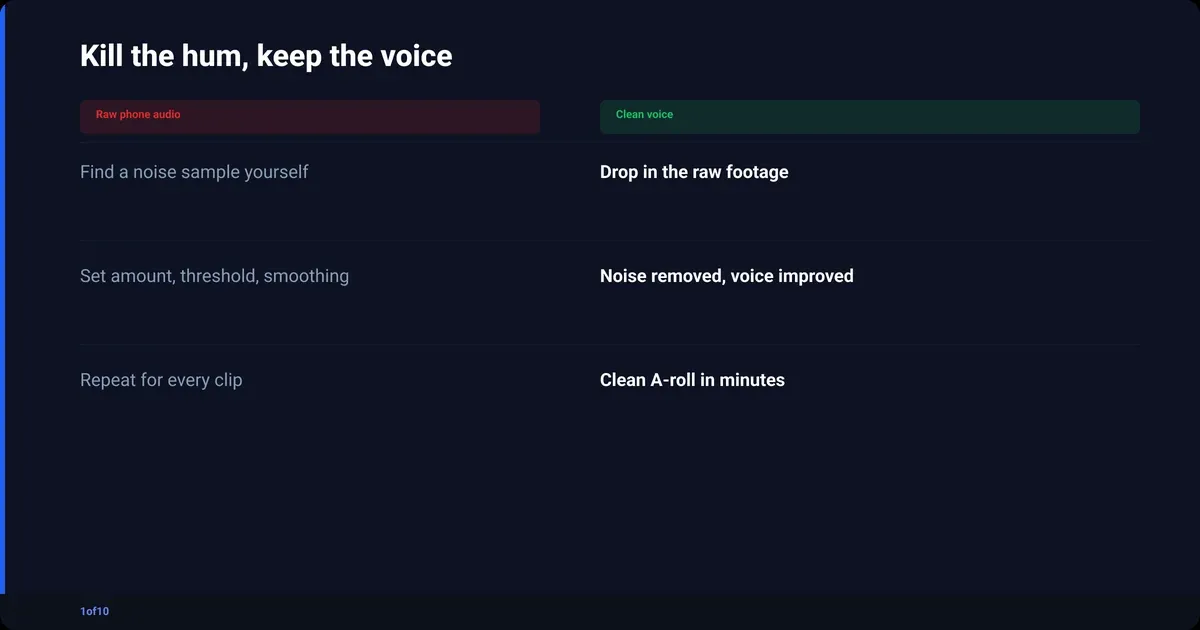
To remove background noise from video, separate the audio, find one or two seconds of pure noise with no speech in it, then run a noise reduction effect that subtracts that noise print from the whole track. Premiere Pro, DaVinci Resolve and Audacity all do this in under five minutes. Steady noise like hum, hiss and fans comes out cleanly. Noise that sits on top of your voice, and any clipping, does not.
That last sentence is the part the online tool pages leave out. Every result on this search promises "studio sound in seconds", and for a fridge hum that is true. For a phone recording next to a busy road it is not. This post covers what the noise is, how to take it out by hand in Premiere, Resolve and Audacity, where the physics says no, and how Audio Enhance inside AutoCut does the boring part automatically on talking-head footage.
What causes background noise in a video?
Background noise is any sound your mic picked up that is not your voice. It comes from three places: the room (fans, air con, fridges, traffic), the electronics (mains hum, hiss from a cheap preamp turned up too far), and the mic itself (a phone a metre away, wind across a bare capsule). Steady noise is easy to remove. Changing noise is not.
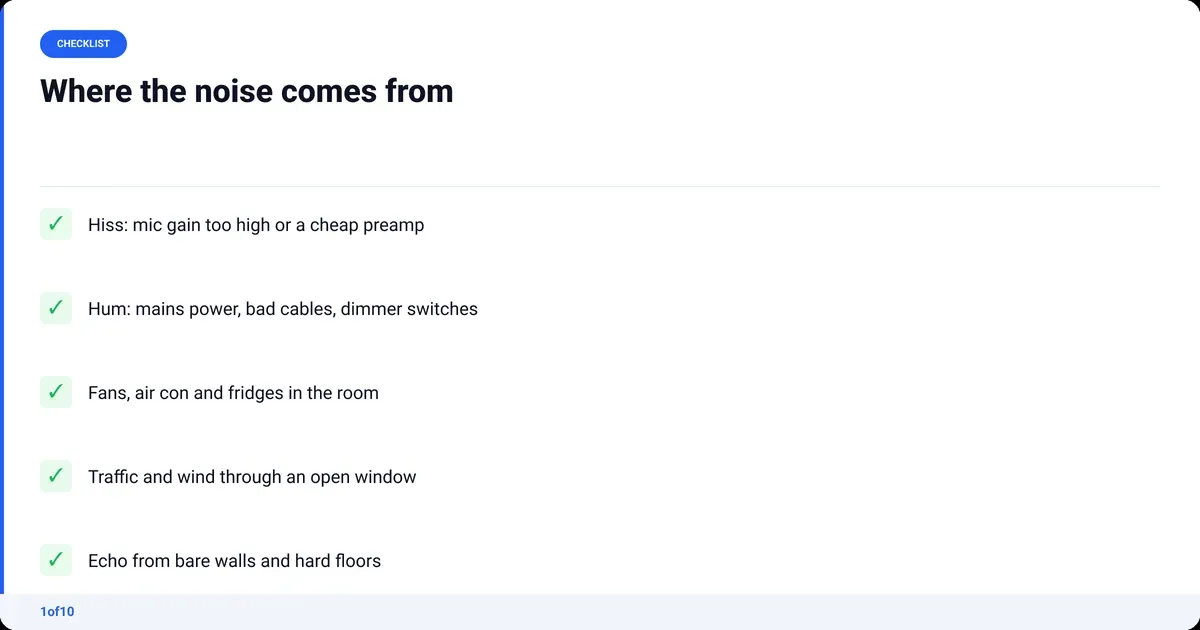
Sort noise by how predictable it is, because that is what the software cares about.
| Noise | Sounds like | Usual cause | Can you remove it? |
|---|---|---|---|
| Hiss (broadband) | Constant "sss" under everything | Mic gain too high, cheap mic, air con | Yes, easily |
| Hum (tonal) | Low buzz at 50 or 60 Hz | Mains power, unbalanced cables, dimmer switches | Yes, easily |
| Fans and HVAC | Low steady roar | PC fans, fridge, vents | Yes, mostly |
| Traffic and wind | Rises and falls, gusts | Open window, outdoor phone shoot | Partly |
| Echo and reverb | Your own voice, smeared | Bare walls, hard floors | A little, never fully |
| Other voices, music, TV | Speech-like, changes constantly | Cafe, family in the next room | Almost never |
The number behind all of this is signal-to-noise ratio: how much louder your voice is than the noise floor. A close mic in a quiet room gives a big gap and noise reduction has an easy job. A phone on the desk next to a fan gives a small gap, and every dB you take from the noise starts taking your voice with it.
How to remove background noise from video: the manual way
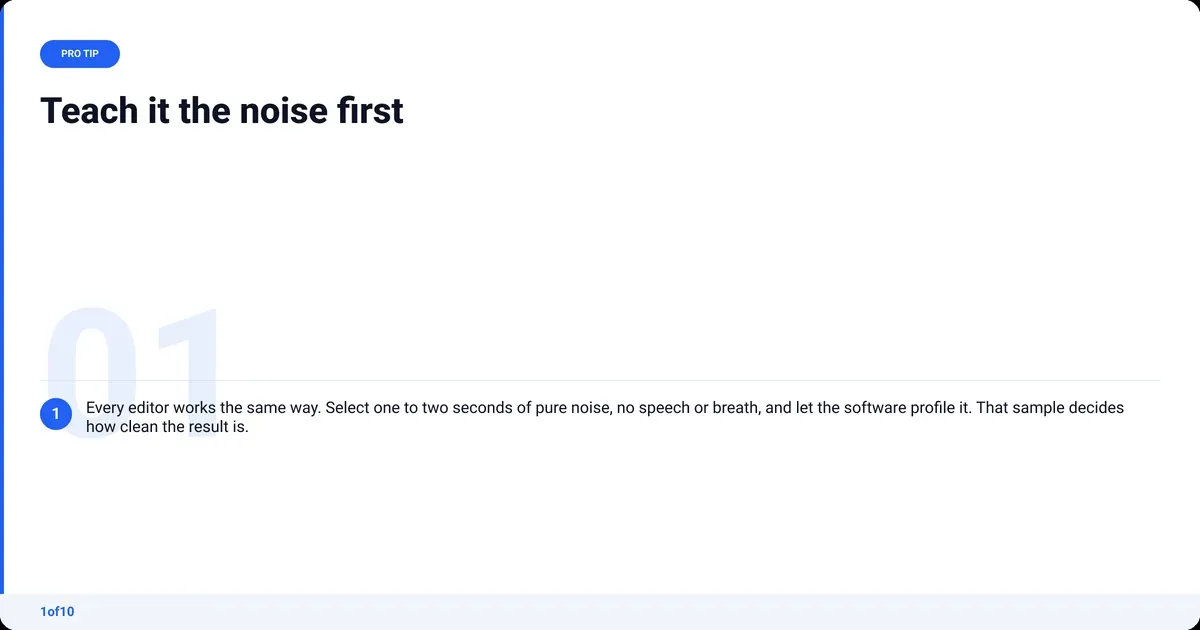
The manual method is the same in every editor. You show the software what the noise sounds like on its own, it builds a profile of it, then it subtracts that profile from the whole track. The skill is choosing a clean noise sample and stopping before your voice starts to sound underwater.
- Detach or select the audio from your clip so you can edit it on its own.
- Find one to two seconds of noise with no speech, breath or movement. The pause before you start talking is usually perfect.
- Apply your editor's noise reduction using that sample as the profile.
- Start with a moderate amount, listen on headphones, then back it off until the voice sounds natural again.
- Add a high-pass filter around 80 to 100 Hz to drop rumble, and a hum remover if you hear mains buzz.
- Export at 48 kHz, which is the sample rate YouTube recommends for uploads, so nothing gets resampled twice.
Where each step lives:
In Premiere Pro
Open the Essential Sound panel, select your clip and tag it as Dialogue. The Repair section gives you sliders for Reduce Noise, Reduce Rumble, DeHum and DeReverb. Reduce Noise alone handles hiss and fans for most talking-head clips; push it past halfway and consonants start to disappear. For finer control, the DeNoise and Adaptive Noise Reduction effects expose the same processing with more parameters. Recent versions also include Enhance Speech, an AI pass that isolates the voice. It is impressive on light noise and can sound processed on heavy noise.
In DaVinci Resolve
Switch to the Fairlight page and add the Noise Reduction effect from the FairlightFX list to your dialogue track. Switch it to Learn, play the noise-only stretch for a second or two, then switch Learn off. The effect now has a noise profile and removes it from the whole track; Threshold and Attack set how hard it works. There is a separate De-Hummer effect for mains buzz, and newer builds have a Voice Isolation slider in the Inspector that uses AI to keep the voice and drop everything else. The free version includes Noise Reduction, so you do not need Studio for the basic job.
How to remove background noise from audio in Audacity (free)
Audacity is audio only, so export the audio from your video first. Then:
- Select one to two seconds of noise with no speech.
- Open Effect, then Noise Removal and Repair, then Noise Reduction, and click Get Noise Profile.
- Select the whole track and open Noise Reduction again.
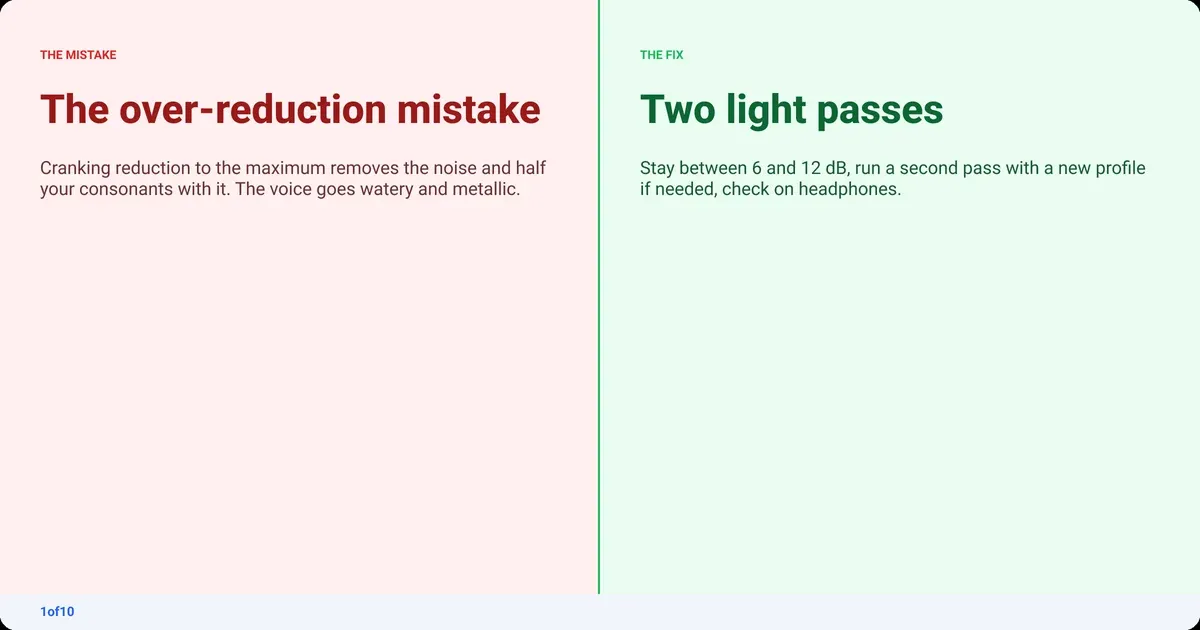
- The defaults are 12 dB reduction, sensitivity 6 and frequency smoothing 3. Preview, then drop reduction to 6 to 9 dB if the voice sounds watery.
- Apply, export as WAV, and drop the clean file back on your video timeline in place of the original.
The Audacity manual's Noise Reduction page explains each control. The one rule that matters: two light passes with different noise profiles beat one heavy pass.
What video noise reduction settings actually matter?
Every video noise reduction tool comes down to four decisions: how much to reduce, how aggressively to class a sound as noise, how much to smooth between frequency bands, and where to cut the low end. Get those four right and the brand of software barely matters.
| Setting | What it does | Safe range | Too far sounds like |
|---|---|---|---|
| Reduction amount (dB) | How far the noise is pulled down | 6 to 12 dB | Underwater, warbling, "phasey" |
| Sensitivity or threshold | How easily a sound is classed as noise | Middle of the range | S, T and F sounds vanish |
| Frequency smoothing | Blends the reduction across neighbouring bands | 3 to 6 | Metallic, chirping artefacts |
| High-pass filter | Removes everything below a set frequency | 80 to 100 Hz | Thin, tinny voice above 150 Hz |
Two habits catch most mistakes. Adjust on headphones, because laptop speakers hide artefacts. Then check on a phone speaker, where much of your audience will hear it and a thin voice is obvious.
Can you remove background noise from a video online?
Yes. Browser tools take an MP4 or MOV upload, run the same noise-profile or AI voice-isolation process, and hand back a re-encoded file. For one short clip with no other editing to do, that is a fine route. The trade-offs are length caps on free plans, one preset amount of reduction you cannot adjust, and a second encode of your video.
When an online tool is the right call:
- One clip, no editing timeline, you just need it cleaner.
- You are on a machine that cannot run an editor.
- The noise is steady hiss or hum, which every tool handles well.
When it is the wrong call:
- A 20-minute talking-head video you will also be cutting and grading. Do the noise where you do the rest, or use an editor that does all of it in one pass (see below).
- Noise that overlaps your voice. With no amount control, the tool either leaves it or chews the voice.
- Footage you would rather not upload to a service whose terms you have not read.
One clarification: "video noise reduction" means two things. Audio noise reduction is this post. Visual noise reduction is the grain in dark footage shot at high ISO, a picture effect that has nothing to do with the sound.
Which background noise remover is free with no catch?
The free ones are not at the top of the search results. "Free to try" on a browser tool usually means a watermark or a length cap after the first clip. The four below have no such catch:
- Audacity: no cap, desktop only, audio only, most control.
- DaVinci Resolve (free edition): full editor, Noise Reduction and De-Hummer included, steep learning curve. Read the video editing guide for beginners before you commit.
- CapCut: one toggle, no amount control. Fine for phone clips; the CapCut alternatives roundup covers what to move to when you outgrow it.
- AutoCut: first AutoCut free, automatic, cuts and cleans the audio in the same pass.
When can background noise not be recovered?
Noise reduction works by subtraction, so it can only remove what it can tell apart from your voice. If the noise is as loud as the voice, shares its frequencies, or changes every second, there is nothing to subtract that is not also speech. And if the recording clipped, the information was gone before any effect got near it.
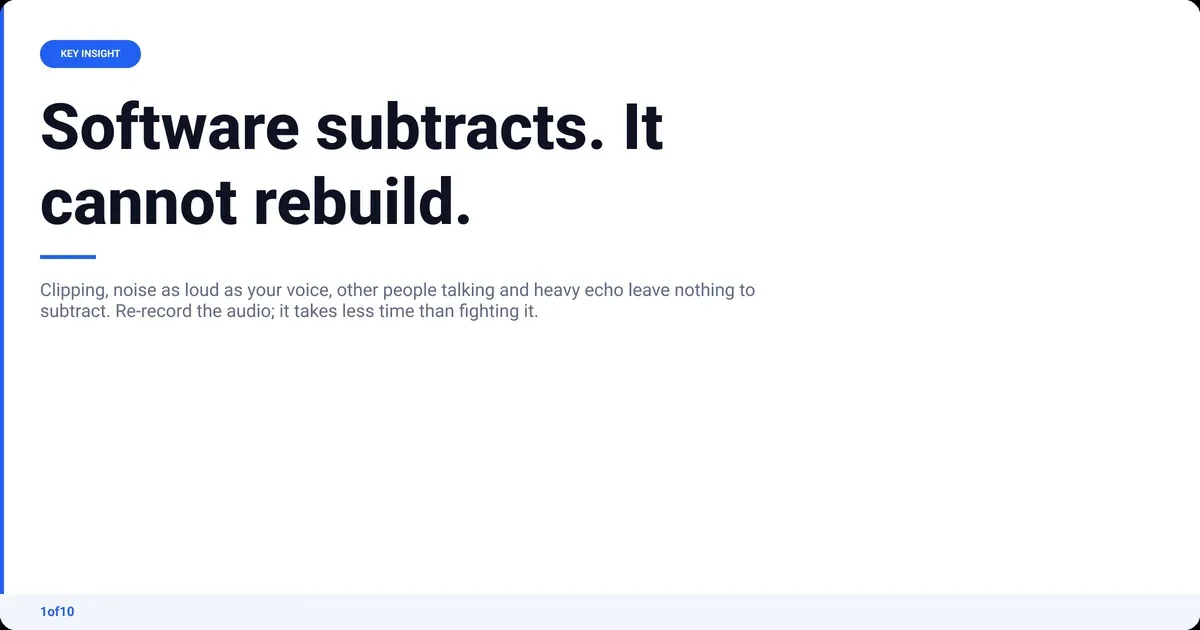
The six cases where you are re-recording, not repairing:
- Clipping. The waveform hit the ceiling and flattened. Those peaks are missing data; a de-clipper can only guess.
- Noise as loud as the voice. A road, a crowd, a running tap next to a phone mic. Signal-to-noise near zero leaves nothing to keep.
- Other speech or music. These sit in the same 300 Hz to 4 kHz band as your voice and change constantly, so no profile fits them.
- Heavy reverb. Echo is your own voice arriving late. De-reverb tools tighten it a little; they cannot un-bounce a bathroom.
- Wind hitting a bare mic. Wind is bursts of low-frequency overload, not steady noise, and it often clips too.
- Codec-crushed audio. A voice note or a video that went through a chat app lost its high end already. There is nothing left to clean.
It is worth fixing rather than shipping. A study in the journal Science Communication found listeners rated identical content as less credible when the audio was poor. Your options: re-record the audio only and sync it to the picture, record a voiceover for that section, or cut it and cover the gap with B-roll and captions.
How to clean up audio in video automatically with Audio Enhance
Audio Enhance is the noise pass inside AutoCut, 1of10's AI video editor. Drop in raw talking-head footage and it removes background noise and improves the voice as part of producing the finished A-roll, with no noise profile to select and no sliders to set. It is built for phone and cheap-mic recordings, which is where most YouTube noise comes from.
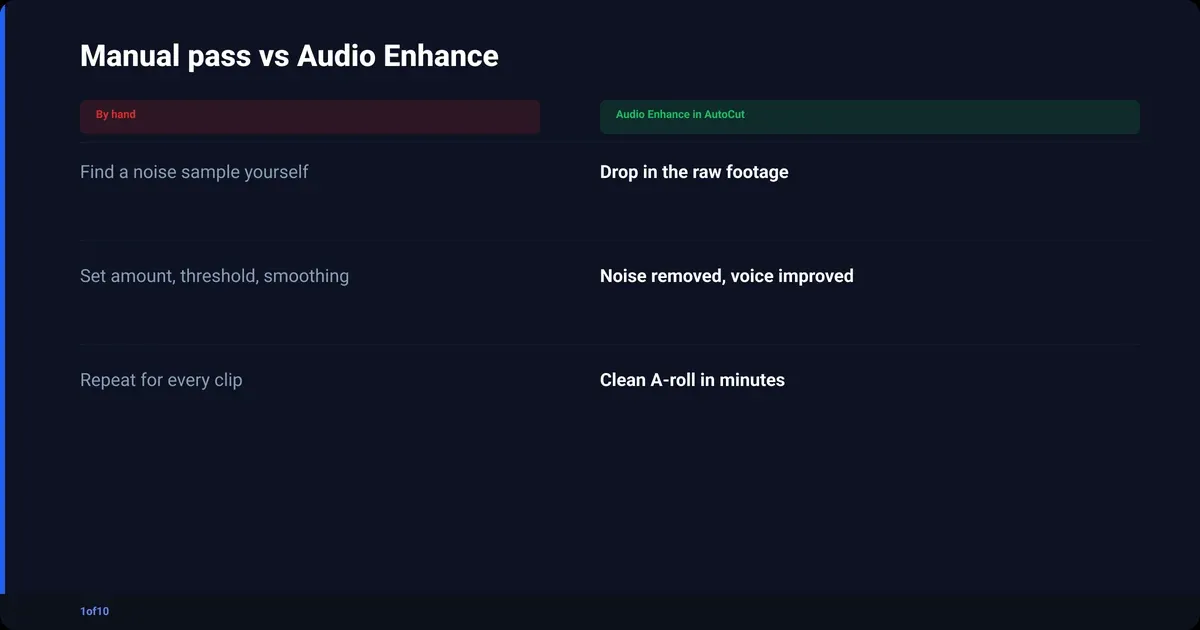
How it fits into the edit:
- Drop in your raw footage: one file or several video and audio files, MP4 or MOV, up to 30 minutes. No prompts, no setup.
- AutoCut removes the silences, rambles, dead air and repeated takes and returns a clean A-roll.
- Audio Enhance removes the background noise and improves the voice, including phone and cheap-mic recordings.
- Auto Sync lines up extra mics or audio sources, so picture and sound stay locked.
- Auto Retakes lines up every version of a take side by side so you pick the one you like.
- The finished A-roll lands in minutes. Publish it, or take it into Premiere Pro or DaVinci Resolve for B-roll and titles.
The limit is honest: the physics above still applies. Audio Enhance handles hiss, hum, fans, room tone and the distant, compressed sound of a phone mic. It cannot rebuild a clipped take or pull your voice out of a cafe. Nothing can.
Your first AutoCut is free, on up to 30 minutes of raw footage, Audio Enhance included. The fastest way to know whether your noise is fixable is to drop the clip in and listen.
Weighing AutoCut against Descript, CapCut and the rest? The best AI video editors compared by job sets them out side by side.
How to stop the noise before you record it
Prevention costs nothing and beats every tool on this page. Every centimetre closer the mic gets to your mouth improves the signal-to-noise ratio, and every noise you switch off is one the software never has to guess at.
- Get the mic 15 to 20 cm from your mouth. A cheap mic close beats an expensive mic far away.
- Set gain so your voice peaks around -12 dB, not touching zero. Clipping is the one thing you cannot undo.
- Kill the fans: PC, air con, fridge, heater. Phone in airplane mode.
- Soften the room. A rug, a duvet on a stand or a closet full of clothes cuts reverb more than any plugin.
- Record five seconds of silence before you speak. That is your noise print for every method above.
The full workflow from raw footage to upload is in how to edit YouTube videos without learning Premiere Pro.
Frequently asked questions
Can ChatGPT remove background noise from video?
Not directly. ChatGPT does not process video or audio files for noise removal. It can write you a Python script that uses a noise reduction library, and it can explain the settings in your editor, but the actual processing has to happen in Audacity, Premiere Pro, DaVinci Resolve, an online tool or an automatic editor like AutoCut.
How to remove background noise from video on iPhone?
The Photos app cannot do it. The practical routes are CapCut on the phone, which has a noise reduction toggle in the audio settings, or uploading the clip to a desktop editor or an automatic editor and doing it there. Better still, record with the phone 20 cm from your mouth in a quiet room and you will rarely need to.
Can CapCut reduce background noise?
Yes. CapCut has a noise reduction switch in the audio settings of a clip on both desktop and mobile. It is a single on-or-off setting with no amount control, so it does well on steady hiss and hum and can make the voice sound hollow on heavier noise. For anything more than a toggle can fix, use an editor with a noise profile.
Does removing background noise lower the audio quality?
It can, if you push it. Noise reduction subtracts frequencies, and past a point it subtracts parts of your voice too, which sounds watery or metallic. Keep the reduction between 6 and 12 dB, use two light passes instead of one heavy one, and check on headphones. Done at that level the voice sounds cleaner, not worse.