How to Hype a YouTube Video: The Hype Button and a 7-Day Launch Plan
How to hype a YouTube video depends on which side of it you are on. As a viewer, open the YouTube mobile app, find a long-form video published in the last 7 days by a Partner Program channel with 500 to 500,000 subscribers, swipe left on the comment carousel and tap Hype. You get three free hypes a week. As a creator, you hype a video by building demand for seven days before launch. This post covers both.
Most results for this search explain the button and stop. That is the easy half. The hard half is being the channel that deserves the hype: a title people repeat, a thumbnail that survives a phone screen, a Premiere on the calendar, a community post that makes the date matter. At the end you will see how Trending Formats in 1of10 shows you which title and thumbnail pattern is winning this week, so your packaging is a decision, not a guess.
What is the YouTube Hype button?
Hype is a free YouTube feature that lets viewers boost a video from a smaller channel. Each hype adds points to the video, the most-hyped videos each week appear on a country-specific leaderboard, and a hyped video can carry a "Hyped" badge across YouTube for its first 7 days. It exists for channels between 500 and 500,000 subscribers, not for the giants.
The rules, from YouTube Help's Hype eligibility page:
- Who can be hyped: YouTube Partner Program channels with 500 to 500,000 subscribers, in 37 countries and regions.
- What can be hyped: long-form videos published in the last 7 days. Shorts are excluded.
- Where it works: the YouTube app on Android, iPhone and iPad. Not the website, not TV.
- How often: three free hypes per viewer per week, refreshing Monday at 12:00 a.m. local time.
- What the creator controls: an on/off setting in YouTube Studio, desktop or mobile.
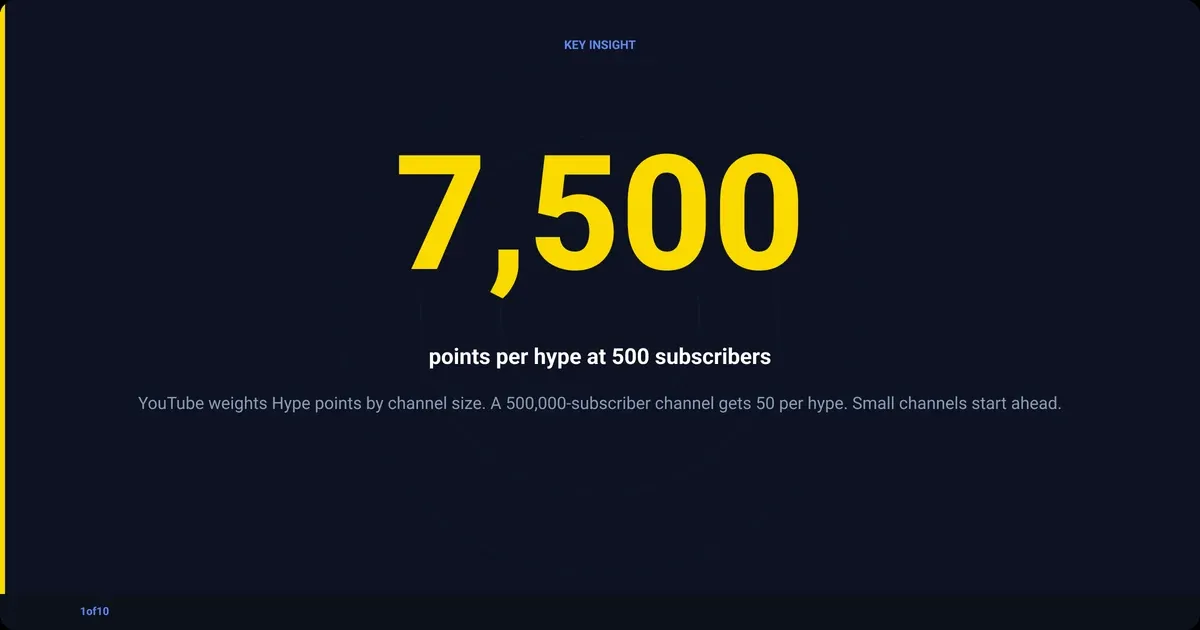
Points are weighted by channel size, so a small channel is not buried by one with half a million subscribers.
| Channel size | Points per hype |
|---|---|
| 500 subscribers | 7,500 |
| 500,000 subscribers | 50 |
Those two figures are YouTube's own examples; everything between scales down as the channel grows.
How do you hype a YouTube video on iPhone, Android or PC?
You hype a video from the YouTube app on Android, iPhone or iPad. Open the video, swipe left on the comment preview carousel under the player until the Hype option appears, tap it and confirm. There is no Hype button on PC, laptop, TV or the YouTube website, so if you are on a computer, pick up your phone.
The steps, matching YouTube Help's instructions:
- Open the YouTube app and sign in. The mobile browser does not show the button.
- Open a long-form video from a channel with 500 to 500,000 subscribers, published within the last 7 days.
- Find the comment preview carousel under the video, where the top comment shows. Swipe left on it until Hype appears.
- Tap Hype. The app shows the points the video will receive, calculated from the creator's subscriber count.
- Confirm. That is one of your three hypes for the week.
The same steps apply on iPad. On a Short, the carousel is not there: Shorts cannot be hyped.
Why is there no Hype button on your video?
A video shows no Hype button when the channel is outside the 500 to 500,000 subscriber band, is not in the Partner Program, sits in a country where Hype is not live, has switched the feature off in YouTube Studio, or when the video is a Short or older than 7 days. Viewers on desktop or TV never see it, whatever the video.
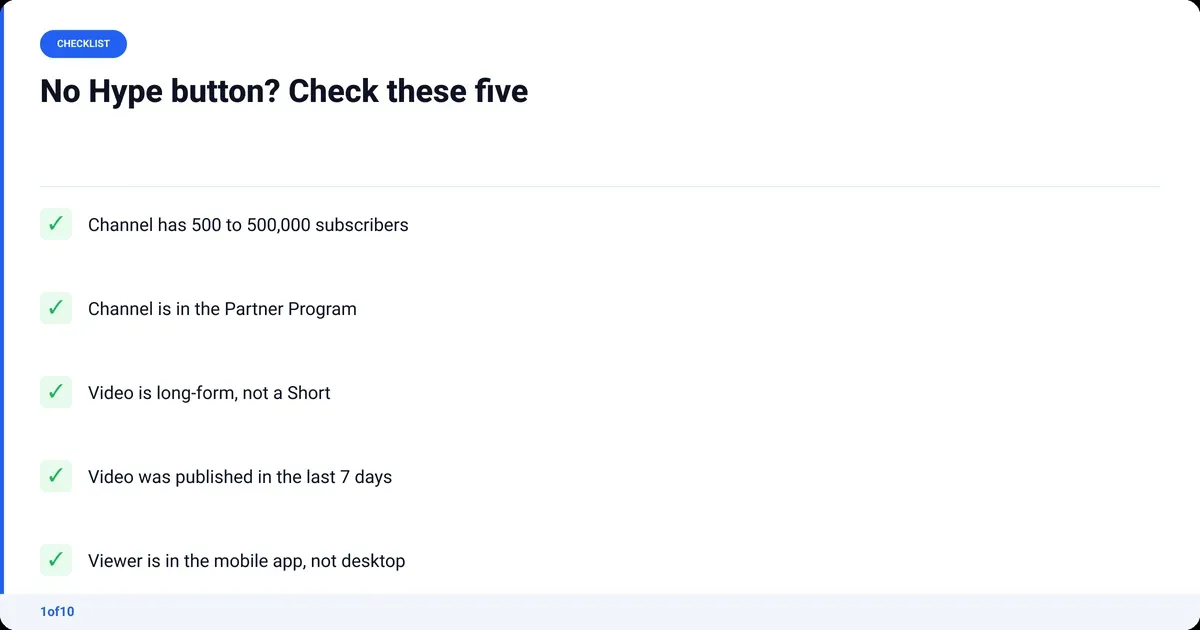
Run this list before you assume the feature is broken:
- Subscriber count. Under 500 or over 500,000 removes the button.
- Partner Program. A channel that is not yet monetised is not eligible, even at 20,000 subscribers.
- Video age. The window closes 7 days after publish. Day 8, gone.
- Format. Shorts are excluded. Only long-form uploads qualify.
- Setting. Check YouTube Studio; the feature can be turned off by the creator, on desktop or in the Studio app.
- Device. The viewer is on a PC, a laptop, a TV or a browser. Only the mobile app shows Hype.
If all six pass and the button is still missing, your country may not be one of the 37 where Hype is live; the eligibility page linked above keeps the current list.
How to hype a YouTube video before it goes live: the 7-day playbook
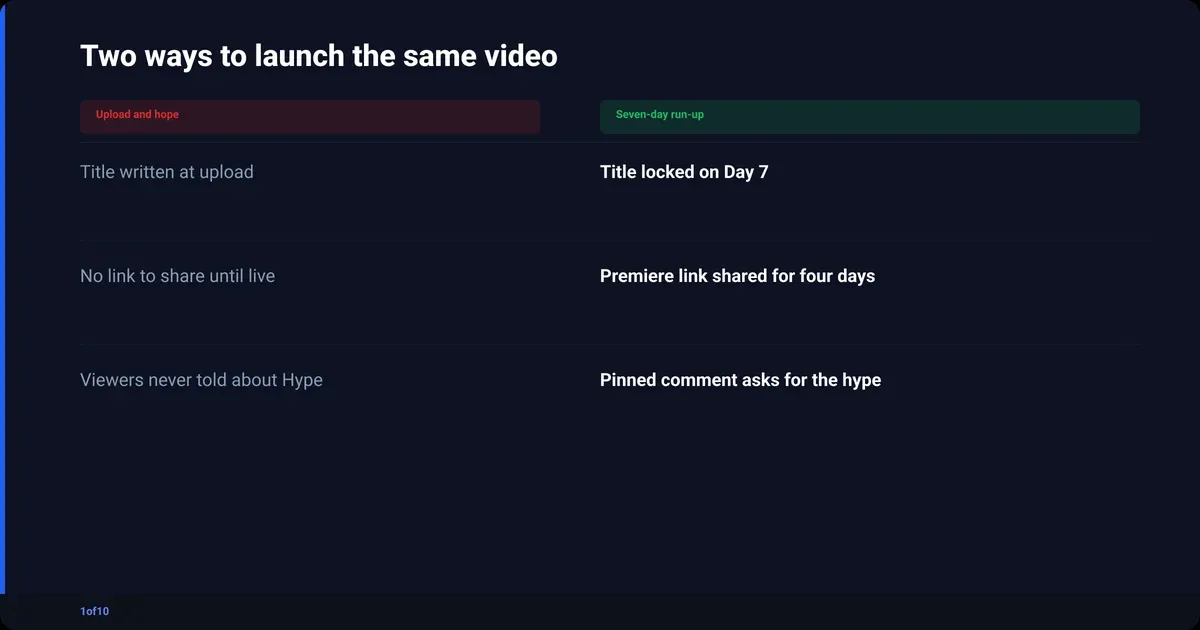
To hype a YouTube video as a creator, spend the seven days before launch building demand: lock the title and thumbnail early, tease with a community post and a Short cut from the A-roll, schedule a Premiere so viewers can set reminders, cross-post the date, and pin a comment on your last video. Then, in the first 7 days after launch, ask viewers to hype it.
This is how to build anticipation for a video without giving the video away. Every step points at one date and one page. Nothing here needs a budget.
Day 7: lock the title and thumbnail
A launch you cannot describe in one line is not ready. Write the title before anything else; it is the promise the whole week sells. Use a format that is working in your niche now, not one you remember from two years ago. The title formats going viral on YouTube change faster than most creators notice. Then build the thumbnail to match the title, and check it at phone size, because that is where most of your impressions will be judged.
Day 6: post a community poll
Publish a poll with two thumbnail crops or two titles. Ask which one they want first. The data is useful, but the point is that a few hundred people now feel part of the video. Reply to every comment on the poll.
Day 5: cut a Shorts teaser from the A-roll
Take the 20 to 40 seconds of the finished A-roll where you say the most surprising thing, cut it vertical, and end it on the date. If the A-roll still needs cleaning, that is a job for the edit before the teaser, not after it. Shorts cannot be hyped, but they can carry the date to people who do not open your channel page.
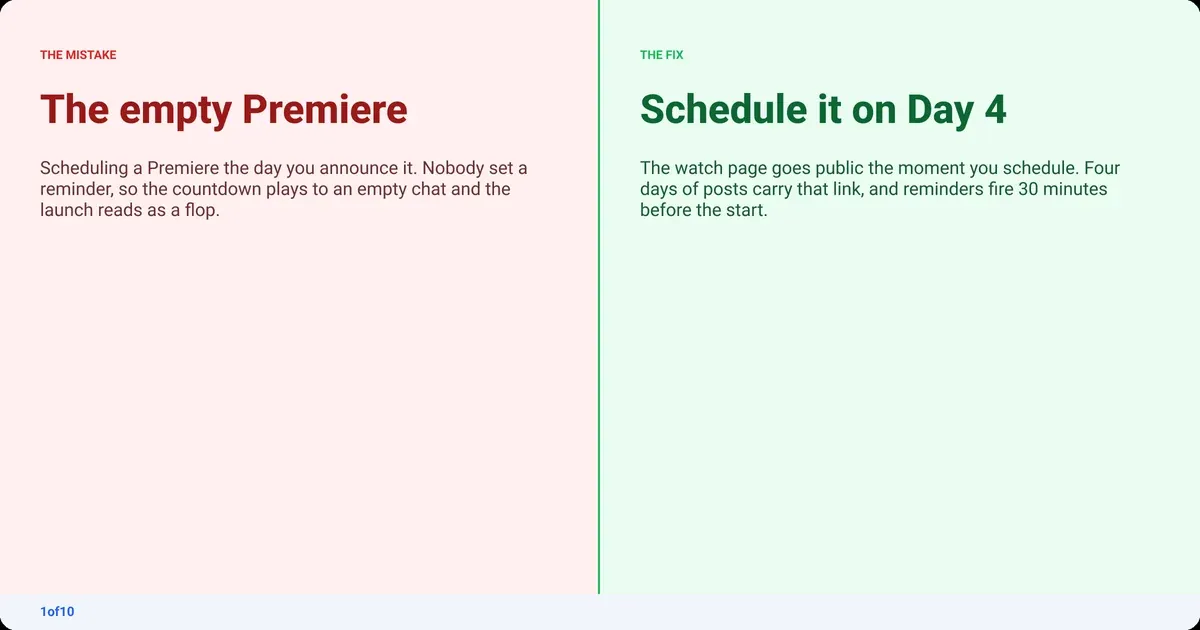
Day 4: schedule the Premiere
Set the video as a Premiere for your best publishing hour, and check your own analytics for the best time to upload rather than trusting a generic chart. The public watch page goes live the moment you schedule it, which means you now have a link. Every post from here on carries that link.
Day 3: cross-post the date
This is how to promote a YouTube video before release without spamming: one asset, one date, one link, everywhere your audience already is. The Shorts teaser on Instagram and TikTok, a still with the date on X, a two-line email or Discord message. The YouTube promotion pillar covers each channel in depth; for a launch, the discipline is repetition of the same date, not variety.
Day 2: pin the comment on your last video
Your most recent upload is still pulling views. Pin a comment on it with the Premiere link and the time. Post a community image with the final thumbnail and the countdown. This is the post most people will see, so make it look finished.
Day 1: the reminder
A short text community post. Tomorrow, the time, the link. Reply to anything still moving on the poll and the teaser. Check the Premiere page yourself on a phone: the countdown theme, the trailer if you added one, the description, the pinned comment you will post when it starts.
Launch day and the 7-day Hype window
A YouTube video launch is not a moment; it is the Premiere plus the seven days the Hype button is live. Be in the chat for the whole Premiere. When it ends, pin a comment that asks for the hype in plain words: "If this helped, hype it. You get three free a week, in the app, swipe left under the video." Most viewers have never used the button, so tell them where it is. Reply to the first fifty comments in the first hour; early engagement signals are what the algorithm reads first.
YouTube Premiere: why it belongs in the launch
A YouTube Premiere turns an upload into an event. YouTube creates a public watch page before the video goes live, viewers can set a reminder and get notified about 30 minutes before the start and again when it begins, and a live chat runs alongside the video while it plays for the first time. Chat replay stays available afterwards.
The facts, from YouTube Help's Premiere guide:
- Schedule it from the upload flow: set a date and time, tick "Set as Premiere". Or choose an instant Premiere that starts when processing finishes.
- The watch page is public before the Premiere, so viewers can comment and set reminders early.
- A countdown theme plays for the duration you chose, then your trailer if you uploaded one.
- Chat and comments stay open during and after; replay is available for people who missed it.
- Shorts are not supported.
| Standard upload | Premiere | |
|---|---|---|
| Public link before release | No | Yes, from the moment you schedule |
| Viewer reminders | No | Yes, 30 minutes before and at start |
| Live chat during first play | No | Yes, with replay |
| Works for Shorts | Yes | No |
A Premiere with no run-up is a countdown playing to an empty chat. The seven days exist to fill the room before the door opens.
What should a YouTube community post say before a launch?
A YouTube community post before a launch should do one job per post: a poll to involve people, an image to show the thumbnail, a text post to name the date. Posts appear on your channel's Posts tab and Home shelf, and can surface in subscribers' Home and Subscriptions feeds. Image posts can also appear in the Shorts feed.
From YouTube Help's Community posts page: posts support text, images, polls, quizzes, GIFs, music and video; they can be scheduled from YouTube Studio; they are unavailable on channels set as Made for Kids and are not currently available in Germany.
| Day | Post type | What it says |
|---|---|---|
| 6 | Poll | Two thumbnails or two titles. "Which first?" |
| 2 | Image | Final thumbnail, the date, the Premiere link |
| 1 | Text | Tomorrow, the time, the link |
| Launch +1 | Text | Thank you, and where the Hype button is |
Schedule all four on Day 6 so the run-up does not depend on you remembering, then spend the time replying instead of posting.
Trending Formats: the title and thumbnail pattern winning this week
The playbook only works if the packaging you lock on Day 7 is the right packaging. A title format that overperformed in your niche last quarter can be dead this month, because the moment everyone copies it, the click-through rate it earned goes with it.
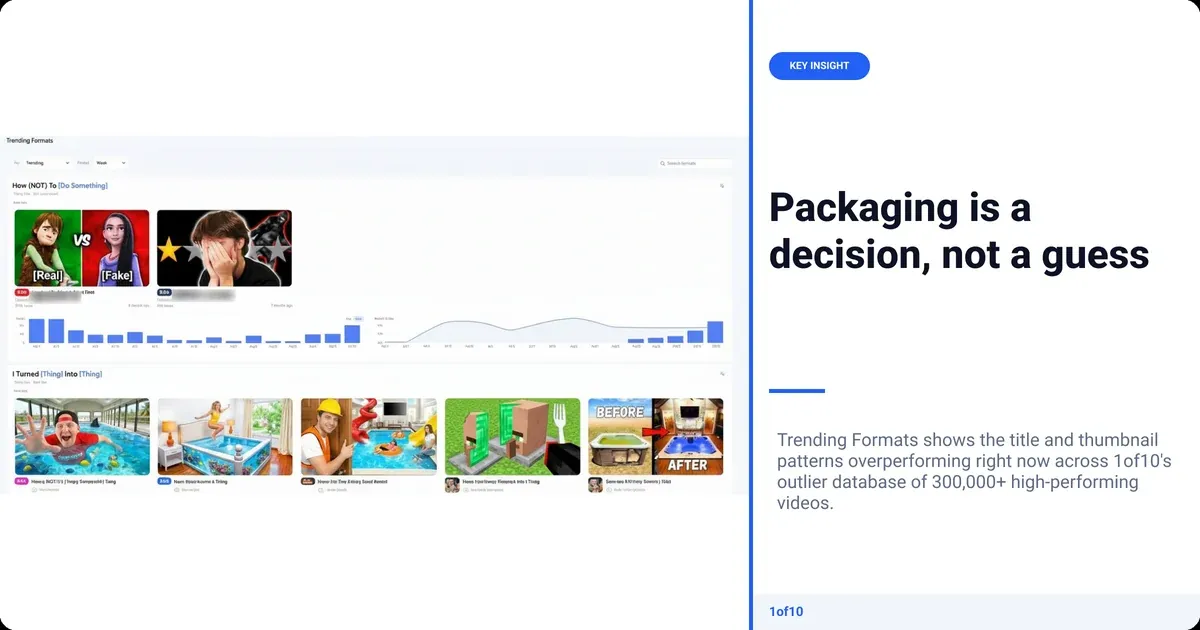
Trending Formats in 1of10 (the top 3 on Free, the full list on paid plans) shows the title and thumbnail patterns overperforming right now, measured across 1of10's outlier database of 300,000+ high-performing videos. You see the pattern, the videos using it and how far above their channel average they are running. Pick the pattern that fits your video, then write your title into it.
The Title Generator takes your topic and the pattern and returns options you can put straight into the Day 6 poll. Generation uses AI credits, which every plan includes (60 a month on Free); the research side of 1of10, including outlier search, never uses credits.
The manual version is opening thirty channels in your niche, sorting by recent, and eyeballing which titles beat their averages. It takes an afternoon and you will do it once. The tool version takes a minute and you will do it every launch.
Frequently asked questions
Can you hype on YouTube?
Yes. Any signed-in viewer using the YouTube app on Android, iPhone or iPad can hype a long-form video that was published in the last 7 days by an eligible channel. Each viewer gets three free hypes a week, refreshing on Monday at 12:00 a.m. local time. Hyping is not available on the YouTube website, on TV apps or on Shorts.
Who is eligible to use the Hype button on YouTube?
On the creator side, a channel must be in the YouTube Partner Program with between 500 and 500,000 subscribers, in one of the 37 countries and regions where Hype is live, and must not have switched the feature off in YouTube Studio. On the viewer side, anyone signed in to the mobile app can hype. Shorts are excluded on both sides.
Why is there no Hype button on YouTube?
The button is missing when you are on a desktop, laptop, TV or browser, because Hype is mobile-app only. On a phone, it is missing when the channel has under 500 or over 500,000 subscribers, is not monetised, has turned Hype off, is outside the supported countries, or when the video is a Short or more than 7 days old.
How do you hype a YouTube video on an iPhone?
Open the YouTube app on your iPhone, not Safari, and play the video. Below the player, find the comment preview carousel, where the top comment appears. Swipe left on that carousel until the Hype option shows, tap it, check the point value, and confirm. The same steps work on iPad and Android. You have three hypes each week.
Can you hype a YouTube Short?
No. YouTube Help lists Shorts as excluded from Hype, so the carousel with the Hype option never appears on a Short. If a creator wants a Short to feed a launch, the Short should point viewers to the long-form video, which can be hyped for its first 7 days after publish.
How long does the hype window last?
Seven days from the moment the video is published. During that window viewers can hype it, points accumulate, and the video competes on that week's country leaderboard. Videos with enough points may also show a "Hyped" badge across YouTube for those 7 days. After day 7 the option disappears and the points stop.