
YouTube Studio: The Ultimate 2025 Guide for Creators (What to Focus On, and What to Ignore)
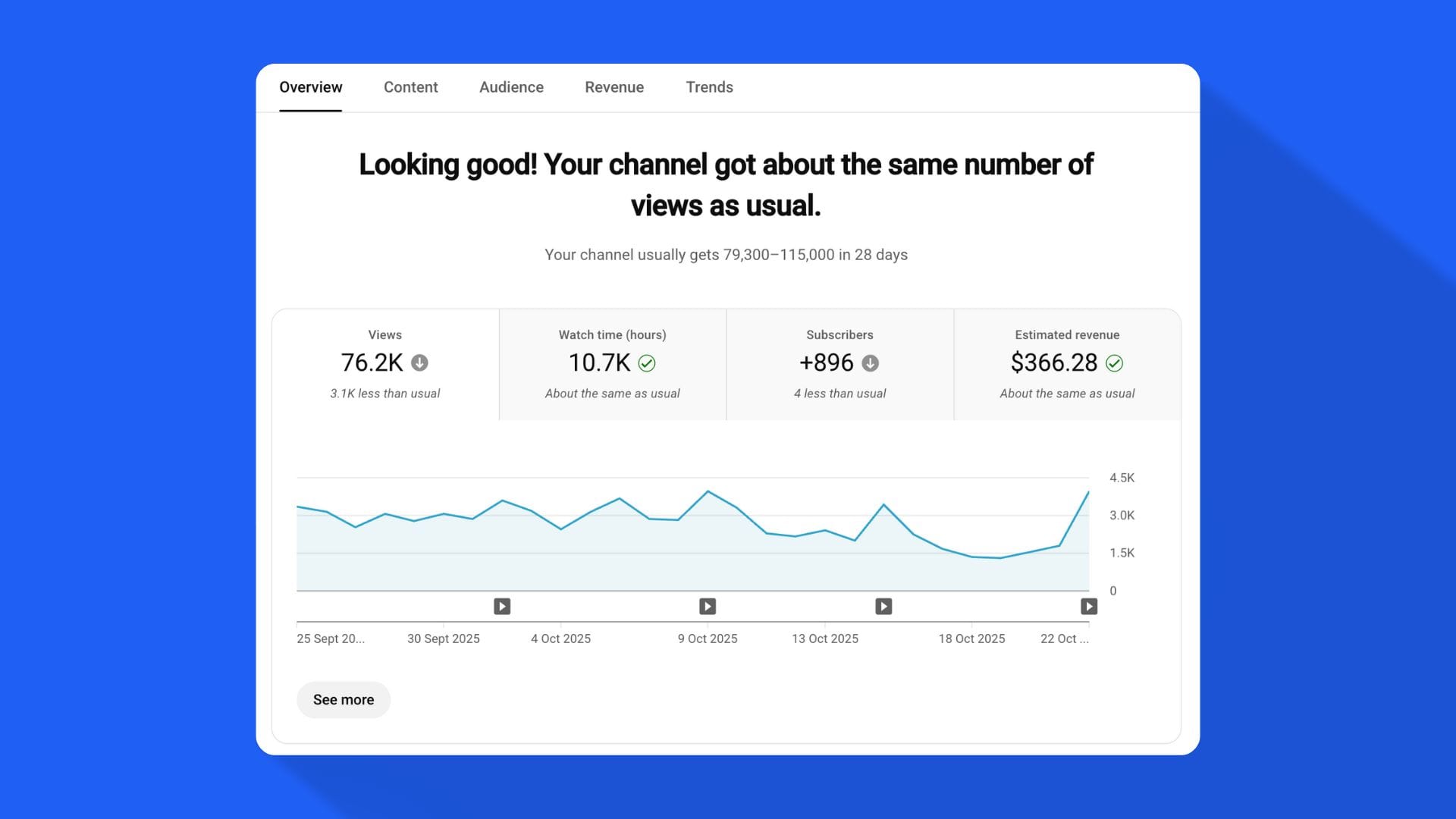
If you’ve ever found yourself opening YouTube Studio five times a day, watching the same numbers move a few decimal points, you’re not alone. Every creator goes through this phase, where analytics feel like progress, when in reality, they’re just noise.
YouTube Studio was built to help you understand your channel. But most creators use it to validate their feelings, not to make better videos. The truth is, the people who grow the fastest don’t obsess over their stats, they use data to guide creativity, not replace it.
Let’s break that down.
What YouTube Studio Actually Is
YouTube Studio is the creator control center, the place where you upload, manage, and analyze every piece of content on your channel.
It’s your dashboard, your analytics hub, your monetization portal, and your brand manager all in one.
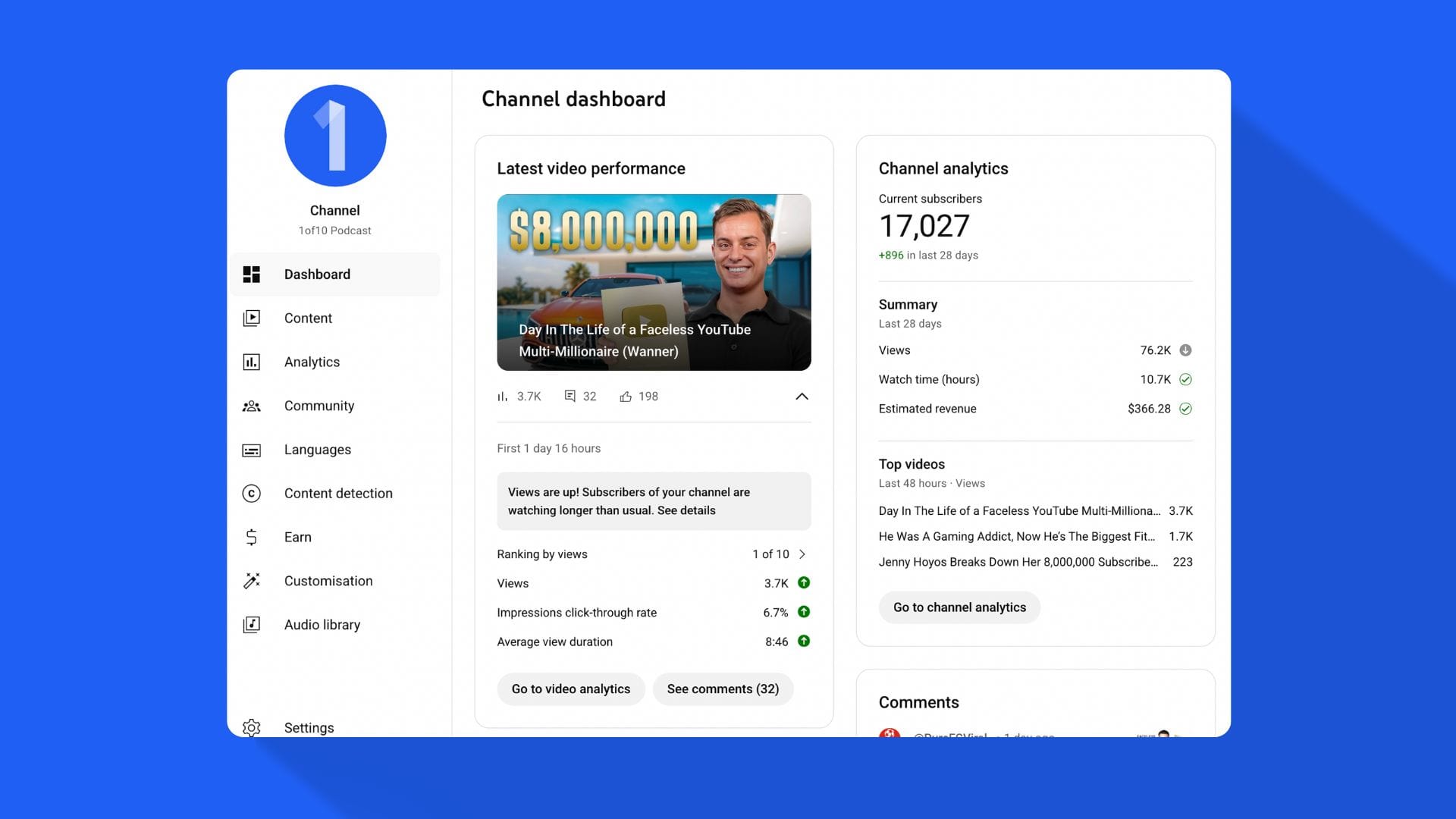
But if you strip it back to what matters, YouTube Studio is designed for three core purposes:
- Understanding performance: What’s working, what’s not, and why.
- Optimizing future uploads: Learning how to package content for better clicks and retention.
- Managing your channel as a business: Everything from comments to monetization to audience behavior.
That’s it. Everything else, the graphs, tabs, filters, comparisons, are tools to support those three goals.
The problem is that most creators get lost in the data jungle and forget the purpose: to make better content faster.
The Creator’s Mistake: Confusing Data with Direction
The average YouTuber thinks more data equals more control.
They check impressions, traffic sources, and audience retention every few hours, hoping to “find the reason” for a dip in views.
But here’s the uncomfortable truth: YouTube analytics rarely tell you what to do. They tell you what happened.
And that’s a big difference.
The best creators don’t use YouTube Studio reactively. They use it strategically.
- They don’t panic when retention drops, they note where it drops, and next time, they script a stronger hook.
- They don’t obsess over CTR, they test different thumbnail/title combinations and measure trends, not single numbers.
- They don’t analyze every metric, they look for patterns that affect behavior.
The rest? Distraction disguised as productivity.
The Three Pillars of Smart YouTube Studio Usage

If you want to make YouTube Studio work for you instead of against you, here’s the mental framework top creators use:
1. Observation > Obsession
Data should inform, not consume. You don’t need to know your CTR every hour.
Checking it once a week and asking “What can I learn from this?” is far more valuable than obsessively watching small fluctuations.
2. Action > Analysis
Every time you look at data, ask this question: “Does this change what I do next?”
If not, move on.
Analytics should feed your next creative decision, not justify your last one.
3. Systems > Spikes
The creators who build sustainable channels don’t chase viral spikes, they build repeatable systems for finding what works.
That’s the point of tools like 1of10: using data patterns and AI to identify outliers, generate ideas, and create packaging that works consistently, not occasionally.
Breaking Down the YouTube Studio Interface (Without Getting Lost)
When you open YouTube Studio, you’re greeted with what looks like a pilot cockpit, graphs, charts, dropdowns, notifications, and more buttons than you’ll ever click.
Let’s make sense of it.
Dashboard Overview
This is your home screen, the snapshot of everything happening on your channel right now.
It includes:
- Channel analytics: How your channel is performing overall.
- Recent performance: A quick view of your latest upload compared to your past videos.
- Comments: What’s being said on your channel.
- News and updates: YouTube’s own product announcements.
The problem is most creators stop here and draw conclusions too early.
If one video underperforms, they assume something’s broken. If one overperforms, they assume they’ve cracked the code.
Both reactions are wrong.
YouTube Studio isn’t showing you results, it’s showing you signals.
Your job is to recognize patterns over time, not react emotionally to every dip or spike.
The “Data Overload” Trap
YouTube Studio gives you hundreds of data points: watch time, click-through rate, impressions, audience retention, top geographies, playback locations, traffic sources, device types, age groups, gender splits, subscription status, and more.
Here’s the truth: 80% of that is irrelevant to your next upload.
The only data that consistently affects growth:
- CTR (Click-Through Rate) – How clickable your title and thumbnail are.
- Average View Duration (AVD) – How long people actually watch.
- Retention Curve – Where people drop off.
- Returning Viewers – Whether your videos make people come back.
Everything else is useful context, not guidance.
If you spend more time analyzing traffic sources than improving your next video idea, you’ve already lost.
Why the “Advanced Analytics” Tab Is a Trap
The Advanced Analytics mode in YouTube Studio gives you hundreds of filters and breakdowns. It’s great for data analysts.
For creators? It’s often overkill.
Here’s why:
- You can filter by geography, traffic type, or device, but none of that helps you make your next video better.
- You can analyze retention by age group, but it doesn’t help you write a stronger hook.
- You can compare videos over time, but without understanding why something worked, the comparison is meaningless.
The best creators use light analytics with heavy action.
They don’t drown in spreadsheets, they focus on feedback loops.
Example:
If your CTR dropped after changing thumbnail style, that’s actionable.
If your watch time increased after changing pacing, that’s actionable.
If your audience is 60% male instead of 40% female? That’s trivia.
YouTube Studio Is a Mirror, Not a Map
YouTube Studio doesn’t tell you where to go, it shows you where you’ve been.
That distinction is crucial.
Creators who treat analytics like GPS get stuck waiting for perfect direction.
Creators who treat analytics like a rearview mirror learn fast, adjust, and move forward.
Think of YouTube Studio like this:
- It’s not a strategy tool. It’s a reflection tool.
- It won’t tell you what to make, it’ll confirm whether what you made resonated.
- It’s not predictive, it’s responsive.
That’s why tools like 1of10 exist, to bridge the gap between data and decision.
YouTube Studio shows you what happened; 1of10 helps you decide what to do next.
The 10/90 Rule of YouTube Studio

Here’s a principle that separates high-performing creators from everyone else:
Spend 10% of your time analyzing and 90% of your time creating and testing.
Why? Because no amount of analytics replaces iteration.
A thousand retention graphs won’t beat one new video idea executed well.
A 1% CTR improvement means nothing if you only upload once a month.
Creators grow through consistency and testing, not data memorization.
Data is powerful when it’s used to improve your decision-making velocity, not slow it down.
Common Misconceptions About YouTube Studio
Let’s debunk a few myths that waste creators’ time:
- “More data = better decisions.”
No. Most of YouTube’s data is descriptive, not prescriptive. - “CTR is the only metric that matters.”
CTR means nothing without retention. Clicks get you views; retention gets you growth. - “Advanced mode gives deeper insights.”
Not if you don’t know what you’re looking for. It gives more numbers, not more answers. - “Demographics help tailor content.”
Unless you’re running ads, demographics rarely change creative decisions. - “You can game the algorithm with analytics.”
The algorithm prioritizes viewer satisfaction, not spreadsheet manipulation.
How to Reframe Your Relationship With YouTube Studio
Instead of seeing analytics as a performance review, use them as a creative compass.
Here’s the mindset shift that changes everything:
| Old Thinking | New Thinking |
|---|---|
| “Why did this video underperform?” | “What can I test in my next upload?” |
| “My CTR dropped!” | “Let’s test new thumbnail layouts.” |
| “My watch time’s low.” | “Let’s rework pacing and hooks.” |
| “My audience changed.” | “Let’s see what kind of ideas resonate most.” |
Creators who grow fast treat YouTube Studio as feedback, not failure.
The Dashboard What Actually Matters
When you log into YouTube Studio, the first thing you see is your Dashboard.
For most creators, it’s where the obsession begins.
They see arrows going up or down, a graph that dips overnight, or a number that doesn’t “look right,” and they spiral.
The truth is, 90% of creators don’t know what the Dashboard is actually showing them, or what they’re supposed to do with it.
So let’s fix that.
What the YouTube Studio Dashboard Actually Is
The Dashboard is meant to be your snapshot.
It’s the “morning check-in”, a pulse check, not a postmortem.
When used correctly, the Dashboard answers three key questions:
- How did your most recent video perform?
- How is your channel trending overall?
- What requires immediate attention (comments, updates, strikes, monetization)?
That’s it.
Everything else is background noise.
But here’s where most creators get stuck, they mistake the Dashboard for a diagnosis tool when it’s actually a summary view.
The Anatomy of the Dashboard
Let’s go piece by piece.
1. Channel Analytics Snapshot
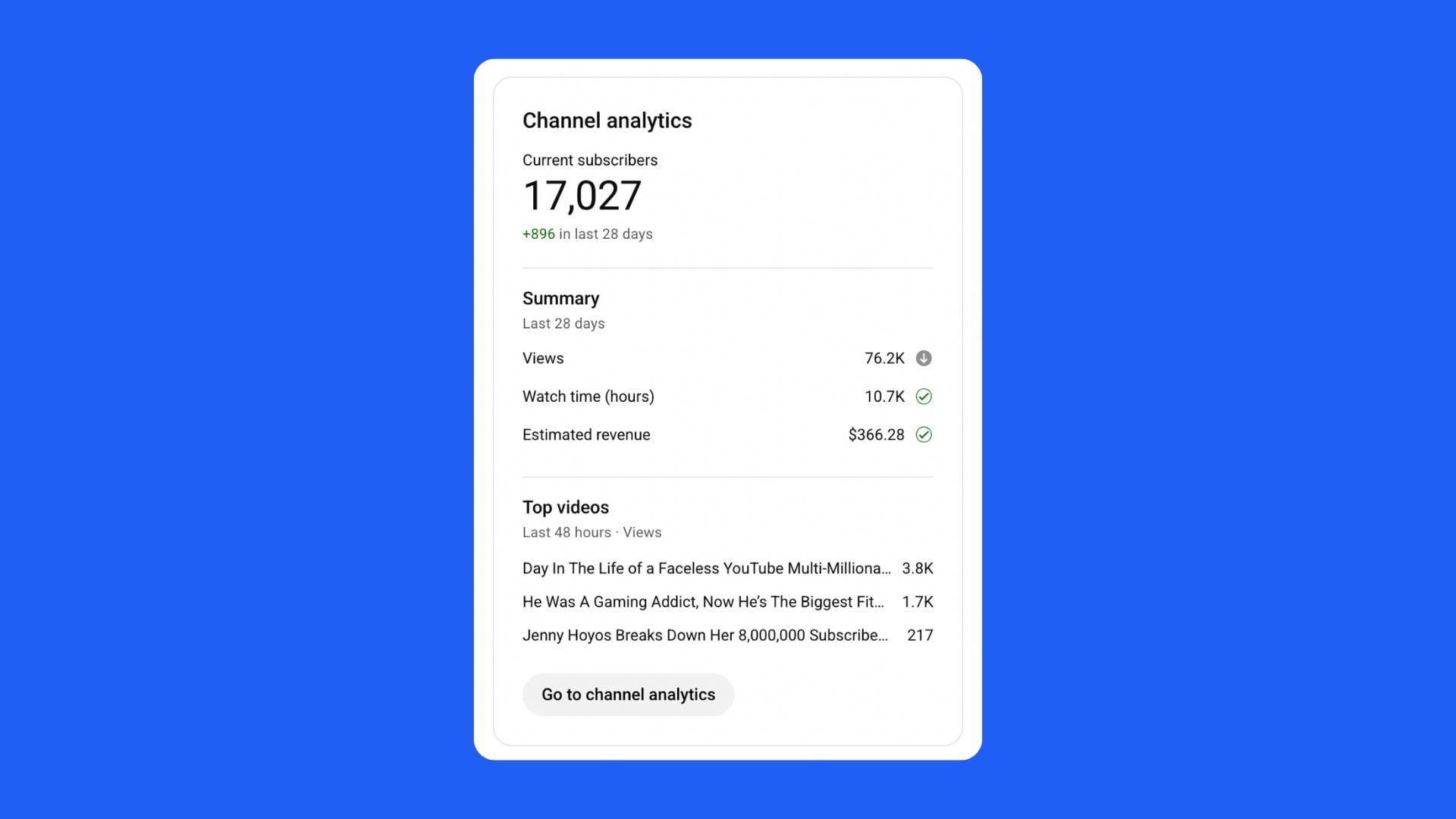
This is the small box with your total views, watch time, and subscribers gained over the last 28 days.
What it means:
- It’s a quick performance overview, a heartbeat check.
- You can spot trends here, but you can’t explain them.
What you should do:
- Compare general direction (is your 28-day view count increasing or decreasing?).
- If it’s increasing, double down on what you’ve been doing.
- If it’s decreasing, move on to analytics later to find out why, don’t dwell here.
What you shouldn’t do:
- Panic over minor dips. Every channel has natural fluctuations.
- Use this number to judge your worth or future performance.
2. Recent Upload Performance
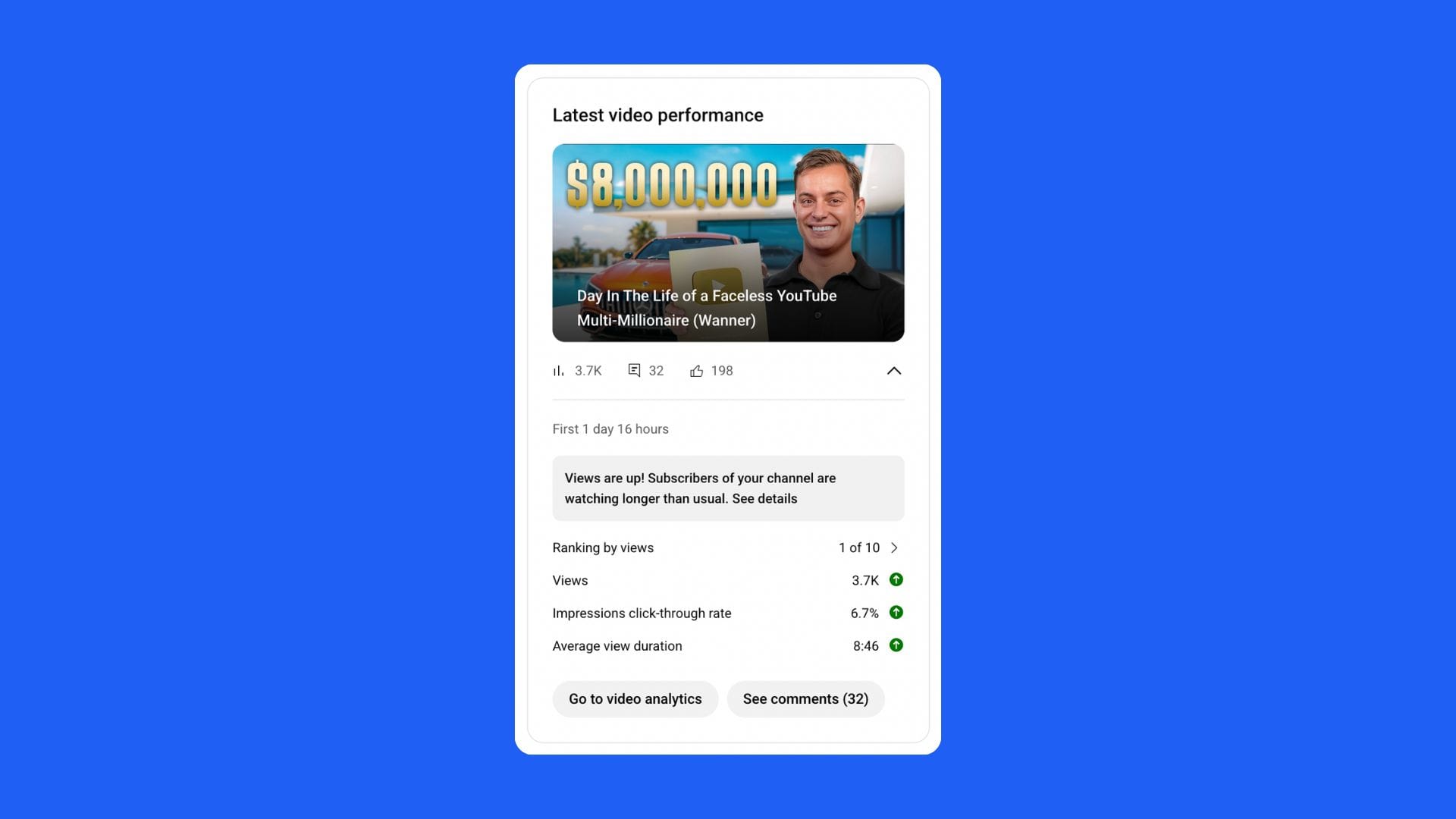
This is the most important widget on your Dashboard.
It ranks your latest video against your last ten uploads based on views, CTR, and average view duration.
Creators love to hate this box.
It’s the one that shows the dreaded “10 of 10”, and suddenly your week’s ruined.
Here’s the truth: it’s not there to shame you. It’s feedback in real-time.
If your latest video ranks low, it doesn’t mean it failed. It means one or more of the following:
- The topic wasn’t as clickable.
- The packaging (thumbnail/title) underperformed.
- The audience hasn’t discovered it yet (algorithmic delay).
Instead of spiraling, use this box as your quick triage point:
- CTR down? Your packaging didn’t hit.
- AVD down? Your pacing or topic hook needs work.
- Both down? It’s probably idea fatigue, time to pivot slightly.
3. Real-Time Views
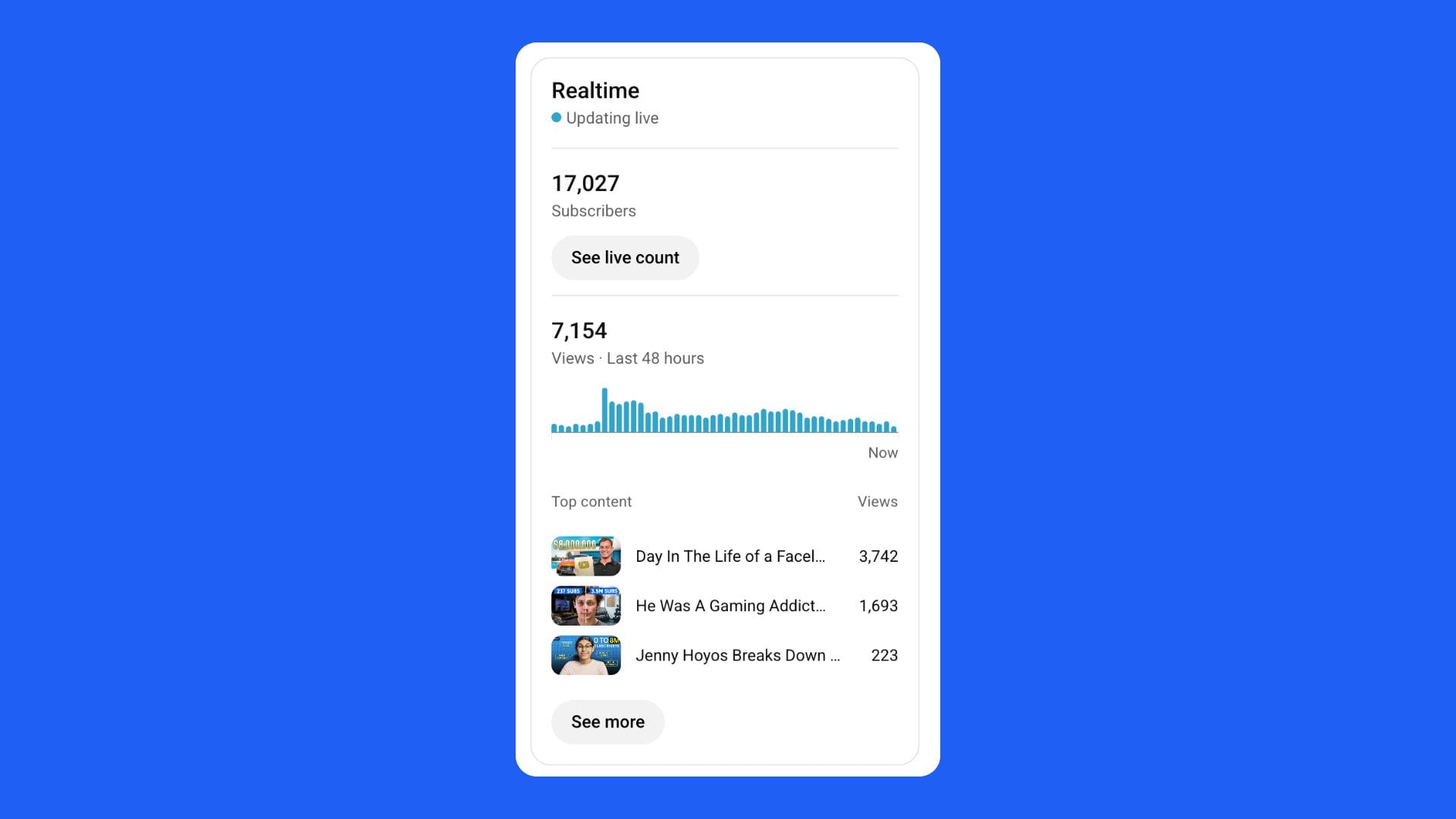
This feature shows how many people are watching your content right now.
It updates every few seconds, and if you’re not careful, it’s a rabbit hole of dopamine.
What it’s good for:
- Testing initial video traction.
- Spotting when a video gets picked up by YouTube’s browse or suggested algorithm.
What it’s not good for:
- Obsessively refreshing every 30 seconds.
- Judging long-term performance in the first hour.
Here’s a better way to use it:
Check your real-time graph 24 hours after upload.
If you see a sharp uptick later in the day, you’re entering suggested territory, that’s the metric that matters.
4. Comments and Mentions
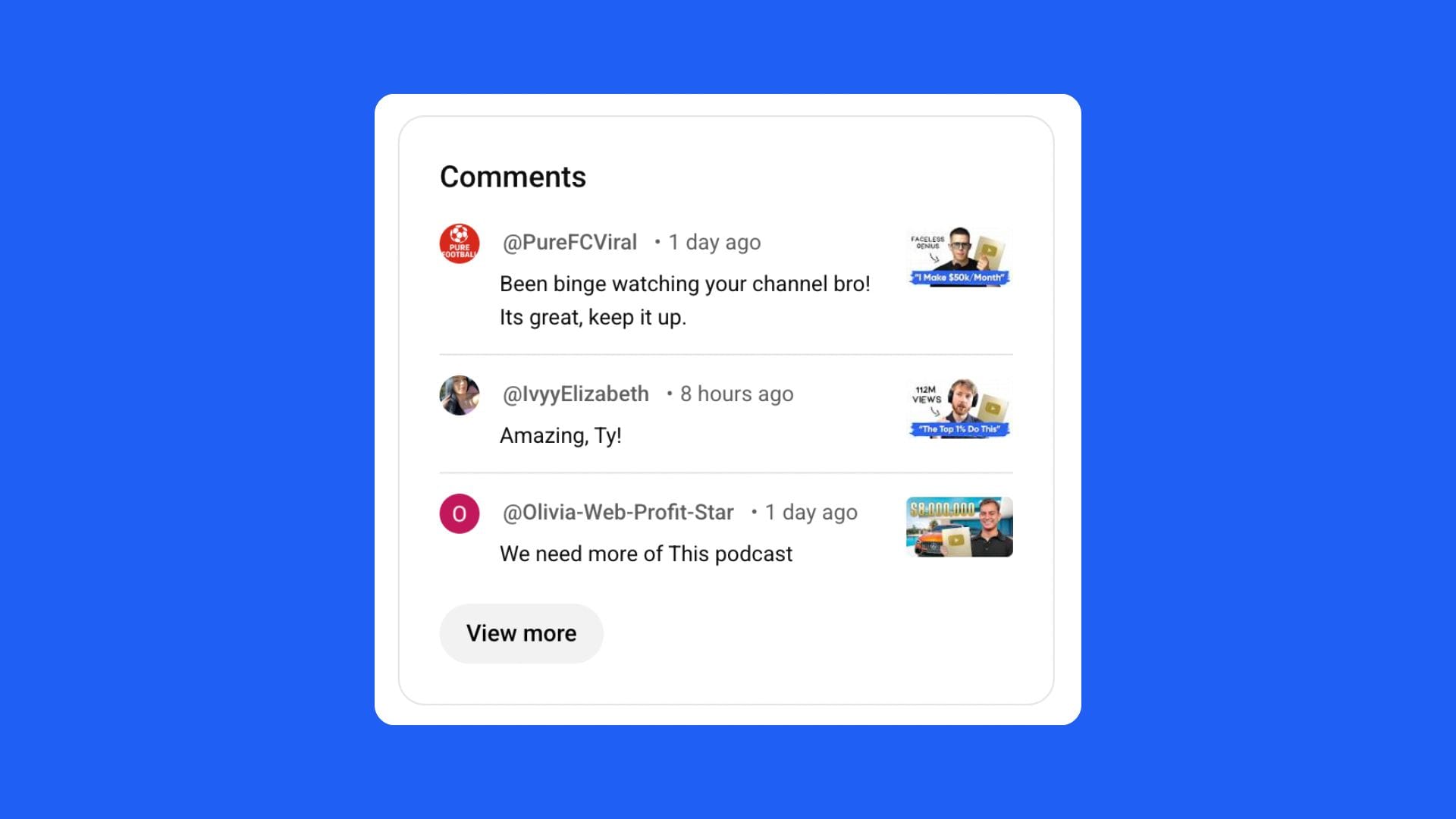
The Dashboard shows your latest comments and mentions so you can engage quickly.
Creators underestimate how valuable this widget is.
Fast engagement can amplify your video’s performance because it signals activity to YouTube’s system.
Best practice:
- Reply to meaningful comments early, especially in the first few hours post-upload.
- Ignore or hide spam comments; don’t let them clutter your engagement feed.
Think of early engagement as fuel, the more active your video appears, the more likely it is to get surfaced.
5. YouTube News and Tips
This section gives platform updates and advice from YouTube’s internal team.
Most creators skip it, but it’s actually useful if you filter the noise.
What to look for:
- Policy changes (especially monetization).
- New feature rollouts (like recent AI editing or thumbnail testing tools).
- Creator success stories (to learn platform trends).
Don’t waste time reading fluff or “tips” that sound generic.
Look for actionable updates that affect your workflow directly.
What to Focus On (and What to Ignore)
Let’s simplify everything into two columns.
| Focus On | Ignore |
|---|---|
| CTR (Click-Through Rate) | Impressions count |
| Average View Duration | Gender and age breakdowns |
| Retention curve patterns | Device type analytics |
| Returning viewers | Geography data (unless language matters) |
| Traffic source types (suggested, browse, search) | Playback location |
| Comments sentiment | Individual view dips within 24 hrs |
When you look at your Dashboard through this filter, you instantly reduce 90% of the noise.
How to Read the Dashboard Like a Pro
Here’s how top creators approach their Dashboard in under five minutes:
- Scan performance trend (28-day views).
If views are up → double down. If down → adjust content focus. - Check latest video performance.
Identify CTR and AVD, decide if the issue was packaging, pacing, or topic. - Look at returning viewers.
If your retention is solid but returning viewers are down, your audience might be fatigued, experiment with format or tone. - Respond to comments.
Fuel engagement loops while the video is active. - Close the dashboard and go back to creating.
The best creators don’t overstay their welcome here. The Dashboard should guide your focus, not consume your morning.
The “Signal Not Scoreboard” Mindset
Creators get addicted to metrics like athletes get addicted to scoreboards.
But numbers don’t mean anything until you interpret them correctly.
Here’s the mindset that changes everything:
- Don’t chase perfection in metrics. Chase improvement in outcomes.
- The Dashboard isn’t a grade, it’s a feedback loop.
- Your worst “10 of 10” might still outperform everything else in the long run.
YouTube’s algorithm doesn’t judge you by early performance alone. It watches long-term viewer satisfaction.
That’s why panicking at 24-hour stats is the fastest way to make short-sighted decisions.
The 24/48/72 Rule for Dashboard Analysis
Timing matters when reading analytics.
Top creators follow a simple framework:
- 24 hours: Look for early traction. CTR, initial comments, and real-time views give a sense of the clickability of the topic.
- 48 hours: Check retention and returning viewers. By now, you’ll know if people watched and shared.
- 72 hours: Measure the compounding effect. Has YouTube started recommending the video? Are browse and suggested views climbing?
If not, don’t delete or panic.
Most videos take 7–14 days to stabilize.
How to Avoid “Analytics Paralysis”
Here’s a simple principle that separates creators who grow from those who stall:
You don’t need more data. You need more reps.
The Dashboard is not your boss, it’s your assistant.
You look at it to learn, not to seek permission.
Ask these three questions every time you open it:
- What worked?
- What didn’t?
- What will I test next?
If you can answer those, close the tab and get back to your workflow.
How to Pair the Dashboard with 1of10
This is where the combination becomes powerful.
The YouTube Studio Dashboard tells you what happened.
1of10 helps you act on it.
Example workflow:
- You notice a drop in CTR on your last few videos.
- You open 1of10’s Outlier Finder to see which thumbnails and titles are trending in your niche right now.
- You generate five new title ideas and a thumbnail variation using 1of10’s AI generators.
- You republish or test the packaging on your next upload.
The Dashboard shows symptoms. 1of10 gives you treatment.
In Summary: What to Take Away from the Dashboard
If you use YouTube Studio like most creators, you’ll waste hours analyzing metrics that don’t move the needle.
If you use it correctly, it becomes your fastest source of feedback for smarter creative decisions.
Remember:
- The Dashboard is your snapshot, not your full report.
- Data doesn’t dictate your next move, it informs it.
- YouTube growth doesn’t come from knowing your analytics better. It comes from knowing your audience better.
Analytics Deep Dive Without Getting Lost in It
If the Dashboard is your snapshot, then Analytics is the full picture.
It’s where YouTube hides every number, graph, and dataset about your videos and your audience.
And for most creators, it’s a black hole.
The truth is, YouTube Analytics isn’t complicated, it’s just overwhelming.
It’s easy to mistake “more data” for “more control.” You spend hours zooming into graphs, comparing numbers, and trying to decode the algorithm, when what you really need to do is upload your next video.
So, in this section, we’ll strip Analytics down to what matters, how to read it properly, and how to use it to improve, not obsess.
Understanding the Four Core Analytics Tabs
When you open Analytics in YouTube Studio, you’ll see four main tabs:
- Overview
- Reach
- Engagement
- Audience
(And if you’re monetized, a fifth: Revenue.)
These four tabs are all you’ll ever need to understand what’s happening on your channel.
Everything else, Advanced Mode, filters, comparisons, is optional and often unnecessary.
Let’s walk through each one like a strategist, not a statistician.
1. Overview: The Big Picture That Actually Matters
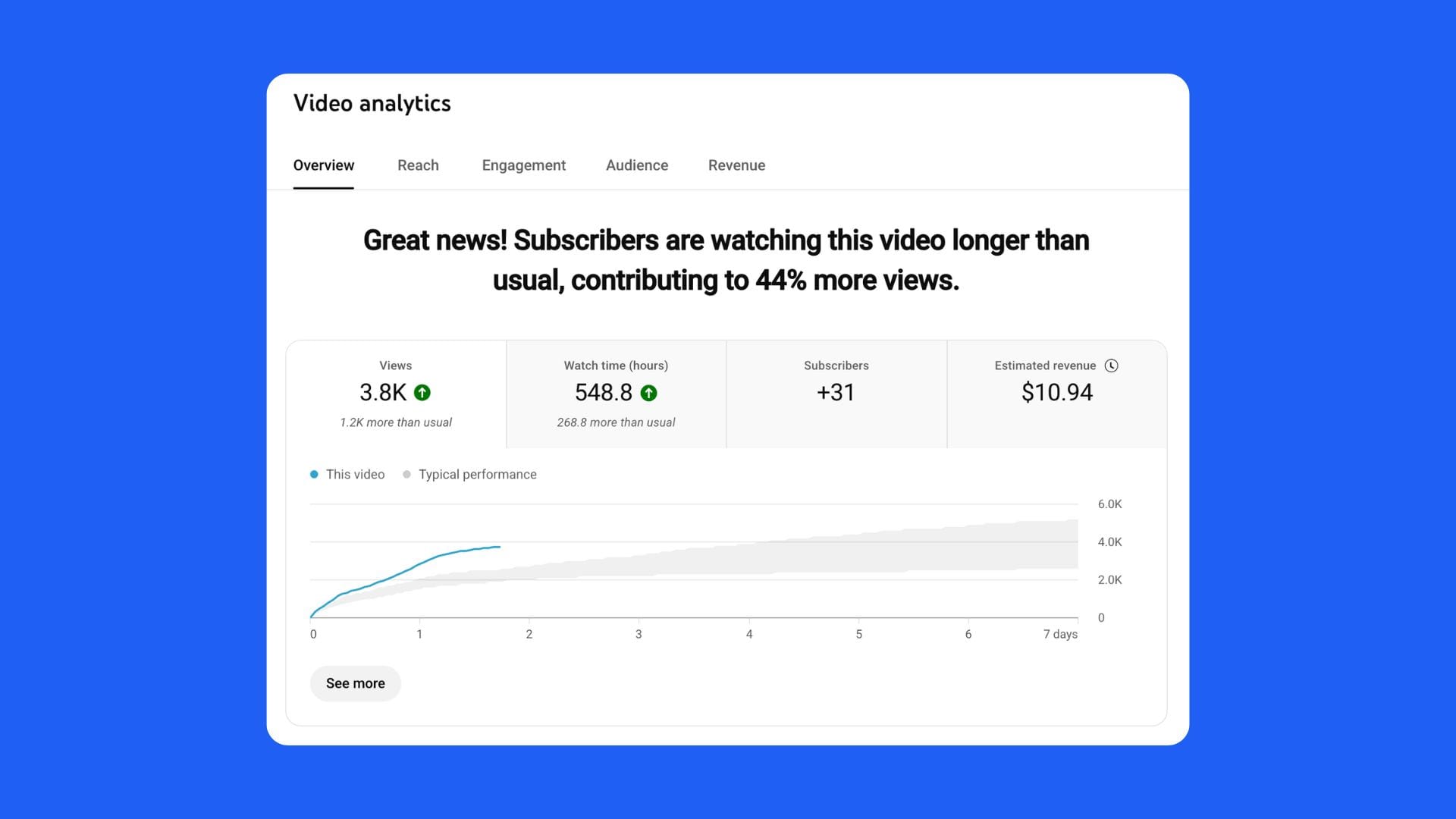
The Overview tab is where most creators spend five minutes and draw the wrong conclusions.
It’s designed to show you three key things:
- How your channel is trending (views, watch time, subscribers).
- How your latest content is performing.
- Where your growth is coming from.
What to Focus On
- Views & Watch Time: Are you trending upward or downward compared to the previous 28 days? Look for direction, not perfection.
- Average View Duration (AVD): This is your retention summary. If your AVD is increasing, you’re improving your storytelling.
- Subscribers: Are you gaining subs from your content or from shorts/browse? If growth slows, it’s not a problem, it’s a signal to test new topics.
What to Ignore
- The exact minute-by-minute graph.
- Comparing 48-hour views across unrelated uploads.
- The “Your estimated revenue” block (unless your entire focus is monetization).
The goal here is to identify trends.
If your views are up and retention is steady, you’re winning. If they’re not, don’t panic, dig deeper into Reach and Engagement to find out why.
2. Reach: How People Are Finding You
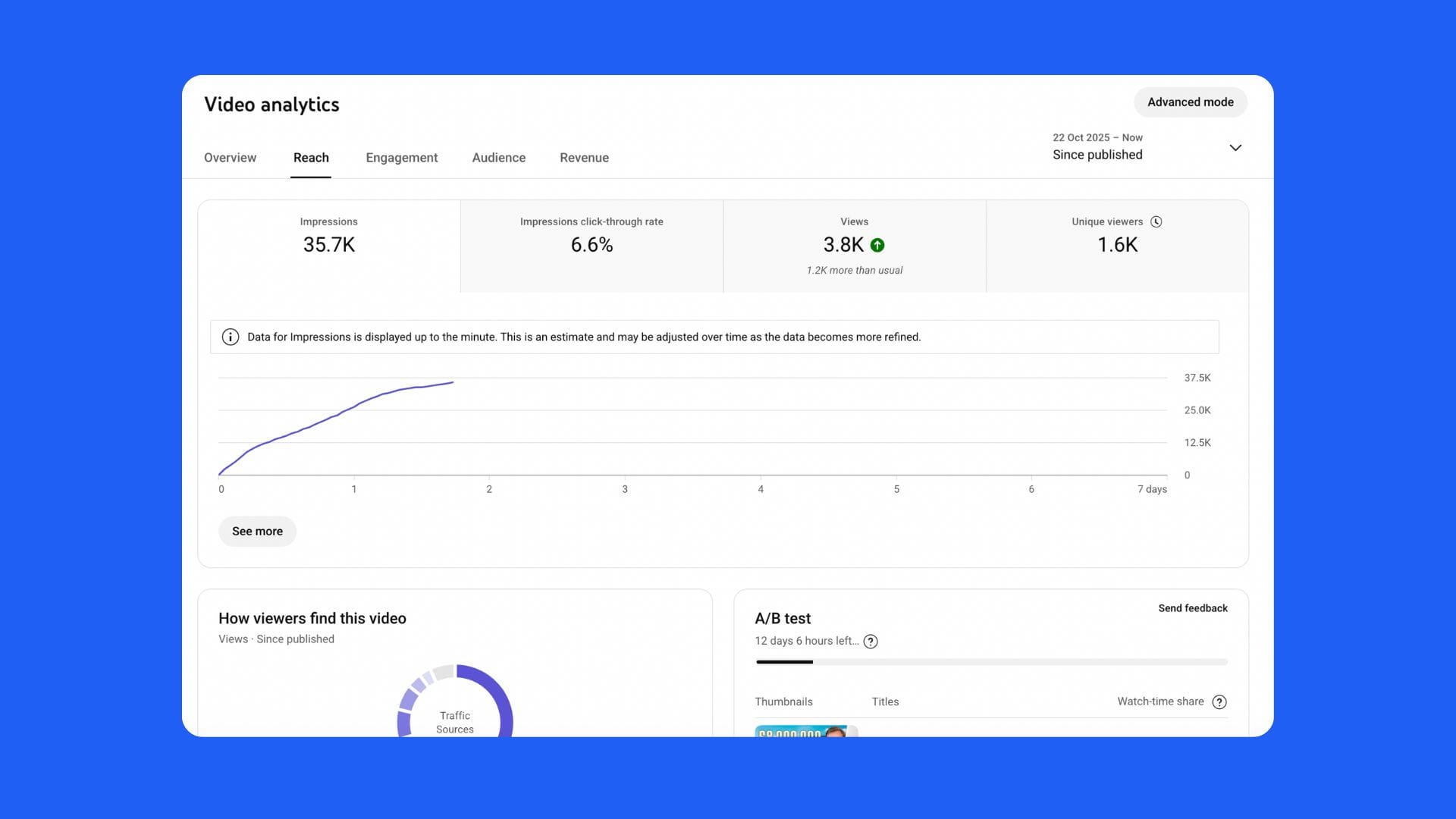
The Reach tab shows you how YouTube is distributing your content.
This is where most creators fall into the trap of chasing impressions.
What to Focus On
- Impressions Click-Through Rate (CTR): How many people clicked your video after seeing it.
- Traffic Sources: Browse, Suggested, Search, Shorts Feed, External.
- Top Videos Driving Views: These tell you what style, topic, or format resonates most.
CTR isn’t about luck, it’s packaging. If your CTR is low, you likely have a hook or thumbnail problem, not an algorithm problem.
What to Ignore
- The total number of impressions.
- Clicks from “external” sources unless you’re running ads.
- Geography data.
How to Use Reach the Right Way
- Focus on CTR by traffic source. A 6% CTR from Browse is different from a 6% CTR from Search.
- If Browse CTR drops, it’s a creative issue. If Search CTR drops, it’s keyword or topic relevance.
- Always combine CTR with retention. A high CTR with poor retention means you’re overpromising.
3. Engagement: The Truth About Viewer Retention
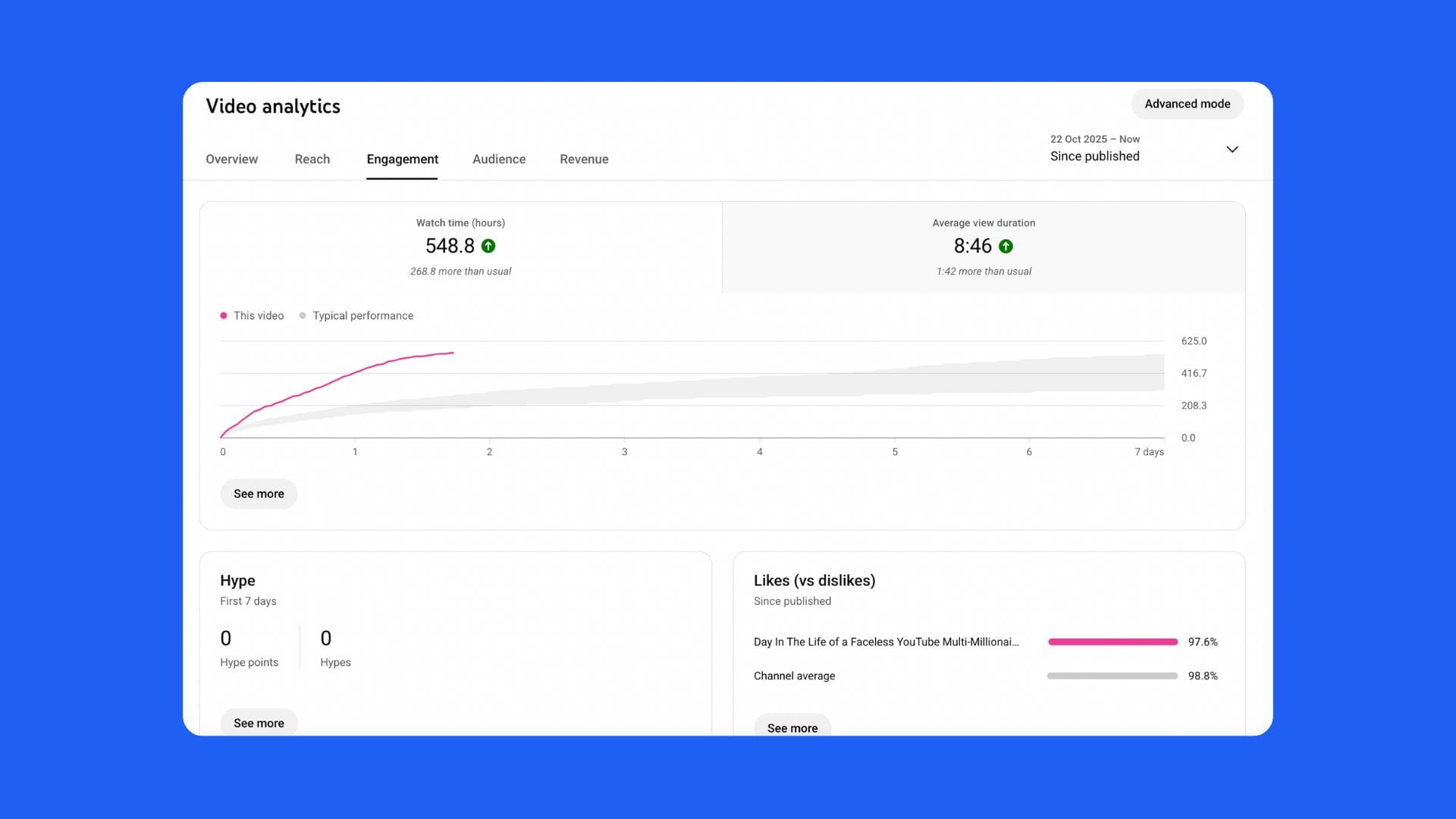
This is the tab that separates the hobbyists from the pros.
Retention, watch time, and average view duration are the most important metrics in YouTube Studio.
They tell you whether your video was worth watching.
Key Metrics to Watch
- Average View Duration (AVD): How long people stay watching.
- Watch Time (Hours): Overall engagement across your channel.
- Audience Retention Graph: Where viewers drop off and where they rewatch.
How to Read the Retention Graph
- Sharp Drop in the First 5 Seconds: Weak hook.
- Gradual Decline: Normal viewer churn.
- Sudden Dips Midway: Pacing or content fatigue.
- Spikes Upward: Viewers are rewatching or sharing that section, repurpose or expand on it.
What to Ignore
- Trying to achieve “flat” retention curves, it’s unrealistic.
- Comparing short videos to long videos directly.
- Overanalyzing second-by-second data.
Actionable Way to Use It
- Identify drop points and note what happens there (b-roll, pacing, tone).
- Adjust your next video’s structure accordingly.
- Use the first 15 seconds to hook, then hold with pacing and pattern interrupts.
Every dip is feedback. Every spike is proof.
4. Audience: Who’s Watching and When
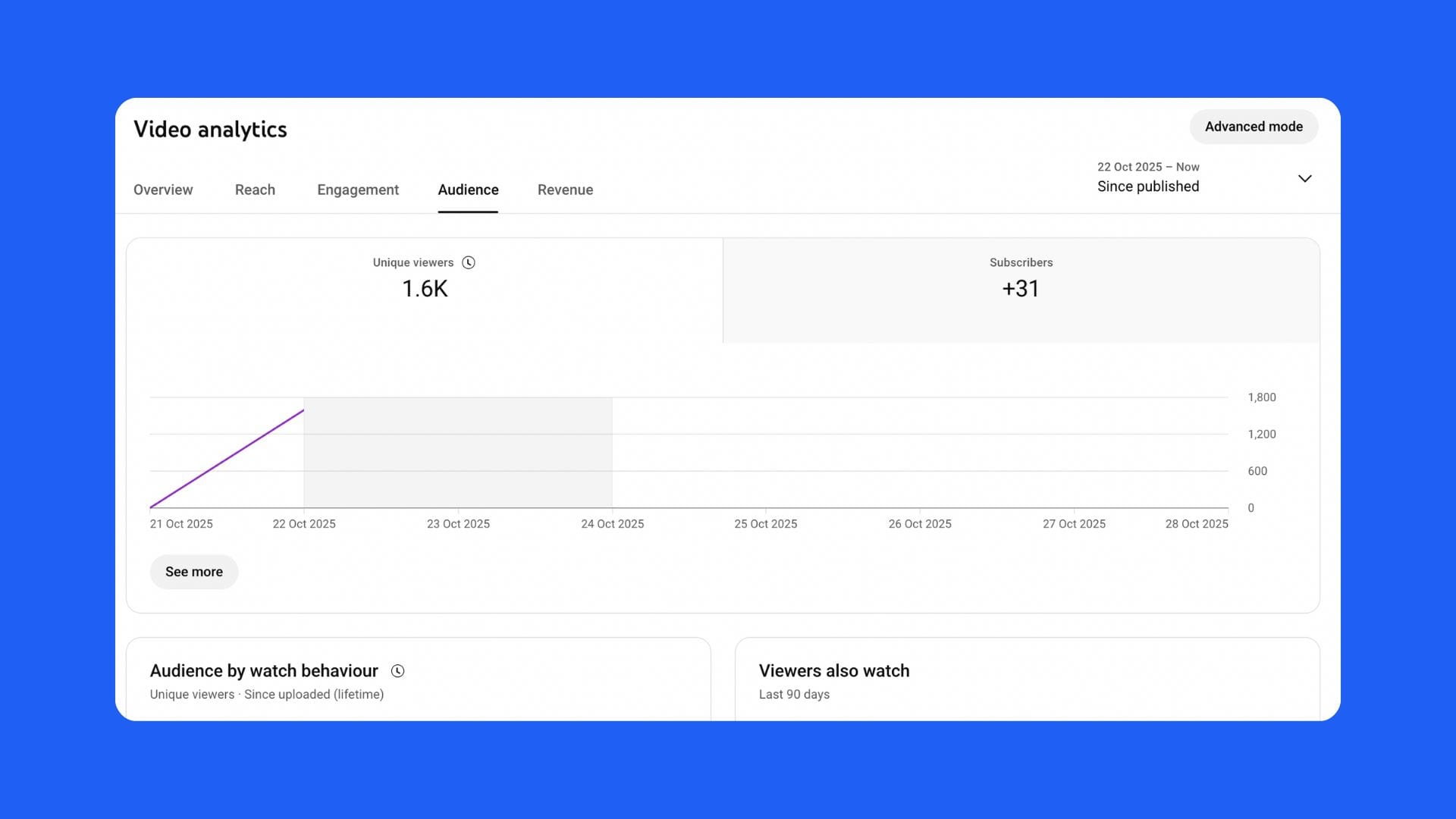
The Audience tab helps you understand your viewers, not by age or gender, but by behavior.
What to Focus On
- Returning vs. New Viewers: Are people coming back for more?
- When Your Viewers Are on YouTube: Helps you post at optimal times.
- Other Channels and Videos Your Audience Watches: Perfect for idea inspiration.
If returning viewers are increasing, your content loop is working. If not, you might be too inconsistent or too broad.
What to Ignore
- Demographics.
- Subscriber bell notifications.
- Language/geography data unless you’re building a region-specific channel.
Pro Move
Use the “Other Videos Your Audience Watches” section to spot patterns.
Those videos often hint at trending topics or packaging styles that will resonate with your viewers.
Take those ideas, plug them into 1of10’s Outlier Search, and build your next concept off proven trends.
5. Revenue: Understanding It Without Obsessing
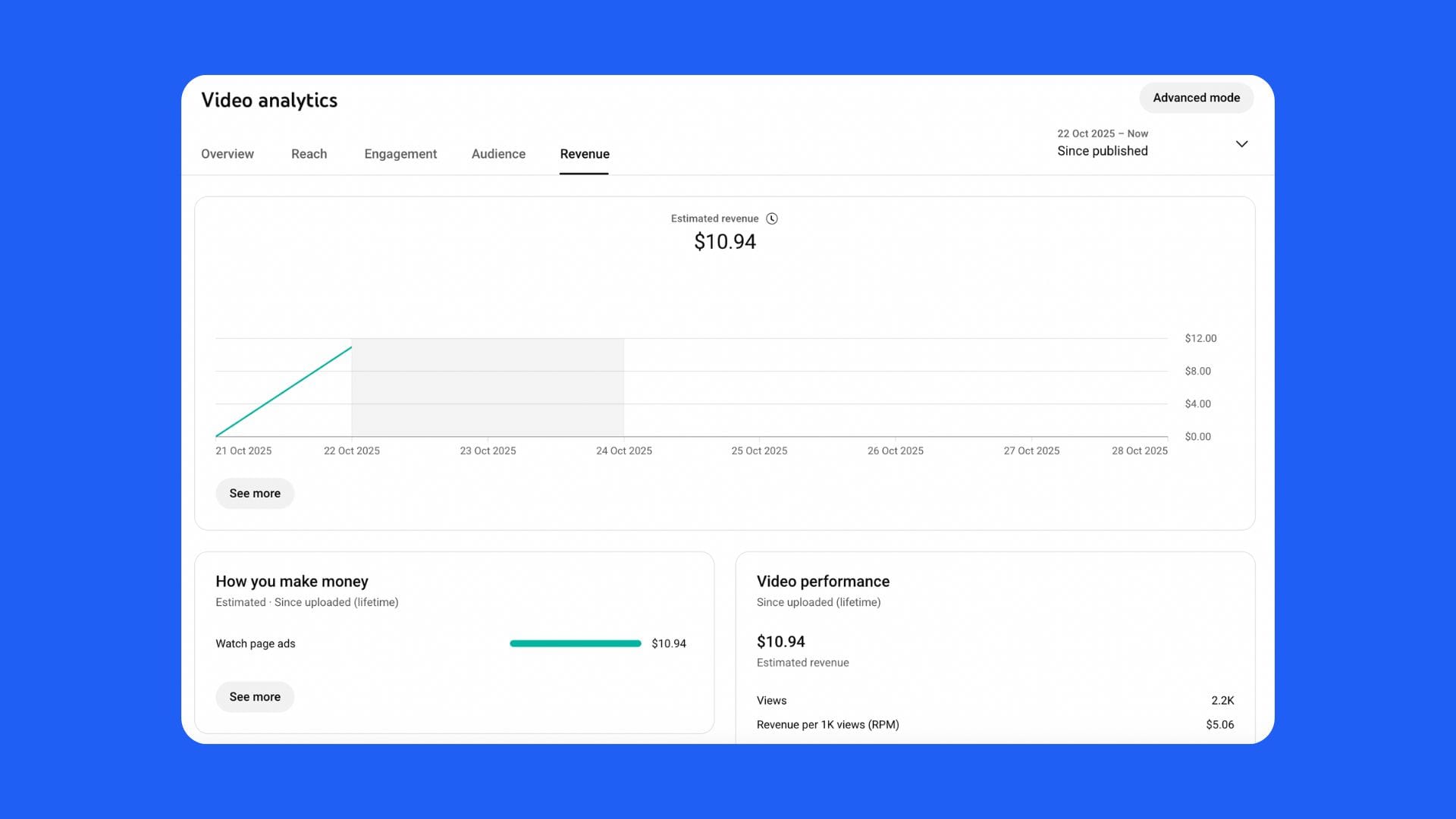
If you’re monetized, this tab can be helpful, but not in the way most creators think.
What to Focus On
- RPM (Revenue per 1,000 Views): What you actually earn.
- Top-Earning Videos: What content your audience and advertisers both love.
- Estimated Revenue Over Time: Directional, not exact.
What to Ignore
- CPM (Cost per Mille), It’s what advertisers pay, not what you keep.
- Short-term fluctuations, they’re common and meaningless.
- Revenue per country, unless you’re planning region-specific content.
The Real Lesson
Revenue data helps you understand content quality alignment, not content worth.
The higher your RPM, the more advertiser-friendly and audience-satisfying your video is.
But here’s the truth: your next great idea will make you more money than staring at analytics for an hour.
Avoiding “Advanced Mode Syndrome”
YouTube’s Advanced Analytics lets you slice data across filters: device, traffic type, geography, time, and more.
It looks powerful, but it’s often a trap.
Here’s when to use it:
- You’re doing a monthly review to identify broad patterns.
- You’re testing packaging (A/B testing title/thumbnail changes).
- You’re comparing topic performance to decide future direction.
Here’s when not to use it:
- Every day.
- Every upload.
- Every dip in views.
Advanced analytics won’t save you from bad content. They only amplify the patterns you’ve already built.
The “Feedback Loop” That Actually Works
Here’s a simple framework that top creators use to make data work for them, not against them:
| Step | Action | Purpose |
|---|---|---|
| 1 | Review Analytics Weekly | Spot big trends, not daily noise |
| 2 | Identify 1 Key Metric | Pick one improvement goal (CTR, retention, etc.) |
| 3 | Implement 1 Change | Adjust titles, thumbnails, or hooks |
| 4 | Upload | Test the change in the wild |
| 5 | Review Again | Did it improve? If yes, keep. If no, drop. |
That’s it. One change, one week, one test.
This system keeps creators focused on progress, not perfection.
Pairing YouTube Analytics with 1of10
Here’s how the two tools complement each other:
- YouTube Analytics tells you what happened.
- 1of10 helps you decide what to do next.
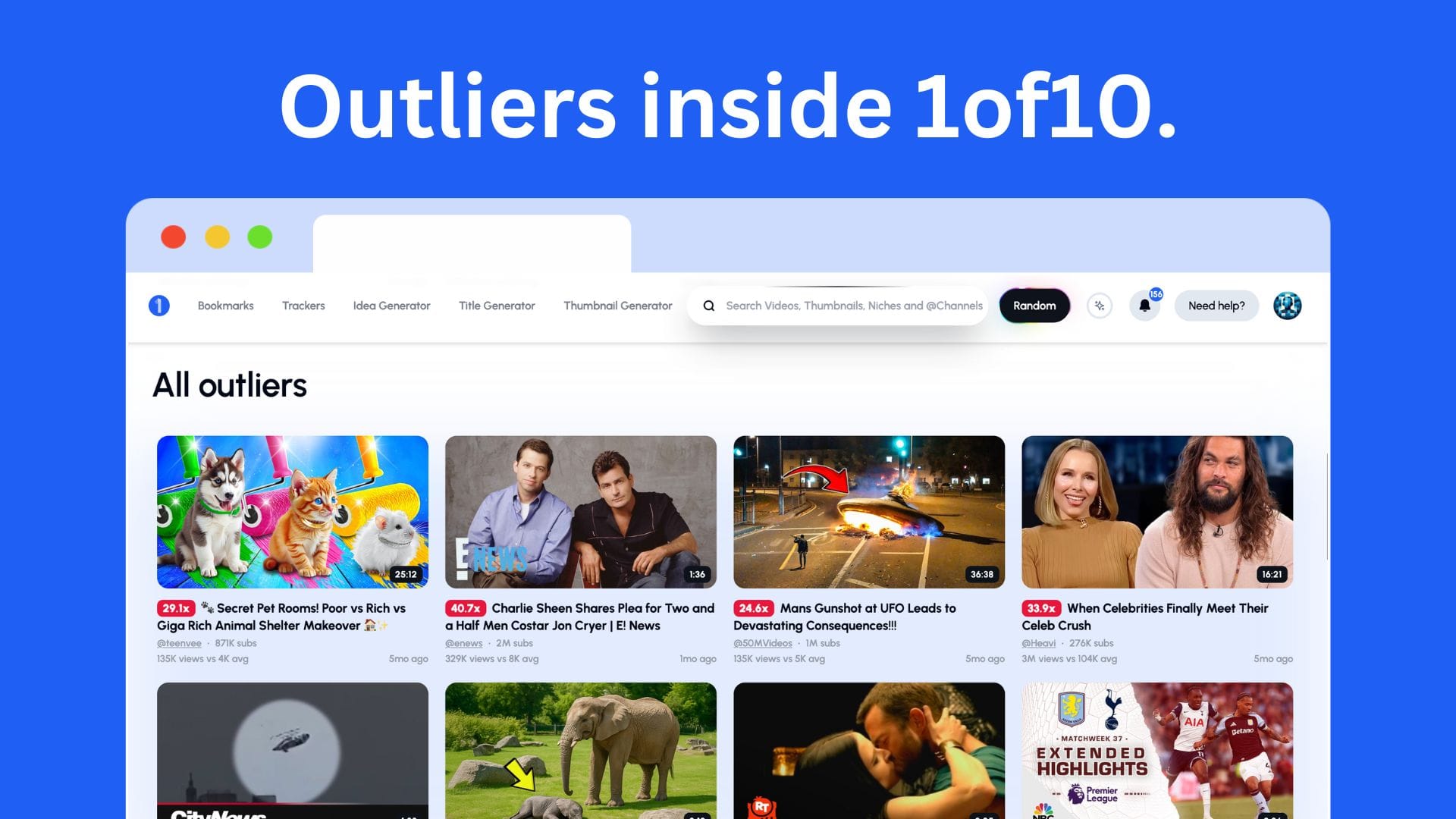
Example workflow:
- You see a dip in CTR and retention in Analytics.
- You open 1of10’s Outlier Finder to see which videos in your niche are outperforming.
- You use Title Generator and Thumbnail Generator to test new packaging styles.
- You re-upload or tweak your next video idea based on that insight.
Result: You move faster, with better creative decisions.
The Creator’s Golden Rule of Analytics
If the data doesn’t change your next upload, it’s irrelevant.
YouTube Analytics isn’t about memorizing charts.
It’s about identifying repeatable patterns that help you build momentum.
Don’t use it to predict your next viral video, use it to sharpen your creative instincts.
The algorithm doesn’t reward analysts. It rewards creators who keep improving what people want to watch.
Content Tab: Your Channel’s Control Room
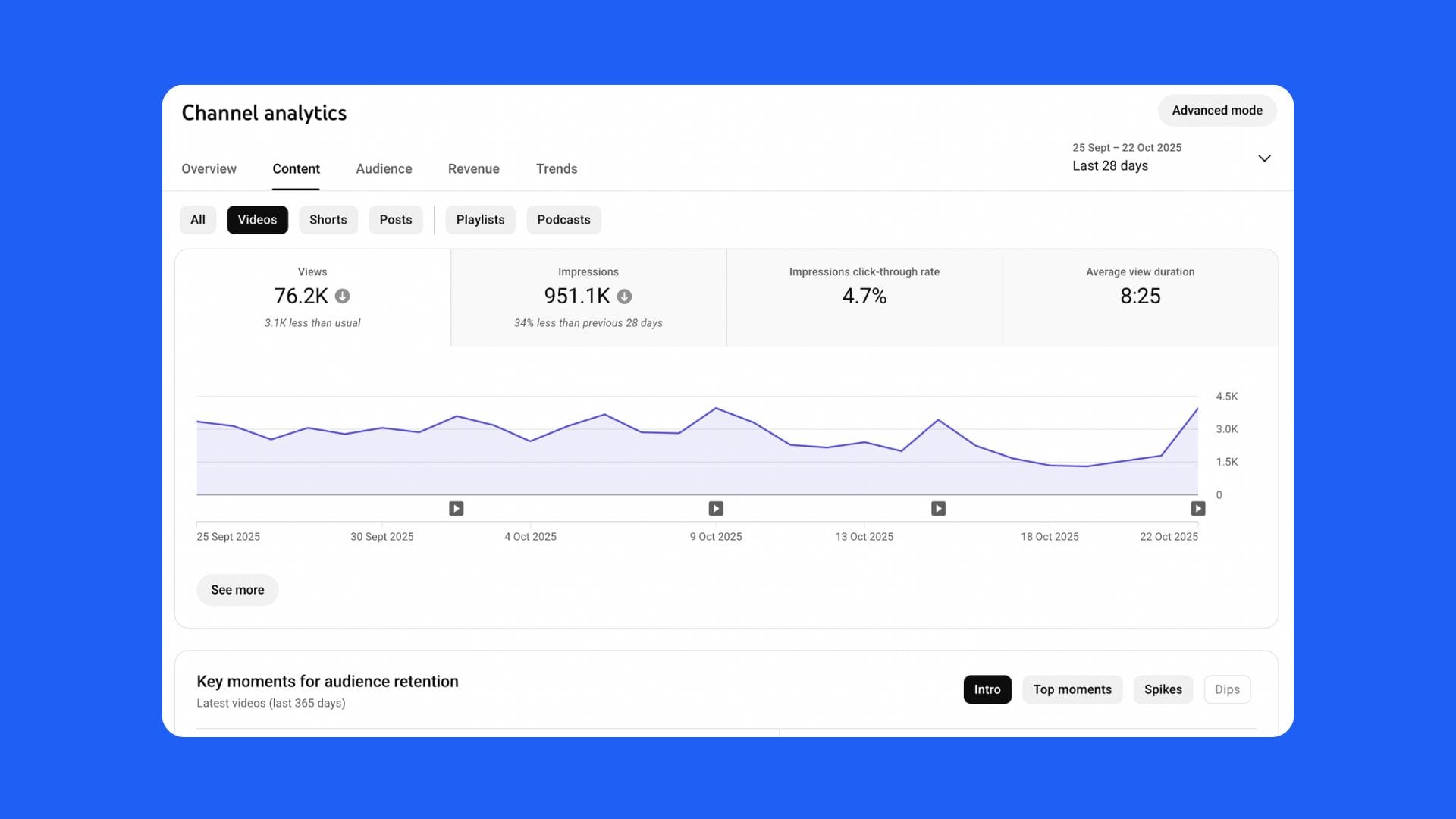
If Analytics tells you how your videos performed, the Content Tab tells you what you can do about it.
This is your channel’s command center.
It’s where you see every video you’ve ever uploaded, and more importantly, where you decide what to fix, what to double down on, and what to stop doing altogether.
For most creators, it’s an afterthought. But used correctly, the Content Tab is one of the fastest ways to find opportunities that are already hiding in your own uploads.
What the Content Tab Actually Does
When you open the Content Tab, you’ll see a list of your videos with key stats right next to them:
- Views
- Comments
- Likes
- Visibility (Public, Private, Unlisted)
- Restrictions (Copyright, Monetization)
- Date published
But that’s just the surface.
The real value comes from how you interpret what’s happening inside that list, the signals buried in the data.
The goal isn’t to review your videos like a library. It’s to look at your channel like a living system.
Each upload is a data point that teaches you how your audience thinks.
Step 1: Use the Content Tab to Spot Patterns
Scroll through your video list and look at three simple metrics:
- CTR (Click-Through Rate)
- Average View Duration (AVD)
- Views Over Time (Velocity)
If you do this weekly, you’ll start to see patterns.
Example:
- Every time you use “I Tried…” in your title, your CTR jumps 20%.
- Every thumbnail with your face close-up performs 2x better.
- Videos under 8 minutes keep retention higher.
These aren’t coincidences, they’re insights.
Once you spot these, your job isn’t to overanalyze, it’s to repeat what works.
Step 2: Identify Top Performers and Learn Why
Find your top 10 performing videos over the past 90 days.
Ask these questions:
- What’s the common topic or emotion?
- What type of title style did you use?
- What was the pacing or structure of the intro?
- Did you have a clear story or payoff moment?
Every creator has “patterns of performance.” The Content Tab makes them obvious.
If your top performers share a similar packaging style, use that format as your baseline for the next few uploads.
Step 3: Detect Silent Underperformers
Now look for videos that should have done well, but didn’t.
They might have strong topics but poor CTR or retention. These are what I call “fixable failures.”
Most creators ignore them, but they’re goldmines.
Why? Because the idea might have been solid, but the packaging or pacing missed.
You can easily revive these videos with:
- A new thumbnail and title test.
- Updated description or pinned comment.
- End screen linking to a related, higher-performing video.
A single tweak can often reignite traffic through Browse or Suggested feeds.
Step 4: Track Performance Over Time
Use the “Sort by: Views (Lifetime)” and “Views (Last 48 Hours)” filters.
These two metrics show you different things:
- Lifetime Views: Long-term success.
- 48-Hour Views: Momentum and current relevance.
If an old video suddenly jumps in the 48-hour list, it’s trending again.
Capitalize on that by creating a follow-up video while the topic is hot.
Example:
If your 2023 video on “AI Tools for YouTubers” spikes this week, that’s your cue to make an updated 2025 version.
Step 5: Optimize from Within the Tab
Click on any video in the Content Tab and you’ll see five major sections to optimize:
1. Details
Update title, description, tags, and thumbnail if performance is dipping.
2. Analytics
Quickly review CTR, AVD, and retention, but don’t get lost in comparisons.
3. Editor
Trim intros, add end screens, or insert info cards linking to newer videos.
4. Comments
Engage with viewers, pin the best comment, or post an update for context.
5. Subtitles
Ensure your captions are accurate, this improves accessibility and can boost watch time.
Step 6: The 24-Hour, 7-Day, and 28-Day Rule
Creators often misjudge how fast a video should perform.
Here’s the reality: every video has its own life cycle.
Use these time frames to assess performance:
| Time Frame | What to Look For | What to Do |
|---|---|---|
| 24 Hours | CTR and early retention | Check if the hook is strong enough. |
| 7 Days | View velocity and comments | Determine if the topic is resonating. |
| 28 Days | Watch time and returning viewers | Decide if the format deserves repetition. |
Don’t judge success too early. Some of your best-performing videos may look “average” in week one and explode later.
Step 7: Stop Doing What Doesn’t Work
Creators fall in love with formats that used to perform. But YouTube moves fast.
If a certain type of video, thumbnail, or topic hasn’t performed well for 90 days, pause it.
Your audience already told you what they want, you’re just not listening.
Use this rule:
When the data says stop, stop. When the comments say more, do more.
You’ll save yourself months of wasted uploads.
Step 8: Use Filters for Smart Batch Optimization
The Content Tab filters are simple but powerful if you use them intentionally:
- Filter by Visibility: Review which videos are public vs. unlisted.
- Filter by Restrictions: Fix copyright or monetization issues that limit visibility.
- Filter by Title or Keyword: Find all videos under one theme to see how each performed.
Then apply batch edits:
- Update end screens for all videos in a playlist.
- Add links to new videos in old descriptions.
- Create consistency in thumbnails or titles for related series.
These small updates compound over time, especially when you have a deep library.
Step 9: Build a Simple Review System
You don’t need a complex dashboard. You just need structure.
Once a week, do this:
- Sort videos by 7-day performance.
- Open top 3 and bottom 3 videos.
- Write down what worked and what didn’t in 3 sentences each.
- Adjust your next video idea based on that insight.
You’ve now built a repeatable content feedback loop.
Step 10: Use 1of10 to Find Outliers Inside Your Own Channel
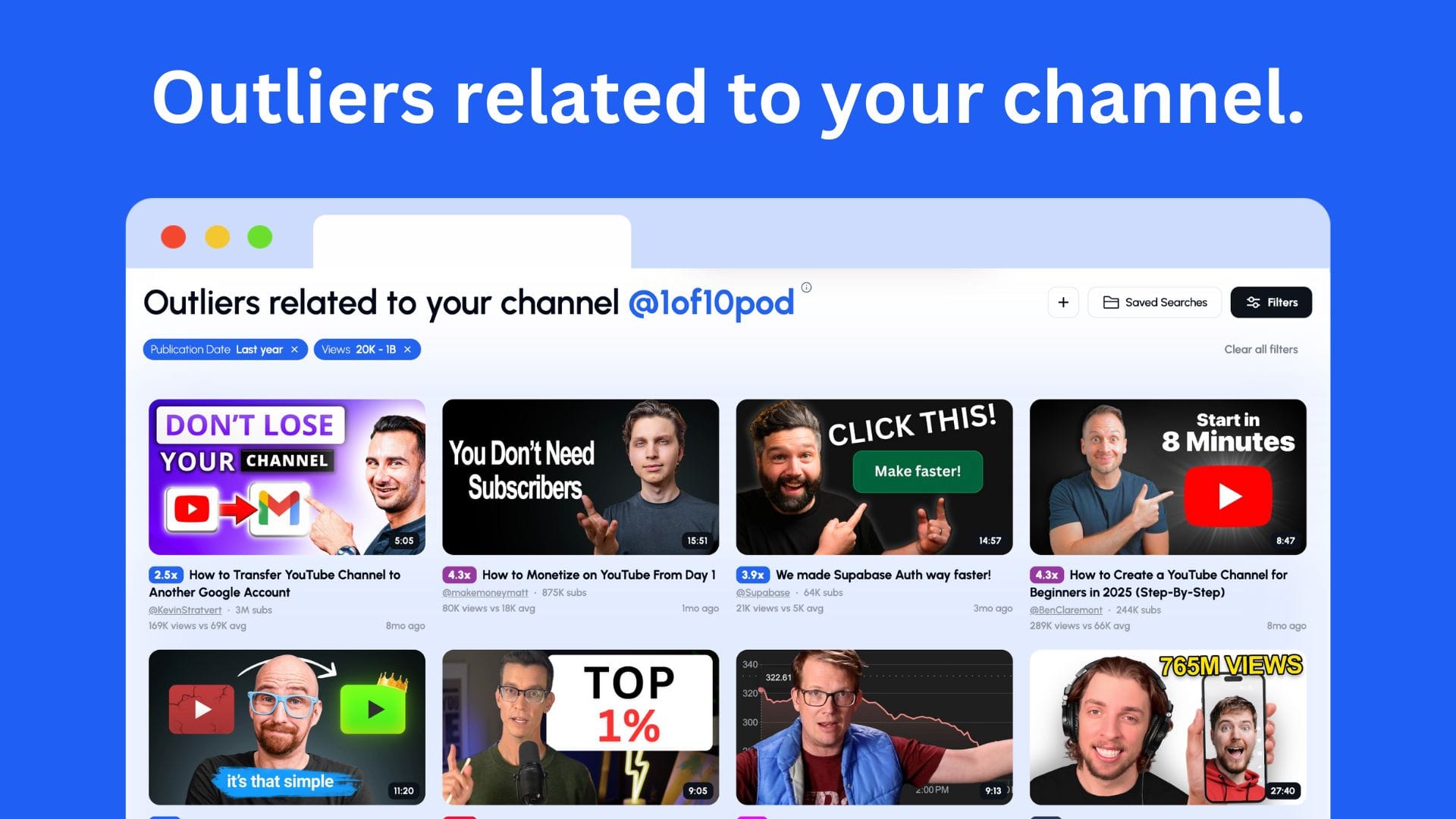
This is where the Content Tab meets AI.
YouTube Studio shows your top videos by metrics.
1of10’s Outlier Finder shows your top videos by potential.
You can upload your channel link into 1of10 and instantly see:
- Which videos are outperforming expected averages in your niche.
- What packaging formats are trending among similar creators.
- How your topics align with current viral trends.
That’s something YouTube Studio will never tell you, because it only measures your channel, not your competition.
Pair the two, and you’ll know exactly what to make next.
The Real Lesson of the Content Tab
The Content Tab isn’t about managing old uploads. It’s about learning from them.
You’re sitting on a treasure chest of insights, proven titles, thumbnails, topics, and formats that your audience already validated.
You just have to look at them differently.
The creators who win on YouTube don’t guess what to make next, they use their own data as inspiration.
Every video tells a story. Some tell you what to double down on.
Others tell you what to leave behind.
The faster you can hear those signals, the faster you grow.
The Upload Workflow From Idea to Published Video

Every great YouTube video starts long before you hit upload.
Most creators think success happens after the video goes live.
In reality, 80% of your results are determined before the video ever hits your channel.
How you prepare your video, from the idea, to packaging, to upload settings, decides whether the algorithm promotes it or ignores it.
The upload workflow isn’t about clicking “Publish.”
It’s about giving YouTube everything it needs to understand your video, categorize it correctly, and serve it to the right audience.
Let’s break it down step by step.
Step 1: Start with a Strong Idea
Everything begins with an idea, but not every idea deserves to be a video.
The best creators don’t just upload whatever they feel like.
They test ideas before committing.
What Makes a Good Idea:
- It instantly communicates a question or payoff.
- It fits your audience’s curiosity.
- It has visual potential (something to show, not just tell).
- It’s relevant right now.
The problem is that most creators brainstorm in isolation.
They rely on instinct instead of insight.
That’s why using 1of10’s Idea Generator or Outlier Search gives such a big edge.
You can instantly see what’s trending in your niche, what hooks are performing, and how other creators are framing similar ideas, all before wasting days producing something no one clicks.
Quick Rule of Thumb:
If you can’t imagine the thumbnail and title within 10 seconds of saying the idea out loud, it’s not ready.
Step 2: Craft a High-CTR Title and Thumbnail Before Filming
Most creators make this mistake:
They film first, then try to “make it clickable” later.
That’s backwards.
Your title and thumbnail are the strategy.
They define how you’ll tell the story, how you’ll build tension, and how you’ll deliver the payoff.
Start every video by writing 10–15 title variations and designing a draft thumbnail before you hit record.
Example:
- Idea: “I tried editing a video only using AI tools.”
- Better title: “AI Edited My YouTube Video, It’s Scary Good.”
- Thumbnail concept: shocked expression, AI robot editing timeline, bold text: “REAL OR AI?”
This early packaging step gives your entire video structure.
Pro tip: Use 1of10’s Title Generator and Thumbnail Generator to produce dozens of variations instantly.
You’ll save hours and start with options that already follow proven CTR psychology.
Step 3: Script for Retention
YouTube rewards storytelling that keeps people watching.
That means you should structure your video for retention before filming.
The 5-Part Retention Framework:
- Hook (0–15s): Make a bold claim or ask a provocative question.
- Setup (15–60s): Establish context and stakes, why should the viewer care?
- Journey (1–6 min): Build tension and curiosity.
- Payoff (6–8 min): Deliver the answer, transformation, or emotional release.
- Resolution (8–9 min): Wrap with value, teaser, or next-video callout.
Creators who skip this step end up with flat pacing, the number one cause of drop-offs.
How to Improve:
- Avoid long intros and “Hey guys” openings.
- Use pattern interrupts (zoom-ins, scene changes, cuts every 5–10 seconds).
- End every sentence with a reason to keep watching.
You can test your script’s flow with tools like 1of10’s Idea or Hook Advisor (if built later) to identify slow points before recording.
Step 4: Prepare Metadata for Upload
Metadata isn’t glamorous, but it tells YouTube what your video is about.
Focus on:
- Title: Keep it under 70 characters, high emotional pull.
- Description: The first 2–3 lines should summarize your value proposition.
- Tags: Optional, YouTube’s system relies more on context now.
- Thumbnail: Uploaded at 1280x720 resolution minimum.
- Playlist: Assign every video to at least one playlist for discoverability.
Common Mistakes:
- Keyword stuffing descriptions.
- Writing vague or identical titles.
- Skipping end screens or cards.
Remember, metadata doesn’t grow your video, it enables growth.
If you don’t tell YouTube what your video is about, it won’t know who to show it to.
Step 5: Upload Settings that Matter
When you hit “Upload,” YouTube Studio asks for a ton of options.
Here’s what actually matters:
Visibility
- Schedule your uploads instead of instant publishing, this helps YouTube process properly and test in Browse feeds.
Audience
- Always mark “Not made for kids” unless your channel is genuinely child-oriented. It preserves ad and comment options.
Monetization
- If eligible, keep all ad types checked.
- Avoid overusing mid-rolls under 10 minutes, it hurts retention.
Checks
- Let YouTube run copyright and monetization checks before publishing.
End Screens and Cards
- Add 1–2 related video links or playlists at the end of every video.
- Link your best-performing content, not your most recent.
Subtitles
- Upload accurate captions. They help accessibility, SEO, and watch time.
Step 6: The First 24 Hours Post-Upload
The first 24 hours are crucial for signaling to the algorithm that your video satisfies viewers.
But that doesn’t mean obsessively refreshing analytics.
Here’s what to do:
- Promote it smartly: Share it where your audience actually engages (Discord, X, Newsletter).
- Engage comments early: Reply to thoughtful comments, it signals activity.
- Don’t change titles or thumbnails immediately: Give YouTube 12–24 hours to stabilize CTR data.
If your CTR is below 4% after 48 hours, then consider testing a new thumbnail or title variation.
Step 7: The 7-Day Optimization Window
After a week, your data becomes useful.
This is when you make micro-optimizations that can push a video into new traffic.
Check:
- CTR vs. Average View Duration.
- Traffic source breakdown (Browse vs. Suggested).
- Comments sentiment (confusion = clarity issue).
If the video is doing well:
- Add it to related end screens on older videos.
- Create follow-up content while the topic’s hot.
If the video underperformed:
- Update the thumbnail and title, then re-share it.
- Edit the first 10 seconds (using YouTube’s in-built editor) to improve hook pacing.
Small changes compound.
Sometimes a title swap alone can revive an entire video weeks later.
Step 8: Automate Your Workflow
Consistency scales only when you automate.
YouTube Studio allows Upload Defaults, one of the most underused features on the platform.
Set up defaults for:
- Description templates (social links, disclaimers, CTAs).
- Tag presets for niche-related keywords.
- End screen templates (same layout for all videos).
Then, connect your workflow to external tools like:
- 1of10 for ideation, packaging, and title testing.
- Notion or ClickUp for content calendar tracking.
- Google Drive + Premiere Templates for editing and asset management.
These small automations save hours per upload.
Step 9: Learn From Every Upload
Every video teaches you something, good or bad.
The worst creators move on blindly. The best review intelligently.
Here’s a post-upload checklist:
- Did the video hold attention past 30 seconds?
- Did the title and thumbnail set the right expectations?
- Did comments mention confusion or clarity?
- Did retention stay above 50% for at least 30% of the video?
Then feed that insight back into your next upload.
That’s how growth compounds, not through luck, but through iteration.
Step 10: How 1of10 Streamlines the Workflow
Let’s put it all together:
| Step | Tool | Purpose |
|---|---|---|
| Idea | 1of10 Idea Generator | Find data-backed, trending concepts |
| Packaging | Title + Thumbnail Generator | Build clickable titles and visuals fast |
| Validation | Outlier Search | Benchmark ideas against top performers |
| Post-Upload | Channel Trackers | Monitor performance patterns over time |
| Inspiration | Bookmarks | Save best-performing ideas for later |
The result?
What used to take hours of research and editing direction now takes minutes, giving creators time back to focus on what really drives success: making better videos faster.
The Real Takeaway
Uploading isn’t the finish line, it’s the midpoint.
The upload workflow isn’t about hitting “publish.” It’s about precision, feedback, and repetition.
Every step, from idea to metadata to optimization, feeds the next.
The creators who win on YouTube are the ones who treat uploads like experiments, not events.
They test, measure, and adjust, while everyone else uploads and hopes.
So before your next video goes live, remember this:
You don’t grow by uploading more. You grow by uploading smarter.
Audience Insights What to Actually Learn from Them
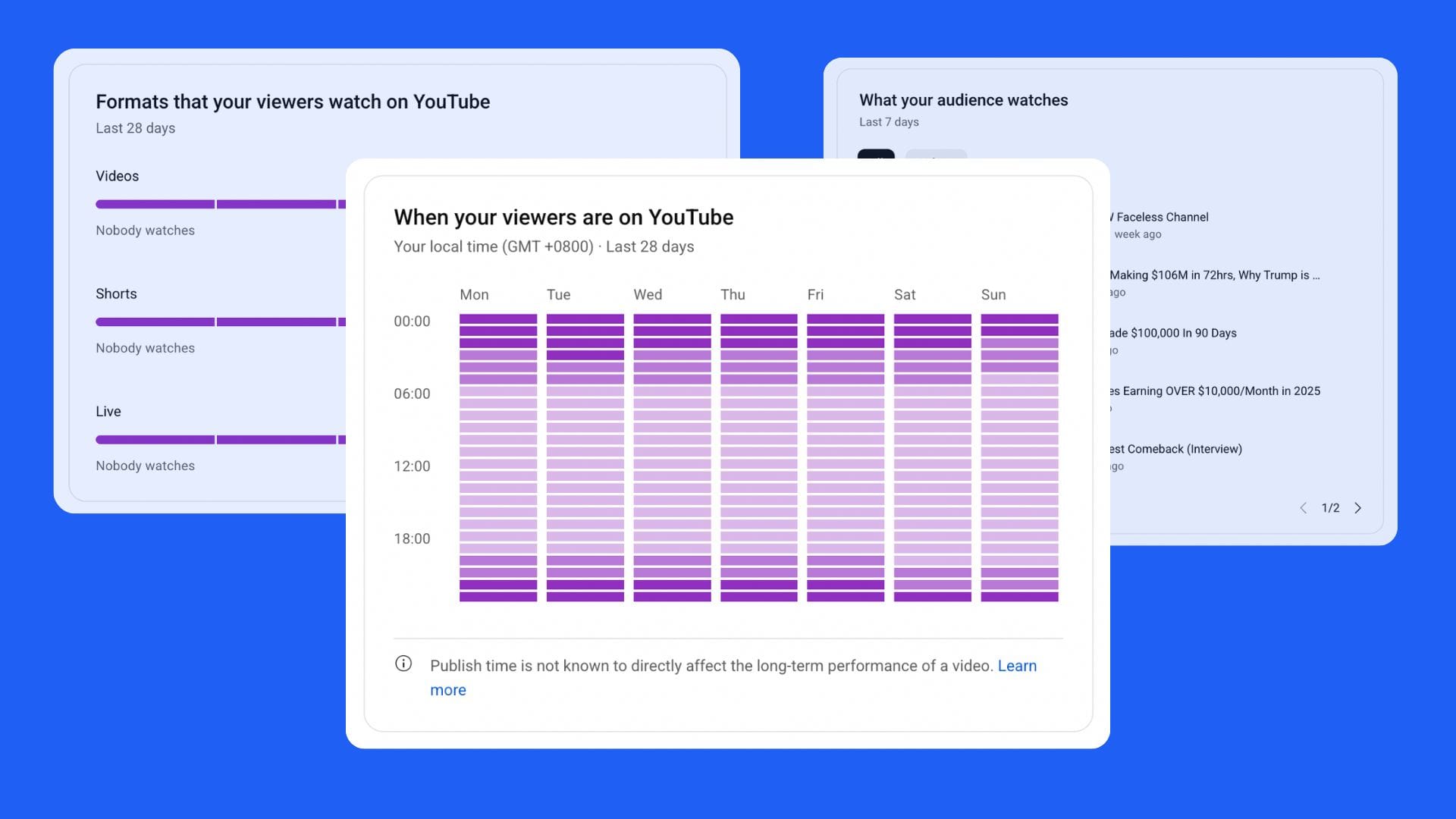
If you’ve ever stared at the Audience tab wondering what all those graphs mean, you’re not alone.
The problem isn’t that YouTube gives too little data, it’s that it gives too much.
Most creators treat this tab like a personality test.
They scroll through age groups, genders, and countries, trying to find some magic clue about why their videos aren’t performing.
Here’s the truth: none of that changes what you make next.
The real power of the Audience tab isn’t in who your viewers are.
It’s in how they behave.
If you can learn to read behavior instead of biography, you’ll finally understand what actually makes people come back.
What the Audience Tab Really Does
The Audience tab answers three big questions:
- Are your viewers coming back?
- When are they watching?
- What else are they watching?
That’s it.
Everything else, gender, age, and geography, is optional context, not actionable strategy.
The key is knowing what to do with the useful data and ignoring the rest.
1. Returning vs. New Viewers: The Core Metric
This is one of the most important metrics in YouTube Studio, and most creators overlook it.
- New Viewers are people discovering you for the first time.
- Returning Viewers are those who came back for another video.
The ratio between these two defines the health of your channel.
Here’s the rule:
High new viewers + low returning = good discovery, poor retention.
High returning + low new = loyal audience, poor reach.
Both high = the YouTube sweet spot.
You want both growing together, that’s when the algorithm starts recognizing your channel as a reliable watch source.
How to Improve Returning Viewers:
- Build series or recurring formats (example: “Week 3 of my YouTube Challenge”).
- End videos with a call to action to another upload.
- Use consistent packaging so people recognize your brand at a glance.
Retention isn’t just about keeping people in one video, it’s about bringing them back for the next.
2. When Your Viewers Are on YouTube
This graph shows the days and hours your audience is most active.
It’s simple, but powerful if used right.
What to Do:
- Schedule your uploads 1–2 hours before peak times.
- This gives YouTube enough time to process, distribute, and push the video into Browse before your audience starts watching.
- Use the same time slot for at least 3–4 uploads to train both your viewers and YouTube’s recommendation system.
What Not to Do:
- Don’t chase micro-optimizations. Posting at 4 PM instead of 5 PM doesn’t make or break a video.
- Don’t rely on this graph if your audience is global, focus on regional analytics instead.
Posting consistency is more powerful than posting timing.
3. Other Channels and Videos Your Audience Watches
This is the goldmine.
This section shows exactly who else your audience is watching, and what kinds of content formats they respond to.
If your viewers are watching creators like MrBeast, Airrack, or Ryan Trahan, it tells you your audience values story-driven, fast-paced content.
If they’re watching productivity creators or tutorials, they’re in a learning mindset.
How to Use It:
- Open those channels in 1of10’s Outlier Finder to see which of their videos are currently trending.
- Analyze what topics, titles, and thumbnails are pulling attention.
- Use that insight to create your own version, adapted for your audience.
This is one of the fastest ways to ride trends without copying anyone.
4. Watch Time from Subscribers vs. Non-Subscribers
Creators obsess over subscribers, but here’s a reality check:
Most of your watch time should come from non-subscribers.
That’s not bad, it’s growth.
It means YouTube is recommending your content to new viewers.
Here’s how to interpret it:
- If 80%+ of watch time is from subscribers, your audience loves you, but your discovery system is weak.
- If 80%+ is from non-subscribers, you’re reaching new people but not converting them.
You want a balance, enough discovery to grow, and enough retention to build loyalty.
How to Convert Viewers into Subscribers:
- Give a reason, not a reminder, “Subscribe if you want more behind-the-scenes challenges like this.”
- Place callouts naturally mid-video, right after delivering value.
- End with curiosity, tease the next upload instead of begging for subs.
Subscribers don’t come from CTAs. They come from curiosity.
5. Geography, Age, and Gender (Why It Doesn’t Matter)
YouTube gives this data because advertisers need it, not because creators do.
Unless your channel is region-locked or brand-driven, these metrics are fun trivia at best.
They rarely change creative decisions.
When It Matters:
- If you’re targeting a specific language or region (e.g. Indian gaming audience).
- If your content includes time-sensitive references (e.g. sports coverage).
Otherwise, skip it.
Instead, focus on behavioral consistency, who’s watching what, for how long, and why.
That tells you 100x more than where they’re from.
6. Unique Viewers and Average Views per Viewer
These metrics tell you how deep your audience relationship really goes.
- Unique Viewers show how many individuals watched your videos in a given period.
- Average Views per Viewer shows how many videos each person watched.
High uniques = broad reach.
High views per viewer = strong connection.
If you have 100k unique viewers but only 1.1 views per viewer, it means people click once and don’t return.
If you have 20k uniques but 3.5 views per viewer, you’re building community.
How to Improve Both:
- Use pinned comments or end screens to link to related videos.
- Create playlists that encourage binge-watching.
- Maintain a consistent video theme for a few weeks so new viewers have a clear reason to keep watching.
7. Notifications and Bell Subscribers
This section doesn’t matter as much as people think.
Only a small fraction of subscribers ever get notified, and even fewer click.
Notifications are not a growth strategy.
Your focus should be on making content so consistent and engaging that people expect your uploads naturally.
Still, if you want to increase bell subscribers, consistency wins again: same upload time, predictable format, reliable pacing.
8. Audience Retention Beyond Analytics
Retention doesn’t just apply to individual videos, it applies to your entire channel.
If people watch one video and never come back, it’s a storytelling problem, not an analytics one.
Think of your channel like a TV show.
Every upload should leave people thinking: “I can’t wait to see what they do next.”
That’s audience retention at scale.
9. Using Audience Insights with 1of10
The YouTube Studio Audience tab shows you who’s watching.
1of10 shows you what to make next for them.
Here’s how they work together:
- Identify what your viewers are currently watching (YouTube Studio).
- Plug those channels or topics into 1of10’s Outlier Finder.
- Generate fresh ideas, titles, and thumbnails that align with your audience’s viewing habits.
- Use Channel Trackers in 1of10 to monitor competitor changes and spot trends before they peak.
You move from reactive analytics to proactive creation, that’s how creators start leading trends instead of following them.
10. The Audience Compass Framework
Here’s a simple rule for reading your audience data:
| Metric | What It Means | What You Should Do |
|---|---|---|
| Returning Viewers | Loyalty | Make sequel or series content |
| New Viewers | Discovery | Optimize packaging and titles |
| When They’re Online | Timing | Schedule 1–2 hours before peak |
| What They Watch | Interest | Adapt topics, not identities |
| Views per Viewer | Depth | Link videos and create loops |
Follow this compass weekly. You’ll always know what to improve next.
Revenue and Monetization Reading the Numbers That Matter
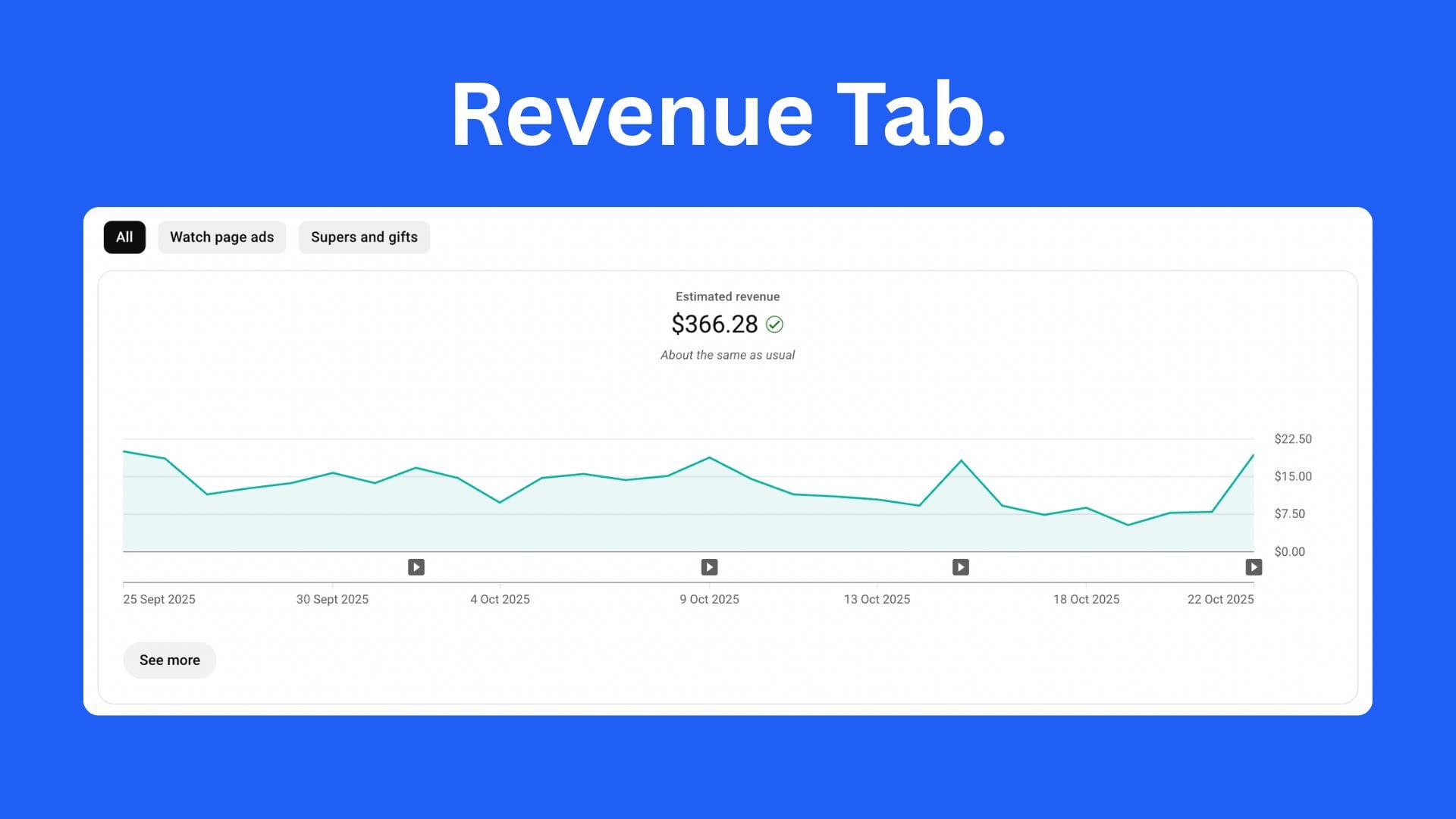
For many creators, the moment they hit the YouTube Partner Program feels like a finish line.
In reality, it’s just another metric.
Revenue analytics tell you how your content performs financially, but they don’t tell you how to grow.
If you start chasing CPM instead of attention, your creativity will die fast.
Let’s unpack what’s useful, what isn’t, and how to read the numbers without losing your head.
1. The Purpose of the Revenue Tab
The Revenue tab exists to show you two things:
- How much you’re earning.
- Where it’s coming from.
That’s it.
Everything else, graphs, playback CPMs, ad formats, is there to add context, not confusion.
The goal is to learn how your videos make money so you can make more videos that do the same.
2. The Metrics That Matter
RPM (Revenue Per Mille)
RPM tells you how much you actually earned per 1,000 views after YouTube’s cut.
This is the number that matters.
Formula:
Total Revenue ÷ Total Views × 1,000 = RPM
If your RPM is $5, that means you’re earning $5 per 1,000 views overall.
High RPM doesn’t mean success; it just means your content attracts high-paying ads.
For most creators, volume matters more than rate.
CPM (Cost Per Mille)
CPM is what advertisers pay, not what you earn.
It fluctuates based on niche, region, and ad demand.
YouTube keeps around 45% of that. So if your CPM is $20, you’ll see closer to $11 in your pocket.
Creators waste time comparing CPMs like salaries. Don’t.
Focus on RPM and total view growth.
Playback-Based CPM
This shows how much advertisers pay per monetized play, not per view.
It’s good for diagnosing ad demand but useless for creative decisions.
Estimated Revenue
Your total income across ads, memberships, Super Chats, and other features.
This is directional, not exact. Final payouts often adjust at month-end.
3. Understanding Revenue Sources
YouTube breaks down your revenue into several categories:
| Source | What It Means | Why It Matters |
|---|---|---|
| Ad Revenue | Income from ads on your videos | Core income for most creators |
| Channel Memberships | Monthly payments from fans | Builds recurring revenue and loyalty |
| Super Chat & Super Stickers | Live stream donations | Great for live creators |
| YouTube Premium | Share from Premium subscribers’ watch time | Bonus income for longer videos |
| Merch Shelf | Partnered merchandise sales | Brand awareness and diversification |
When reviewing these, think like a business owner:
Which sources are growing? Which ones depend too heavily on a single type of content?
4. Seasonality and Spikes
Revenue changes every month.
Advertisers spend heavily in Q4, then budgets crash in January.
So if your RPM drops in January, don’t panic. It’s not your channel, it’s the market.
Seasonal Patterns:
- Jan–Mar: Low CPM season (brands cut budgets).
- Apr–Jun: Moderate recovery.
- Jul–Sep: Stable, mild growth.
- Oct–Dec: High CPM due to holiday ads.
Plan uploads and brand deals around these cycles.
5. The “High CPM Niche” Myth
You’ve heard it: “Start a finance channel, CPMs are higher.”
True, but misleading.
High-CPM niches like finance, tech, or real estate pay more per view, but they’re also more competitive, slower to grow, and harder to scale.
Entertainment, commentary, and education channels usually get lower CPMs but far higher volume.
A million views in gaming at $3 RPM often beats 100,000 views in finance at $12 RPM.
The rule:
Don’t chase CPM. Chase retention.
Retention leads to watch time, watch time leads to recommendations, and recommendations lead to consistent income.
6. Understanding Shorts Monetization
Since Shorts revenue sharing launched, creators have expected it to match long-form.
It doesn’t, and that’s okay.
Shorts RPMs are lower because they’re based on ad pools, not direct placements.
But they drive discovery, which increases long-form revenue indirectly.
Best Use:
- Treat Shorts as top-of-funnel content.
- Convert viewers to long-form and community posts where CPM is higher.
Shorts fuel growth. Long-form fuels income.
7. Brand Deals and Sponsorships
YouTube ad revenue is passive. Brand deals are strategic.
Brands pay creators directly to integrate products or services into content.
This is where professional creators make most of their income.
How to Approach It:
- Build a consistent niche.
- Track your engagement and watch time metrics, they sell better than subs.
- Create a one-page media kit showing audience data and RPM.
Use your analytics as leverage. Show that you understand what your viewers care about and that you can deliver real engagement.
8. When to Use Monetization Data (and When to Ignore It)
Use it when:
- Deciding how to structure longer content for mid-rolls.
- Planning uploads around high-spend months.
- Reviewing which content types attract Premium watch time.
Ignore it when:
- It makes you compromise creativity for ads.
- You start creating videos for RPM instead of for viewers.
- You compare your revenue to other creators online.
Monetization analytics are a business tool, not a creative compass.
9. The Real Drivers of YouTube Revenue
Money follows momentum.
If you improve these four things, revenue will rise automatically:
- CTR (Click-Through Rate): Gets you more views.
- Retention: Gets you more watch time.
- Consistency: Builds advertiser trust and algorithmic stability.
- Audience Loyalty: Raises RPM because loyal viewers watch ads longer.
Every high-earning creator nails those four before worrying about anything else.
10. Integrating Revenue Insights with 1of10
Here’s how monetization data and 1of10 combine for strategy:
| Metric in YouTube Studio | What to Do with 1of10 |
|---|---|
| High RPM topics | Use Outlier Search to find similar trending ideas |
| Drop in long-form watch time | Use Idea Generator to create retention-focused content |
| Weak CTR on monetized uploads | Test new titles and thumbnails with AI generators |
| Audience fatigue | Use Channel Trackers to spot what competitors are shifting toward |
This loop ensures you’re not just earning more, you’re learning faster.
11. How to Treat Your Channel Like a Business
YouTube isn’t passive income. It’s a product business disguised as entertainment.
You create a product (the video).
You distribute it (the algorithm).
You analyze performance (Studio).
You iterate and scale (new uploads).
Monetization is just how the system rewards creators who take the process seriously.
The difference between creators who earn $100 and those who earn $10,000 isn’t luck, it’s iteration speed.
Studio’s Hidden Tools What’s Actually Useful
Most creators use YouTube Studio like it’s just a place to upload videos and check views.
That’s fine if you’re casual.
But if you’re serious about growing, you’re leaving a lot of tools untouched.
Buried inside Studio are features that can save you hours, improve your workflow, and make your videos perform better.
The problem is, YouTube never really shows you how to use them.
So let’s fix that.
Here are the tools that actually matter, and how to use them to create faster and smarter.
1. Comment Filters, Find the Signals in the Noise
Every creator deals with comment chaos.
But most don’t realize how powerful the filtering options are inside the Comments tab.
You can filter by:
- Comments containing questions.
- Comments with specific keywords.
- Unanswered comments.
- Comments with links (for spam control).
Why it matters:
This lets you find content ideas, spot recurring feedback, and respond faster to engaged viewers.
Example:
Filter by “?” and you’ll instantly see what your audience is confused about, those are your next video ideas.
2. Bulk Editing, Fix or Improve Multiple Videos at Once
The Bulk Editor is one of the most underrated features in YouTube Studio.
You can:
- Add or change end screens across dozens of videos.
- Update descriptions with new links or CTAs.
- Add cards pointing to new content.
- Apply new tags or language settings in bulk.
Why it matters:
It saves time, keeps branding consistent, and helps older videos push traffic to newer uploads.
Pro tip:
If you release a new high-performing video, bulk add its link as an end screen or card across all relevant past videos.
It compounds traffic overnight.
3. Reuse Elements, Consistency Without Rebuilding
Every time you upload a video, YouTube lets you “Reuse Details.”
This includes:
- Descriptions
- Tags
- End screens
- Cards
Why it matters:
This is your consistency engine.
You can build upload templates that save 10–15 minutes per video and eliminate repetitive setup work.
Example:
Create one default upload format for tutorials, another for challenges, and another for Shorts.
Each one has the right links, playlist placements, and CTAs baked in.
4. Playlist Analytics, The Hidden Retention Weapon
Playlists aren’t just for organization. They’re a hidden discovery system.
When people binge your playlists, it increases session time, which YouTube values heavily.
Playlist analytics show:
- Which playlists have the highest watch time.
- How people enter and exit playlists.
- Which videos keep them watching longest.
How to use it:
- Group similar videos into narrative playlists (“From Beginner to Pro”).
- Place your most engaging videos at the start.
- Update descriptions with keywords and links.
YouTube doesn’t rank playlists, but it does recommend them.
Strong playlists build binge sessions, and binge sessions build channels.
5. Channel Customization, Design That Converts
Inside Customization, you can control the entire first impression of your channel.
Think of this as your storefront.
Focus on three areas:
Layout
- Set a “Channel Trailer” for new visitors.
- Add “Featured Video” for returning subscribers.
- Create multiple sections (Playlists, Uploads, Shorts) for clear navigation.
Branding
- Upload a high-resolution profile and banner.
- Add a watermark that subtly encourages subscriptions.
Basic Info
- Add clickable links (website, Discord, affiliate program, etc.).
- Include a one-line value proposition in your channel description, not a life story.
Example:
Instead of: “I’m a passionate creator who loves tech,” write:
“Helping you grow faster on YouTube with smart tools and real results.”
6. Subtitles and Captions, Simple Growth Hack
Adding accurate subtitles increases accessibility and helps retention, especially with global audiences.
YouTube auto-generates captions, but they’re not perfect.
Fixing them does three things:
- Improves SEO (YouTube reads captions).
- Increases watch time for non-native speakers.
- Makes videos perform better in silent autoplay.
If you don’t want to do it manually, use tools like 1of10 integrations (in the future) or export the auto file and clean it up quickly.
7. YouTube Editor, Use It for Smart Fixes, Not Full Edits
The built-in Editor isn’t a full production suite, but it’s good for:
- Trimming intros or outros.
- Removing copyrighted segments.
- Replacing audio tracks.
- Adding info cards or blur effects.
Why it matters:
You can fix issues post-upload without losing comments, views, or rankings.
Just don’t try to use it as your main editor, it’s slow for that.
8. Copyright and Monetization Tools
Inside Content > Restrictions, YouTube flags issues automatically.
This is where you’ll see:
- Copyright claims.
- Limited ads.
- Age restrictions.
Most creators ignore this until it’s too late.
Check it weekly.
It takes seconds and protects your revenue long-term.
9. YouTube Studio Mobile, The On-the-Go Growth Tool
The mobile version of Studio isn’t just for vanity checks.
You can:
- Change titles or thumbnails on the fly.
- Reply to comments faster.
- Review analytics in real-time.
- Upload Shorts directly with metadata.
Use it as a reaction tool, not a research tool.
It’s for small adjustments when you’re away from the desk, not deep dives.
10. Integrations That Multiply Efficiency
While YouTube Studio doesn’t have native AI tools yet, pairing it with external platforms enhances its power.
Integrate with:
- 1of10: For idea generation, title/thumbnail creation, and competitive tracking.
- Notion or ClickUp: To manage upload schedules.
- Google Sheets: For tracking retention metrics.
- Zapier or Make.com: To automate social sharing post-upload.
Small automations here create massive time savings for creators managing multiple channels.
11. Advanced Analytics, Only When You Need It
Advanced Mode gives endless customization, but the best use cases are limited to:
- Comparing upload frequency vs. performance.
- Testing thumbnails by geography or age.
- Analyzing audience overlap for collaboration opportunities.
If it doesn’t change your next video, don’t touch it.
12. YouTube Studio Experiments (Beta Tools)
Occasionally, YouTube rolls out experimental features.
Right now, that includes things like:
- A/B thumbnail and title testing.
- Auto-generated video summaries.
- AI topic suggestions.
These are worth testing early, new features often get priority reach as YouTube gathers data.
If your channel gets access, use them before your competition does.
13. How to Combine These Tools Into a Workflow
Here’s a simple weekly routine:
| Day | Focus | Tool |
|---|---|---|
| Monday | Review comments and questions | Comment Filters |
| Tuesday | Update descriptions and end screens | Bulk Editor |
| Wednesday | Organize playlists and channel layout | Customization |
| Thursday | Review analytics and retention | Advanced Mode |
| Friday | Optimize accessibility | Subtitles and captions |
It’s not about doing more. It’s about doing what matters consistently.
What You Should Ignore Completely
Here’s a harsh truth most creators need to hear:
You don’t need to understand every number inside YouTube Studio to grow.
In fact, the more data you stare at, the less you create.
Most of what YouTube shows you exists for advertisers, not creators.
Your job isn’t to manage a spreadsheet, it’s to make something worth clicking on.
If you’ve ever found yourself stuck analyzing 50 graphs instead of working on your next upload, this section is your permission slip to stop.
Here’s what to ignore, and why it’ll make you better.
1. Subscriber Count Fluctuations
YouTube shows daily sub gains and losses. It looks useful. It’s not.
People unsubscribe for reasons that have nothing to do with your content.
Sometimes they just clean up their subscriptions, switch accounts, or lose interest in YouTube altogether.
If your views and retention are rising, but your subs dip, that’s fine.
YouTube promotes videos, not subscriber numbers.
What to focus on instead:
- Audience retention (keeps you in recommendations).
- Click-through rate (gets you new eyes).
- Returning viewers (proves real loyalty).
Subscribers are an output, not a target.
2. Watch Time by Geography
It’s easy to get caught up in where your views are coming from, U.S., India, Brazil, whatever.
Unless you’re region-locking your content or running local sponsorships, this data is noise.
You can’t control where YouTube serves your videos.
Trying to optimize for a country leads to worse content.
What to focus on instead:
- Watch time per video.
- Retention over geography.
- Audience overlap between videos.
YouTube doesn’t care where your viewers live, only that they keep watching.
3. Demographics (Age and Gender)
Advertisers care about this. Creators shouldn’t.
It doesn’t matter whether your audience is 18–24 or 35–44 if both are watching for the same reason.
Making decisions based on this data leads to overthinking your tone, editing, or thumbnail design.
Example:
You don’t need to “look younger” for a younger audience. You need to be relevant.
What to focus on instead:
- Emotional tone of your content.
- Comment feedback loops.
- Viewer retention across videos.
Engagement > Demographics. Always.
4. Traffic Source Breakdown (Past a Point)
YouTube Studio breaks traffic into Browse, Search, Suggested, Notifications, etc.
Useful at first, but only up to a point.
If 80% of your traffic comes from Browse and Suggested, you’re doing great.
If it’s mostly Search, your channel’s discoverability is low but stable.
Beyond that, the breakdown doesn’t change how you create.
Creators often chase “balance” between sources that doesn’t matter.
Focus on making clickable, watchable content, YouTube decides the rest.
What to focus on instead:
- Improving CTR and retention per traffic source.
- Testing titles and thumbnails for Browse first.
- Building content loops that keep viewers watching.
You can’t force traffic distribution. You can only earn it.
5. Device Type and Playback Location
Knowing that 60% of your viewers are on mobile doesn’t change your content.
Neither does knowing they watched on TV or desktop.
All it tells you is that your audience is normal, most of YouTube is mobile.
When it matters:
If your text overlays are too small or your thumbnails unreadable on phones.
Otherwise, skip it.
What to focus on instead:
- Mobile readability for text and thumbnails.
- Hook and pacing that work across all screens.
6. Tags
Tags used to matter. They don’t anymore.
YouTube now relies on titles, descriptions, and video content itself for search context.
Tags are only useful for catching misspellings or very niche phrases.
Adding 20 irrelevant tags doesn’t help you rank, it just confuses the algorithm.
What to do instead:
- Focus on clear titles and keyword-rich descriptions.
- Mention your key phrase naturally in your script (YouTube reads captions).
Tags are relics. Leave them in 2015.
7. Impression-to-Click Ratios
Impressions are one of the most misunderstood metrics.
Creators panic when impressions drop, but impressions are controlled by YouTube, not you.
You don’t generate impressions. You earn them by performing well when YouTube tests your video.
Here’s what matters:
CTR.
If your CTR is high, impressions will increase automatically.
If it’s low, focus on better thumbnails and titles, not the impression count.
You don’t fix reach by chasing impressions; you fix it by earning clicks.
8. Realtime Analytics
Realtime updates are dopamine traps.
Refreshing every 60 seconds to watch the live view count change doesn’t improve your performance. It just increases anxiety.
Use Realtime only to:
- Confirm that a video is indexing properly after upload.
- Spot major spikes or drops during the first 24 hours.
Then close it.
What to focus on instead:
- 24-hour view velocity (a real growth signal).
- Retention curve (proof of engagement).
Realtime is like checking your pulse, not a long-term metric.
9. Advanced Mode Overload
Advanced Mode gives incredible depth, filters, comparisons, custom reports, but that’s also the problem.
Most creators don’t need it weekly.
It’s valuable quarterly for spotting big-picture trends, not daily micro-adjustments.
If it doesn’t lead to an actionable change, it’s just noise.
Rule of thumb:
If the data doesn’t change what you’ll do next upload, skip it.
10. Comments You Can’t Control
YouTube comments are feedback, not facts.
Some are gold, most are noise, and a few are just bait.
You can’t take every comment seriously, or you’ll lose your creative direction.
What to do instead:
- Filter for comments with questions, they show curiosity.
- Filter for positive trends, they show what’s landing.
- Ignore the rest.
Creators who chase approval never innovate.
11. “Estimated Audience Size” and “Impression Potential”
These new experimental metrics YouTube adds often look fancy but rarely translate into growth.
They’re algorithmic guesses, not real audience measurements.
Don’t make creative decisions off predictions.
Make them off performance.
12. Subscriber Notifications
Creators still stress about how many people have the bell turned on.
Reality check: only a small fraction of your audience ever gets notified.
If your video relies on notifications to perform, it’s not built for organic growth.
What to focus on instead:
- Hooks that grab attention in the first 3 seconds.
- Titles that create curiosity without clickbait.
- Uploading consistently so viewers expect your videos naturally.
Notifications fade. Habit sticks.
13. The “Average Percentage Viewed” Trap
Creators obsess over whether their retention curve dips at 35% or 40%.
They zoom in, overanalyze, and start cutting great content to please the graph.
Retention graphs are helpful, but only in context.
A dip doesn’t mean failure, it means transition.
If your audience re-engages after that dip, it’s fine.
You’re telling a story, not building a math equation.
14. The Vanity of Revenue Per Video
Creators often judge performance by “how much a single video made.”
But YouTube doesn’t reward individual hits; it rewards momentum.
You might have a video that made $1,000 and another that made $50, the $50 one could still bring in 10x more new subscribers.
Revenue per video doesn’t define success. Consistency does.
15. The Analytics Guilt Loop
Finally, the biggest thing to ignore: guilt.
Every creator at some point feels like they’re “not doing enough analytics.”
They see people posting graphs and charts on X or Reddit and think that’s what success looks like.
It’s not.
Success is being able to interpret your analytics in 10 minutes and spend the rest of the day creating.
If your workflow requires spreadsheets, you’re managing, not growing.
The 80/20 Rule of YouTube Studio
Here’s a simple breakdown that sums it up:
| Worth Your Time | Waste of Time |
|---|---|
| CTR, Retention, Watch Time | Geography, Gender, Age |
| Returning Viewers | Subscriber fluctuations |
| Traffic Source Type | Traffic Source Balance |
| Title, Thumbnail Tests | Tags and Device Type |
| Session Time | Advanced Mode Deep Dives |
Follow this, and you’ll spend less time managing data and more time making videos that actually perform.
How to Use Studio and 1of10 Together The Perfect Workflow
YouTube Studio gives you the data.
1of10 turns that data into action.
Most creators get stuck between the two, they see what’s happening but don’t know what to do next.
That’s the gap 1of10 fills.
You don’t need to overcomplicate it.
The best growth workflow uses YouTube Studio for insights and 1of10 to create your next banger based on those insights, all in one smooth loop.
Let’s walk through how to do that, and how it looks in practice.
1. The Real Reason to Combine Studio and 1of10
Studio answers the what.
1of10 answers the how.
- Studio tells you what performed, CTR, retention, traffic sources, watch time, etc.
- 1of10 tells you how to replicate it, by generating new ideas, titles, thumbnails, and packaging based on real-time outliers.
When you connect the two, you stop guessing and start growing predictably.
It’s not about analytics anymore, it’s about action loops.
2. The 1of10 Workflow Loop
Here’s how to build a weekly growth cycle that actually compounds over time:
| Step | Platform | Goal |
|---|---|---|
| 1. Review what worked | YouTube Studio | Identify high-performing videos or retention spikes |
| 2. Find outliers | 1of10 Outlier Search | Spot trending formats or niches that match your channel |
| 3. Generate ideas | 1of10 Idea Generator | Create spin-offs or inspired content ideas |
| 4. Package smart | 1of10 Title + Thumbnail Generators | Craft the perfect click combo |
| 5. Execute and test | YouTube Studio | Upload, track CTR, retention, and repeat |
That’s the full cycle:
See > Create > Publish > Analyze > Iterate.
Once you’ve done this a few times, it becomes second nature.
3. Case Study: A Gaming Channel Use Case
Let’s say you run a gaming channel focused on story-driven titles like Elden Ring, Baldur’s Gate 3, and Starfield.
Your last few uploads are performing inconsistently, one hit 250k views, the next barely reached 30k.
You open YouTube Studio to figure out why.
Step 1: Check Performance Insights
Inside Studio, you spot three key patterns:
- The 250k-view video had a CTR of 7.3% (well above your channel average).
- Retention was 65% through the first 45 seconds (strong hook).
- Traffic source: mostly Suggested and Browse, not Search.
The others had low CTRs and weak early retention.
You now know what worked, but not how to replicate it.
Step 2: Find Outliers in 1of10
You jump into 1of10’s Outlier Search.
You filter by your niche: “Gaming commentary” or “RPG gameplay analysis.”
The tool instantly shows:
- Other creators seeing viral spikes with “This Boss Was Impossible Until…” or “I Tried Beating [Game] With Only [Weapon]” titles.
- Thumbnail patterns: main character close-up, bold object highlight, text overlay with one emotional word (“IMPOSSIBLE”).
You realize your hit video followed that exact emotional framing.
Step 3: Generate New Ideas
You open 1of10’s Idea Generator and type:
“Elden Ring challenge-style content with high difficulty and story-driven appeal.”
It returns ideas like:
- “I Tried Beating Elden Ring Without Leveling Up”
- “What Happens If You Side With Every Boss”
- “Can You Beat the Game Without a Weapon?”
Each idea comes with potential thumbnail and title inspiration.
You pick one that fits your style and audience tone.
Step 4: Package for Clickability
You plug your chosen idea into 1of10’s Title Generator.
It produces:
- “I Tried Beating Elden Ring Without Leveling Up (It Broke Me)”
- “This Is What Happens If You Never Level Up in Elden Ring”
- “The Hardest Challenge I’ve Ever Tried in Elden Ring”
You select the one that best balances curiosity and clarity.
Then, in the Thumbnail Generator, you upload a frame from your gameplay, your character looking defeated, the boss glowing ominously, and prompt:
“Highlight the boss in red glow, dark background, intense contrast, add bold text: ‘NO LEVEL UP’.”
Within seconds, you’ve got a high-CTR thumbnail built off proven outliers.
Step 5: Publish and Analyze
You upload the new video with the generated packaging.
After 48 hours in YouTube Studio, you see:
- CTR up to 8.1%.
- Retention holding above 60% past the intro.
- Suggested traffic growing by 20% week-over-week.
You now have proof the combination works.
4. Best Practices for Using 1of10 + Studio Together
- Start in Studio, Finish in 1of10.
Don’t brainstorm blindly, always begin with what’s working in your analytics. - Outliers > Inspiration Boards.
The fastest growth comes from spotting patterns in top-performing creators and applying them to your own context. - Always Package Before Uploading.
Thumbnails and titles should never be an afterthought. They’re the product packaging for your video. - Track, Don’t Obsess.
Review data weekly, not daily. Focus on momentum, not perfection. - Test, Don’t Guess.
Use 1of10’s AI to create 5–10 packaging variations for the same idea, then see which style wins long-term.
5. The Hidden Power of 1of10
Every YouTuber knows the pain of creative fatigue, staring at analytics with no clue what to post next.
1of10 fixes that loop by turning analytics into action:
- It uses real data from outlier videos to help you create your own breakout hits.
- It eliminates hours of research by finding patterns across your niche.
- It packages those insights into ready-to-use ideas, titles, and thumbnails that perform.
YouTube Studio shows you what’s already happened.
1of10 helps you decide what should happen next.
That’s how pros operate.
6. Bonus: The “Power Loop” Framework
Here’s a simple framework you can apply weekly:
| Stage | Tool | Focus | Output |
|---|---|---|---|
| Analyze | YouTube Studio | Identify strong performing videos & watch time peaks | Key patterns |
| Discover | 1of10 Outlier Search | Spot trends across similar creators | Context for replication |
| Ideate | 1of10 Idea Generator | Generate 10+ new content ideas | Next batch of uploads |
| Package | 1of10 Title & Thumbnail Generators | Optimize for CTR & curiosity | Clickable assets |
| Execute | YouTube Studio | Publish, monitor, refine | Growth momentum |
When used like this, Studio and 1of10 don’t compete, they complement.
7. The Real-World Result
Creators using this exact system have gone from guessing to growing, consistently.
They’re spending less time researching and more time executing.
For a gaming creator, it means:
- Finding what’s trending in your niche instantly.
- Turning analytics into creative ideas in minutes.
- Making data feel like an ally, not a burden.
That’s the future of YouTube growth, blending insight with intelligent execution.