
How to See Your Followers on YouTube (Who Subscribed)
Learn how to see your followers on YouTube in 4 steps. The Recent Subscribers card, the 28-day window, privacy rules, and how to track any channel's growth.
How to See Your Followers on YouTube (Who Subscribed to You)
Here is how to see your followers on YouTube: open YouTube Studio, find the Recent Subscribers card on your Dashboard, and click See All. You will see every subscriber from the last 28 days who keeps their subscriptions public. That last part matters. YouTube sets subscription privacy to private by default, so most of your subscribers will never appear on any list.
That is the honest answer most posts bury. YouTube gives you a partial list, on a timer, filtered by a privacy setting you do not control. This guide covers exactly what you can see, where to find it on desktop and mobile, why the list looks so short, and how to actually use subscriber data to grow. We will also show you how to watch subscriber growth on any channel, not just your own, using Tracked Channels on 1of10's free tier.
One quick vocabulary note. YouTube calls them subscribers, not followers. If you searched "followers," you are in the right place. Same people, different label.
How to See Who Subscribed to You on YouTube (Desktop)
The Recent Subscribers card in YouTube Studio is the only official way to see individual subscribers. It lives on your Dashboard and expands into a full list you can sort and filter. Four steps, under a minute.
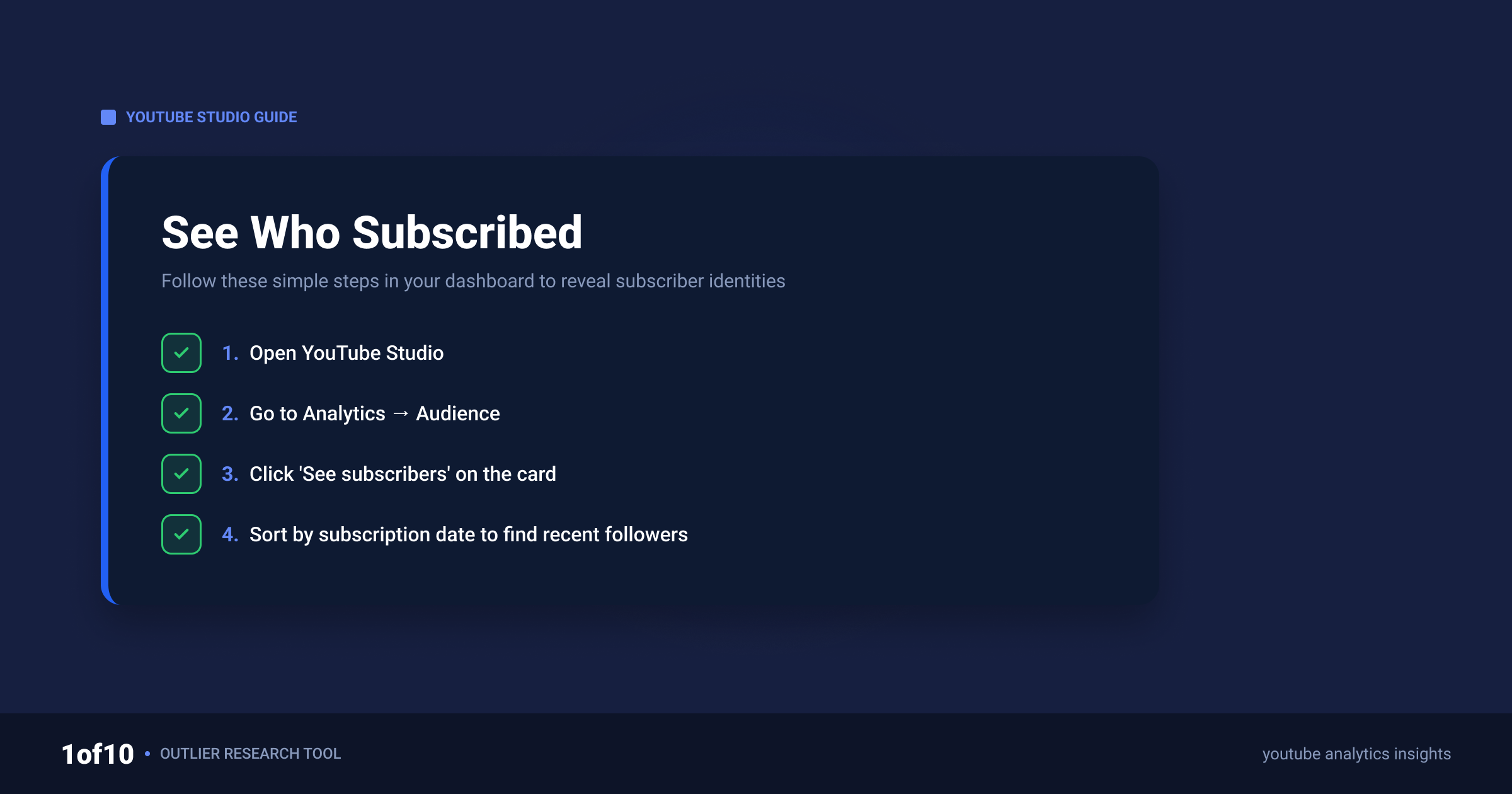
- Go to studio.youtube.com and sign in with your channel account.
- Look at your Dashboard. Find the card labeled Recent subscribers.
- Click See all at the bottom of the card.
- In the expanded view, use the menu at the top to choose a timeframe and sort the list by subscriber count.
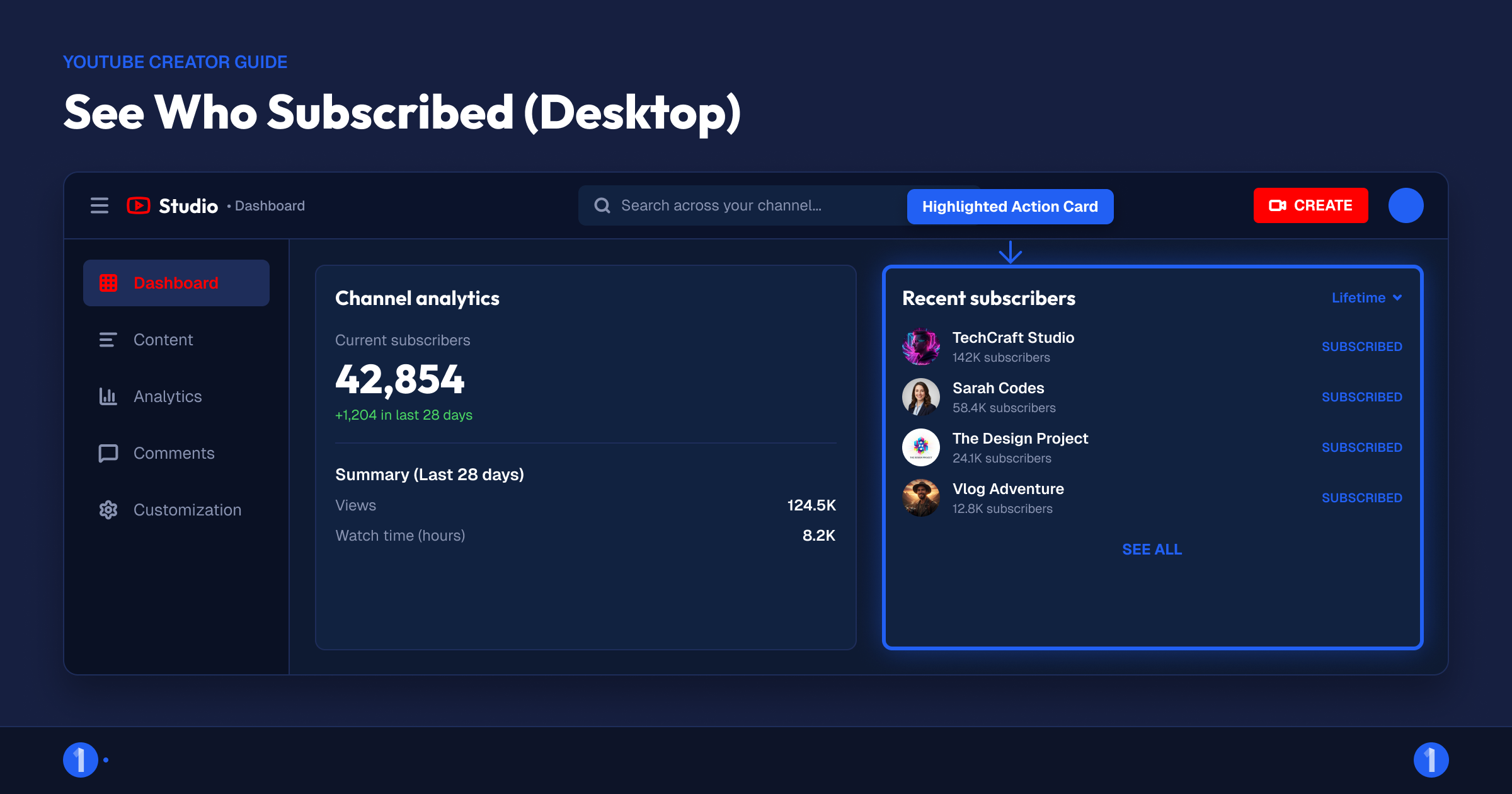
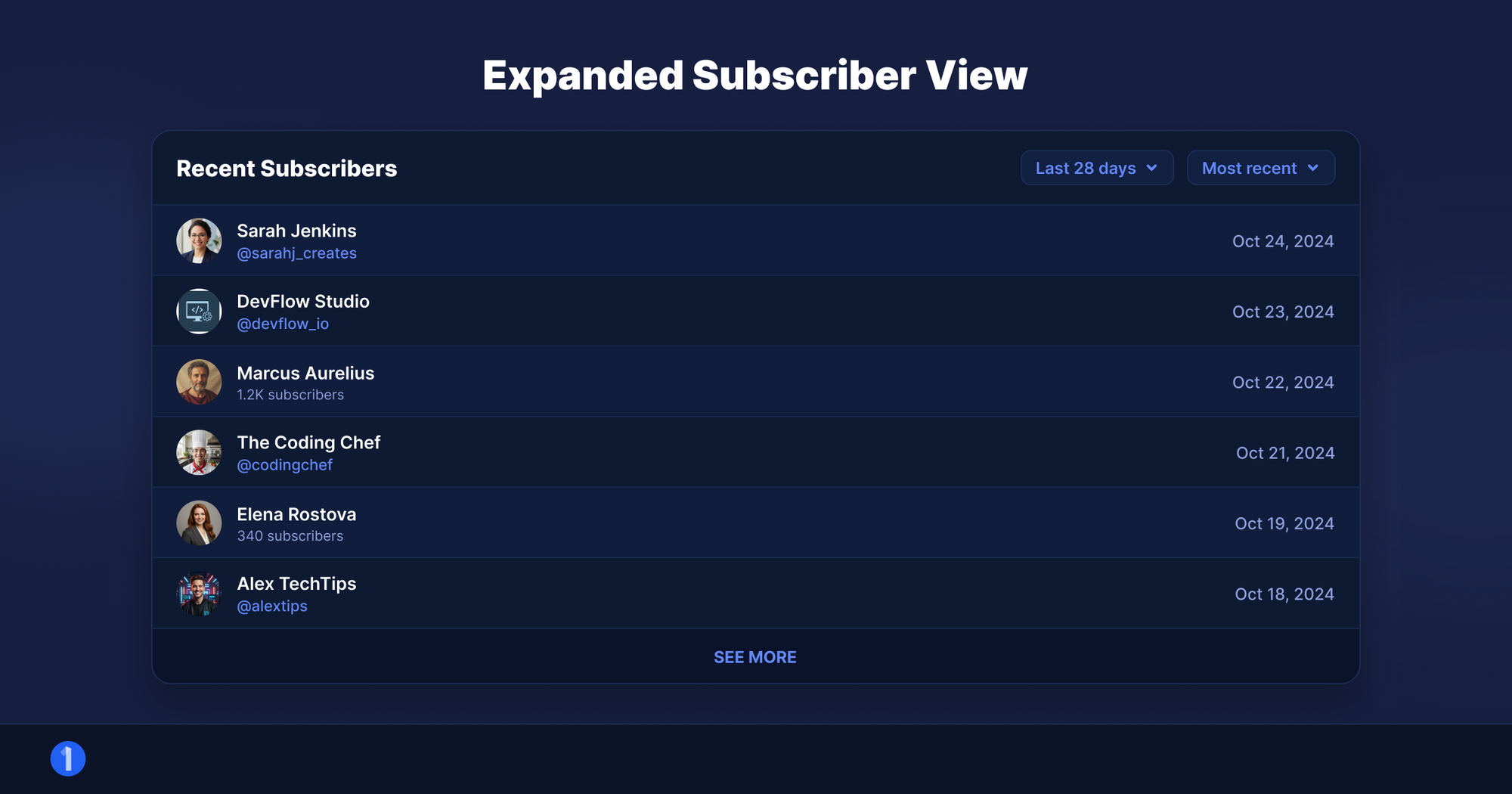
Each entry shows the subscriber's channel name, profile picture, and their own subscriber count. Click any name to visit their channel. That is everything YouTube exposes. No email, no location, no timestamp on the exact second they subscribed.
If the card is missing from your Dashboard entirely, skip ahead to the section on small channels. There is a specific reason for it.
How to See Your Subscribers on the YouTube Studio Mobile App
The same list exists in the YouTube Studio app on iOS and Android. The path is nearly identical to desktop.
- Open the YouTube Studio app and sign in to your channel.
- On the Dashboard tab, scroll down to the Recent subscribers card.
- Tap See all to open the full list.
- Tap the timeframe selector at the top to widen or narrow the window.
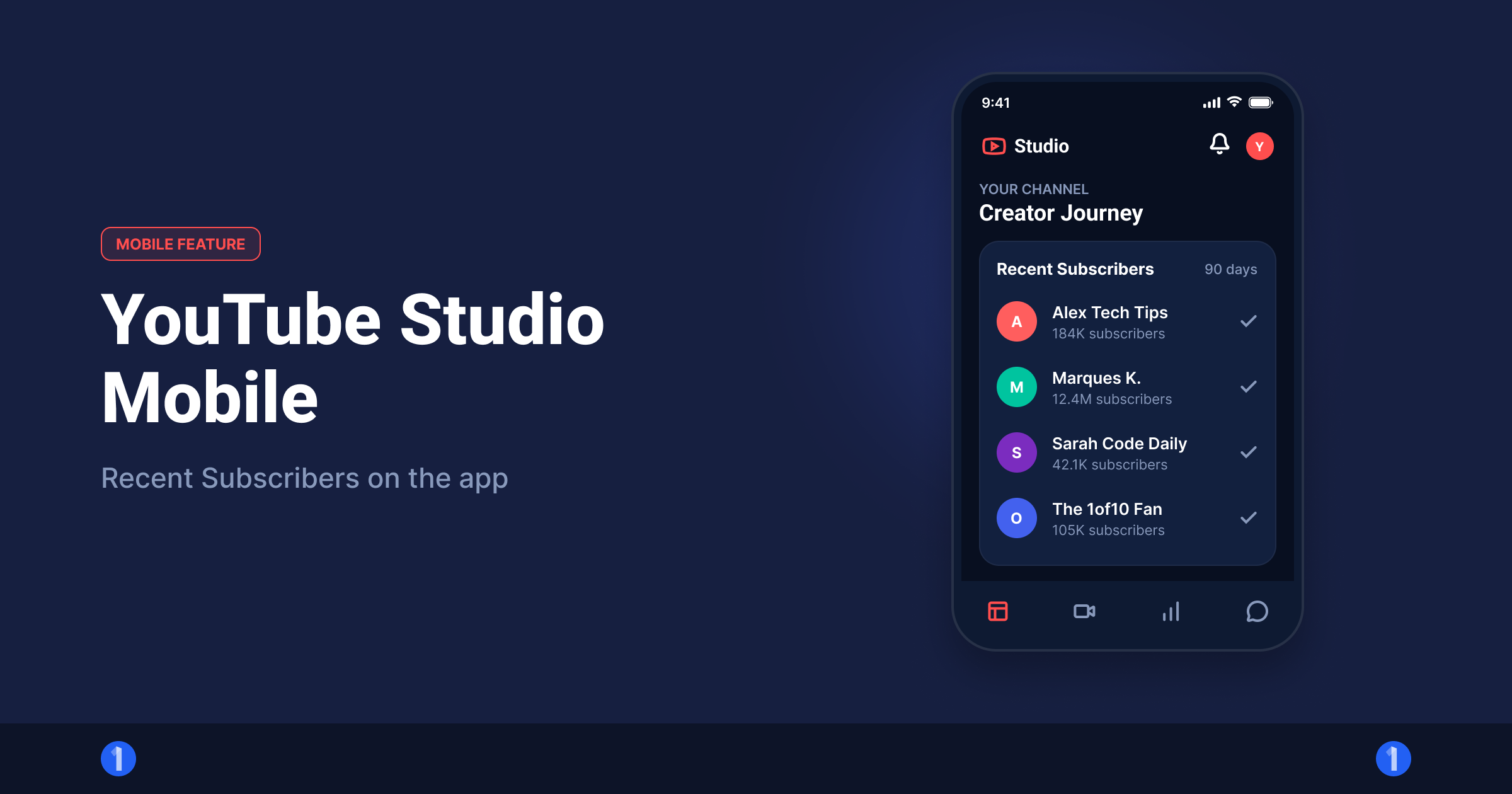
One catch on mobile: the card only renders when you have new public subscribers inside the window. If nobody public subscribed recently, the card quietly disappears from the Dashboard. Nothing is broken. There is just nothing to show.
Why Can You Only See Public Subscribers?
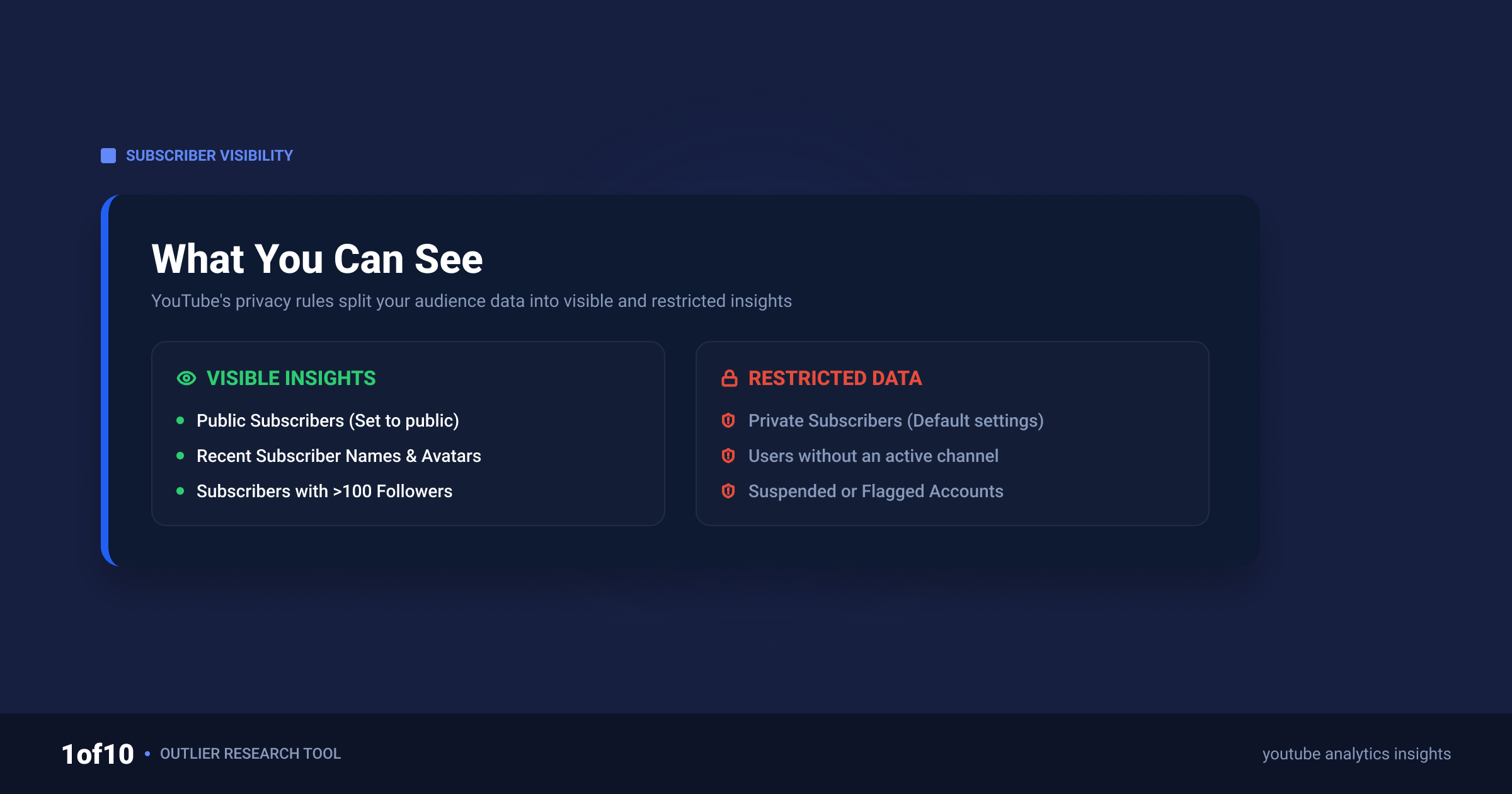
You can only see subscribers who chose to make their subscriptions public, because YouTube treats a viewer's subscription list as private data by default. YouTube's own privacy documentation states it plainly: "By default, all settings are set to private." A viewer has to dig into Settings, then Privacy, and manually flip that toggle before they show up on your list.
Almost nobody does that. YouTube does not publish the exact public-versus-private split, and any blog quoting a precise percentage is guessing. What we can say from running channel audits across 1of10's user base: the visible list is consistently a small fraction of actual subscriber gain for the same period. Treat the Recent Subscribers card as a sample, never a census.
YouTube's recent subscribers documentation also excludes two more groups from the list, even when their subscriptions are public:
- Accounts that have been suspended
- Accounts YouTube has identified as spam
That second exclusion is quietly useful. If your subscriber count jumps but the Recent Subscribers list stays flat, part of that spike may be low-quality accounts YouTube is already filtering. A real audience shows up in both places.
What Are the Recent Subscribers Time Windows?
The Recent Subscribers card pulls from the last 28 days. That is the window YouTube commits to in its documentation: subscribers appear if "they subscribed to your channel in the last 28 days" and their subscriptions are public. The expanded See All view adds a timeframe menu so you can slice that differently.
| View | What you get |
|---|---|
| Dashboard card | A short preview of your newest public subscribers |
| See All, last 7 days | Public subscribers from the past week |
| See All, last 28 days | The full documented window. Most reliable view |
| See All, longer ranges | Wider timeframes appear in the menu, but 28 days is the window YouTube's docs stand behind |
Practical advice from that table:
- Screenshot or export nothing? Correct, there is no export. If you want a record beyond 28 days, check the list on a schedule and log it yourself.
- Sort by subscriber count to spot notable channels that subscribed to you. A 100K-subscriber channel following you is a collab lead, not a vanity stat.
- Do not diff this list week to week to measure growth. It is filtered by privacy settings, so it moves for reasons that have nothing to do with your content. Use Analytics for growth measurement instead.
Why Is Your Subscriber List So Limited on a Small Channel?
Small channels see limited or missing subscriber lists because the Recent Subscribers card needs recent public subscribers to display anything at all. There is no official minimum subscriber threshold in YouTube's documentation. The limit is math. If you gained 12 subscribers this month and most keep subscriptions private, your visible list might be one or two names, or zero.
Three specific situations, and what each one means:
- The card shows fewer names than your subscriber count grew. Normal. Private subscribers count toward your total but never appear on the list.
- The card is empty or missing from the Dashboard. No public subscribers inside the current window. The card returns when one shows up.
- Your count went up but the list did not change at all. Either every new subscriber is private, or some of the gain is spam accounts YouTube excludes from the list.
None of these are bugs, and none of them can be fixed with a setting on your side. If this stings, the real fix is volume: more subscribers means more public ones surface. Our guide on how to get followers on YouTube covers the systems that actually move that number.
How to See Your YouTube Subscriber Count History Over Time
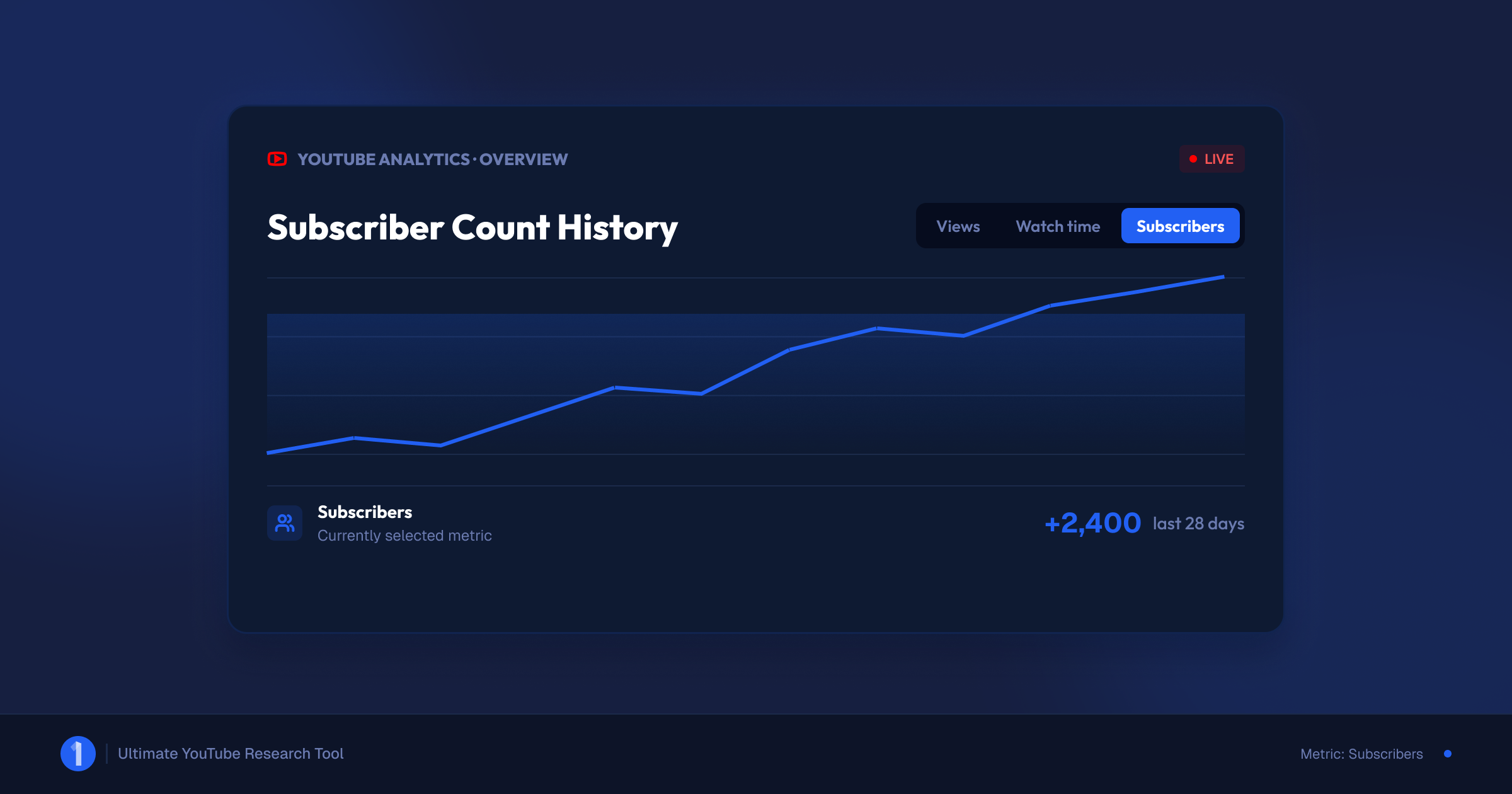
Individual names are limited, but your subscriber count history is fully tracked and goes back to day one of your channel. This is where the real analysis happens.
To see your subscriber growth curve:
- Open YouTube Studio and select Analytics from the left menu.
- Stay on the Overview tab and click the Subscribers metric above the main chart.
- Change the date range in the top right corner. You can go back to the day your channel was created.
- Click Advanced mode for a granular table, including subscribers gained and lost per day and per video.
To see your live count:
- In Analytics, on the Overview tab, find the Realtime card.
- Click See live count.
Per YouTube's subscriber count documentation, public-facing counts are abbreviated once you pass 1,000. A channel with 12,345 subscribers displays as 12.3K, and between 1,000 and 9,999 the public number only ticks for every 10 new subscribers. Studio Analytics shows you the exact figure, so always pull real numbers from there, not from your channel page.
The growth curve is more useful than the subscriber list ever will be. Spikes on the chart line up with specific videos. Find the spike, find the video, make more like it. We break down the full workflow in our guide to using YouTube analytics to grow your channel.
How Do You Track Other Channels' Subscriber Growth?
YouTube Studio only shows your own channel, so tracking competitors requires an outside tool. Two honest options, and they solve different problems.
Social Blade is the long-running public counter. Type in any channel and you get historical subscriber counts, daily gains, and future projections. It is free, it is reliable for raw counts, and it has years of historical data. What it will not tell you is why a channel is growing.
1of10 Tracked Channels answers the why. Add a competitor to Tracked Channels and you get notified when one of their videos starts overperforming their channel average. Instead of watching a subscriber number tick up after the fact, you see the specific video driving the growth while it is still climbing. The free 1of10 plan includes 3 tracked channels, so you can test it on your closest competitors without paying anything.
Use them together if you want:
- Shortlist 3 to 5 channels in your niche that are growing faster than you.
- Check their trajectory on Social Blade to confirm the growth is real and recent.
- Add them to Tracked Channels so you catch the exact videos causing it.
- Study those videos for format, packaging, and topic. Our breakdown of finding YouTube outliers shows what to look for.
The 1of10 Chrome extension adds a fourth step: outlier scores and views-over-time charts directly on any YouTube page while you browse, free.
Common Myths About Seeing YouTube Subscribers
The gap between what creators want (a full subscriber list) and what YouTube provides (a filtered 28-day sample) has spawned an ecosystem of false claims. Clearing the big ones:
Myth 1: A third-party app can reveal your private subscribers. No app can. Private subscription data never leaves YouTube's servers, and the official API does not expose it to anyone. Any tool claiming to "unlock your full subscriber list" is lying about its capability, and the ones that ask you to log in with your Google account are phishing for channel access. Treat every one of these as a scam. Real channels get stolen this way.
Myth 2: You can see when a specific person subscribed. You cannot. The Recent Subscribers list tells you someone subscribed within the selected window, not the day or time. There is no timestamp anywhere in Studio.
Myth 3: You can see who unsubscribed. Also no. Analytics shows subscribers lost as a number per day, so you can see that people left and when. It never shows names, whether their subscriptions are public or not.
Myth 4: Buying subscribers makes the list look better. Purchased subscribers are exactly the accounts YouTube flags as spam and strips from the list, and spam engagement can put the channel itself at risk. If growth is the goal, start with our guide on getting your first 1,000 subscribers instead.
What Should You Actually Do With Subscriber Data?
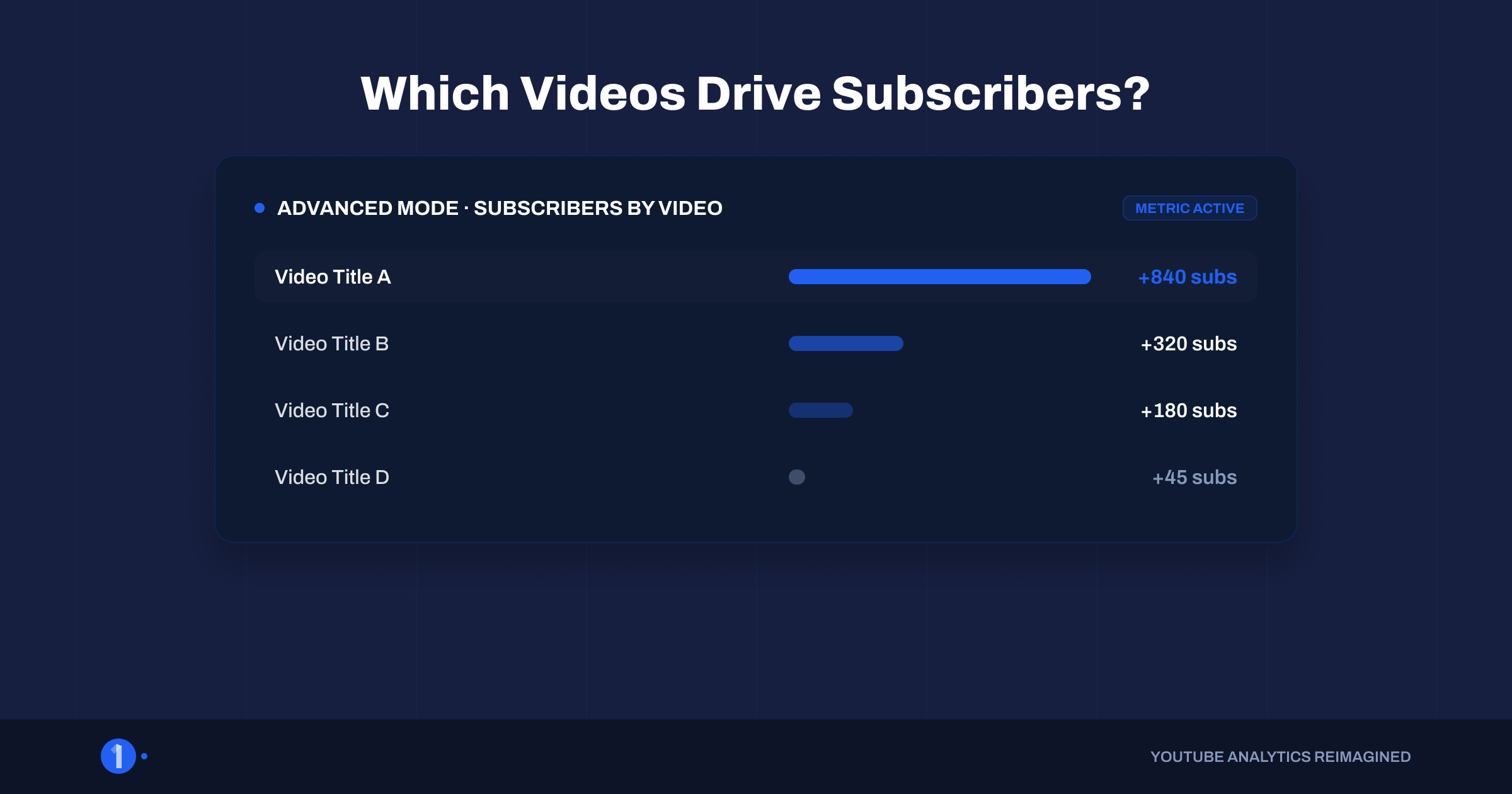
Subscriber data is only useful when it changes what you make next. The most useful report in Studio is not the subscriber list at all. It is the per-video subscriber conversion data, because it tells you which videos turn viewers into subscribers.
To find which videos convert viewers into subscribers:
- Open YouTube Studio and select Analytics.
- Click Advanced mode in the top right.
- Set the metric to Subscribers and view the breakdown by video.
- Sort descending. The top videos are your subscriber engines.
To see where people subscribe from:
- In Analytics, click See more on any card.
- Choose Subscription source from the dimension menu at the top.
- Read the split: watch pages, channel homepage, search, other channels, and external sites, per YouTube's subscription source docs.
Then act on it:
- Double down on your subscriber engines. If two videos drive most of your conversions, that format is your channel's growth lever. Make the next three videos in that lane.
- Fix the leaks. High views with low subscriber conversion usually means the video attracts the wrong audience or never gives a reason to subscribe. The reason viewers click subscribe is predictable psychology, not luck.
- Feed the top of the funnel. Subscriber conversion means nothing without clicks. If impressions are not turning into views, work on your click-through rate before anything else.
- Steal from proven winners. Your niche already contains videos that convert subscribers at 10x the normal rate. 1of10's outlier database finds them, and Tracked Channels alerts you when new ones appear.
Subscriber lists are a curiosity. Subscriber sources are a strategy. Spend your time on the second one, and if you want the full growth system around it, our complete guide on how to grow a YouTube channel puts every piece in order.
Want to see which videos are pulling subscribers in your niche right now? Try 1of10 free. You get outlier search, 3 tracked channels, and the Chrome extension without a card.
FAQ
Can you see who subscribed to you on YouTube?
Yes, partially. YouTube Studio's Recent Subscribers card shows subscribers from the last 28 days who set their subscriptions to public. Open Studio, find the card on your Dashboard, and click See all. Subscribers with private subscriptions, which is YouTube's default setting, are counted in your total but never shown by name.
Why can't I see all my subscribers?
YouTube sets every viewer's subscription list to private by default, and only viewers who manually switch to public appear on your Recent Subscribers list. YouTube also removes suspended and spam accounts from the list. That is why your visible list is always far shorter than your actual subscriber count. No setting on your side changes this.
Can you see when someone subscribed?
No. YouTube shows that someone subscribed within your selected timeframe, such as the last 7 or 28 days, but never an exact date or time for an individual subscriber. For timing data, use Analytics instead: the Subscribers chart shows exactly how many people subscribed each day, just without names attached.
How do I see my followers on YouTube on mobile?
Open the YouTube Studio app, go to the Dashboard tab, and scroll to the Recent subscribers card, then tap See all. The card only appears when you have new public subscribers in the current window. If it is missing, nobody public has subscribed recently, and it returns automatically when someone does.
Can third-party apps show private subscribers?
No, and every app claiming otherwise is a scam. Private subscription data is not available through YouTube's API, so no external tool can access it. Tools asking you to sign in with your Google account to "reveal hidden subscribers" are phishing for channel access. Legitimate tools like Social Blade and 1of10 only use public data.
Can you see who unsubscribed from your channel?
No. YouTube Studio shows subscribers lost as a daily number in Analytics under Advanced mode, so you can spot when an exit happened and which video it followed. It never reveals who left. If you see a sharp loss spike, check what you published that day before assuming a purge.